Event log
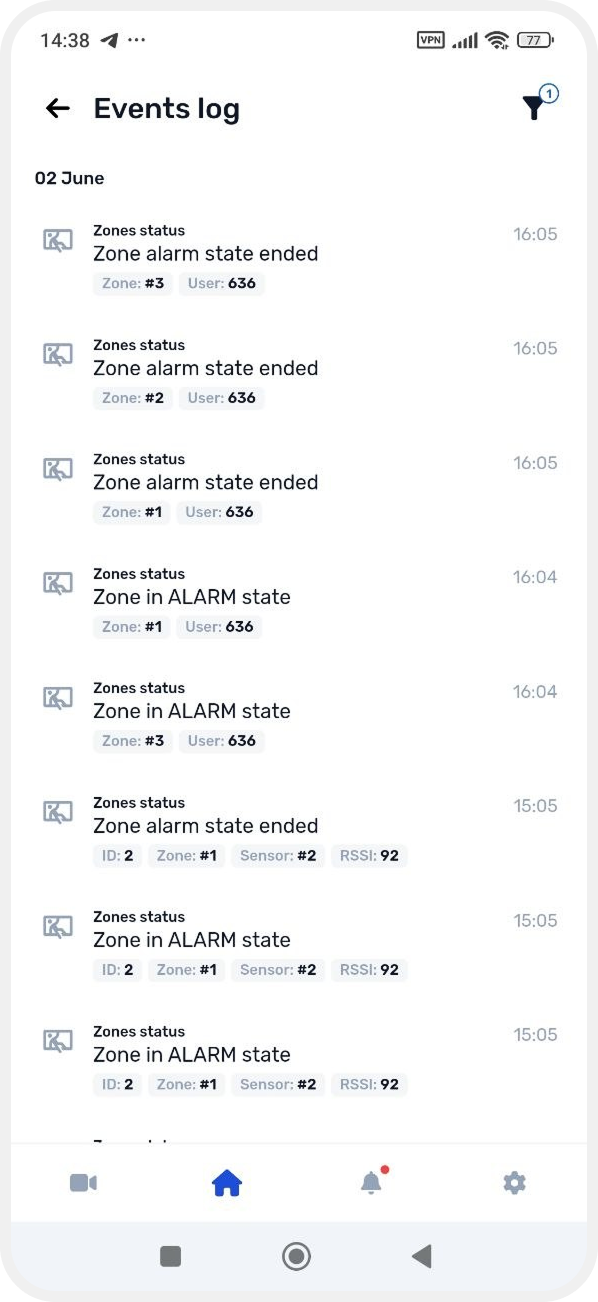
The Event log is a detailed history of GARM system activity for a site.
The log helps you:
— track what happened at the site
— check the operation of devices and sensors
— find the cause of an alarm or fault
— provide information to technical support for diagnostics
To open the Event log, go to the main screen of the site, open the Additionally section, and select the Event log tab.

For each event, the following information is displayed:
— event type
— device or sensor name
— date and time
— short event description

For example, the log may contain:
• Sensor connection loss
• Alarm or device trigger events
• Temperature changes
• Site arming and disarming
• Device connection and disconnection events
• System and technical events
• SIM card and connection status changes
Detailed event information
Tap any event in the list to open detailed information.
The event card may display:
— device ID
— sensor name and type
— connection parameters
— system service statuses
— additional technical data
For example, if the system loses connection with a sensor, the log will show:
— which sensor lost connection
— the event time
— the device identifier
— technical diagnostic information

Technical information
Technical data in JSON format is displayed for system events.
This information may include:
— connection parameters
— network status
— technical device identifiers
— service codes and statuses
This information is mainly intended for technical support specialists and engineers.
If you experience an issue, you can:
1. Open the required event
2. Take a screenshot of the information or copy it 
3. Send it to technical support
Using this data, specialists can identify the cause of the issue more quickly and help resolve it.

Event filter
Use the filter to quickly find the required events.

In the filter, you can select event types:
• Site status — arming/disarming and security mode changes
• Zone status — changes related to individual sensor groups
• Malfunctions— device or system errors
• System events — updates, restarts, and settings changes
• Temperature sensors — temperature readings and alerts
• Access keys — electronic key usage
• SMS messages — notifications sent through the SIM card
• Wireless sensors — events from wireless radio sensors


Enable the required switches next to the event types and tap Save — the event list will update automatically.
If you want to see all events again:
1. Open Event filter
2. Tap Reset filters
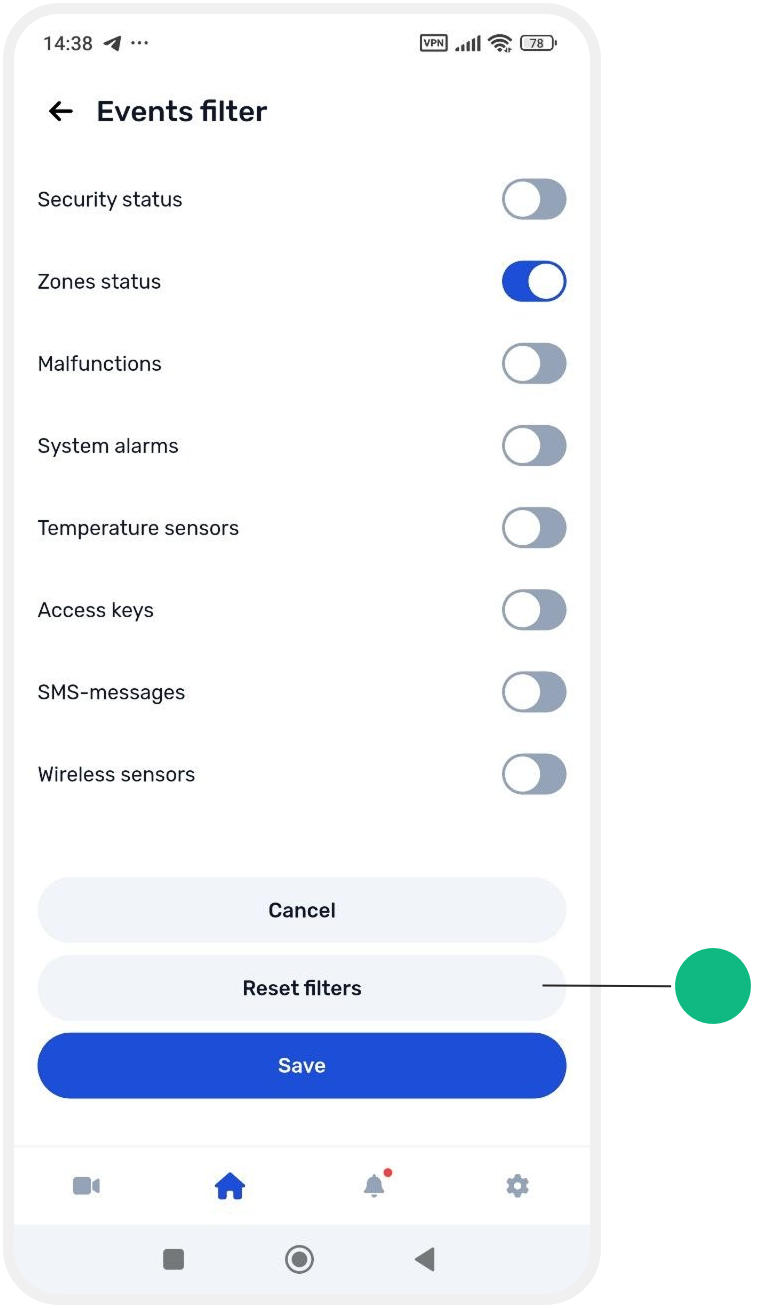
After that, the full event history will be displayed again.