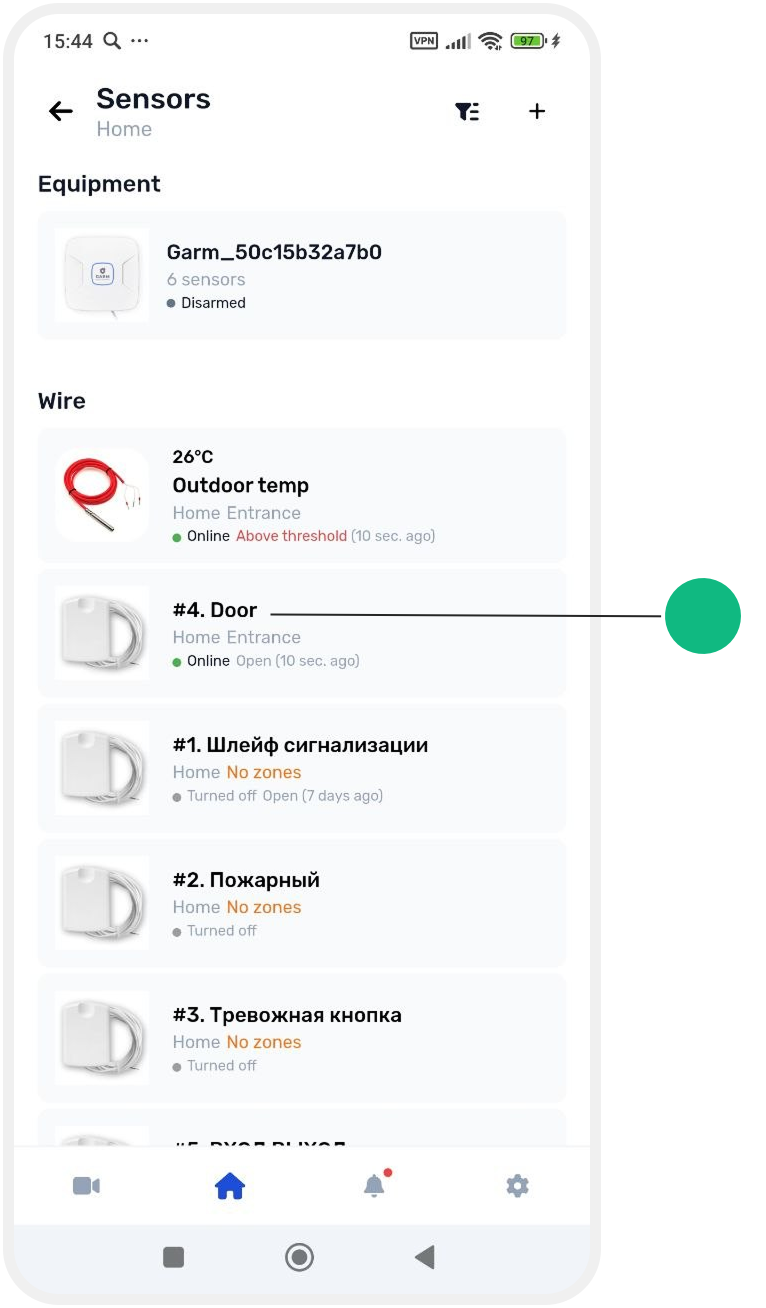
How to add a wired sensor in the app
After physically connecting a wired sensor to the hub, you need to configure it in the app.
Wired sensors are connected through an alarm loop, which is the communication line between the sensor and the hub.
In the app, each alarm loop is displayed as a separate wired sensor (input).
Adding a wired sensor
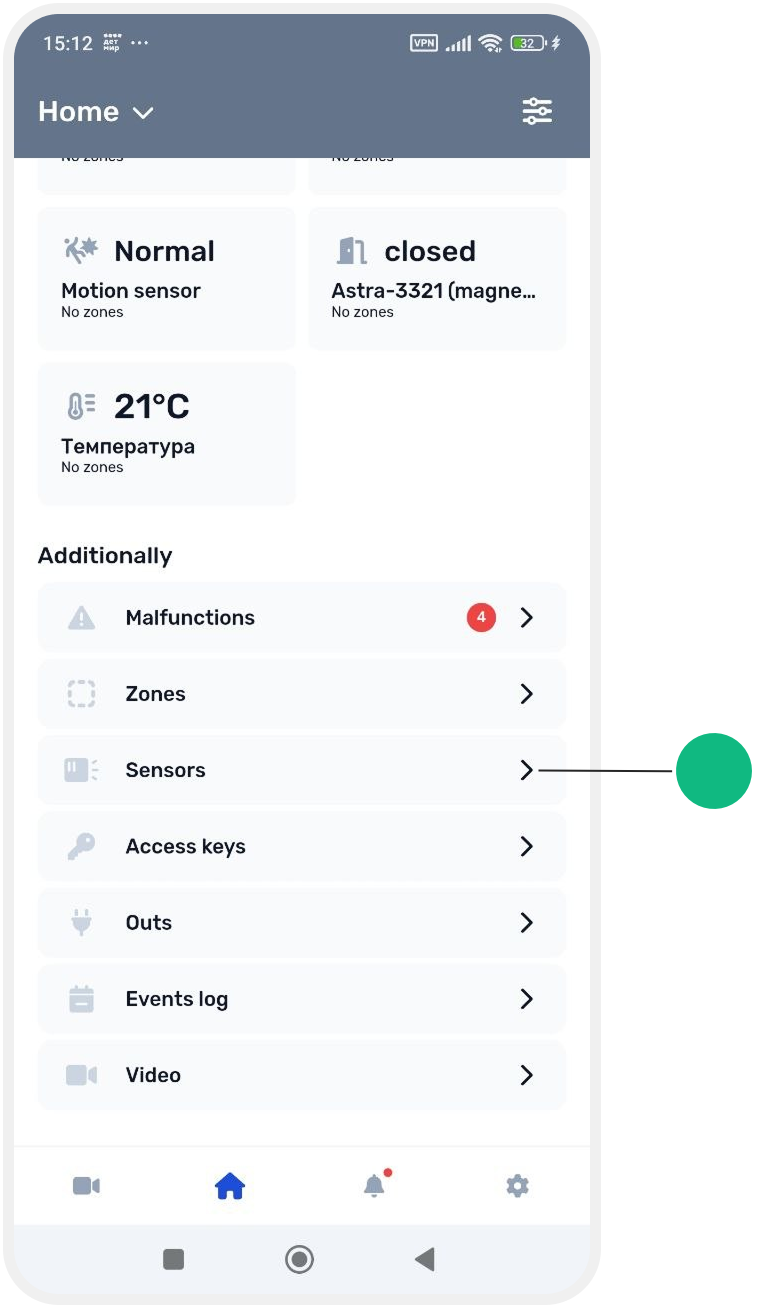
1. On the main site screen, open the Sensors tab
2. In the Wired sensors section, select an available input (alarm loop) to configure
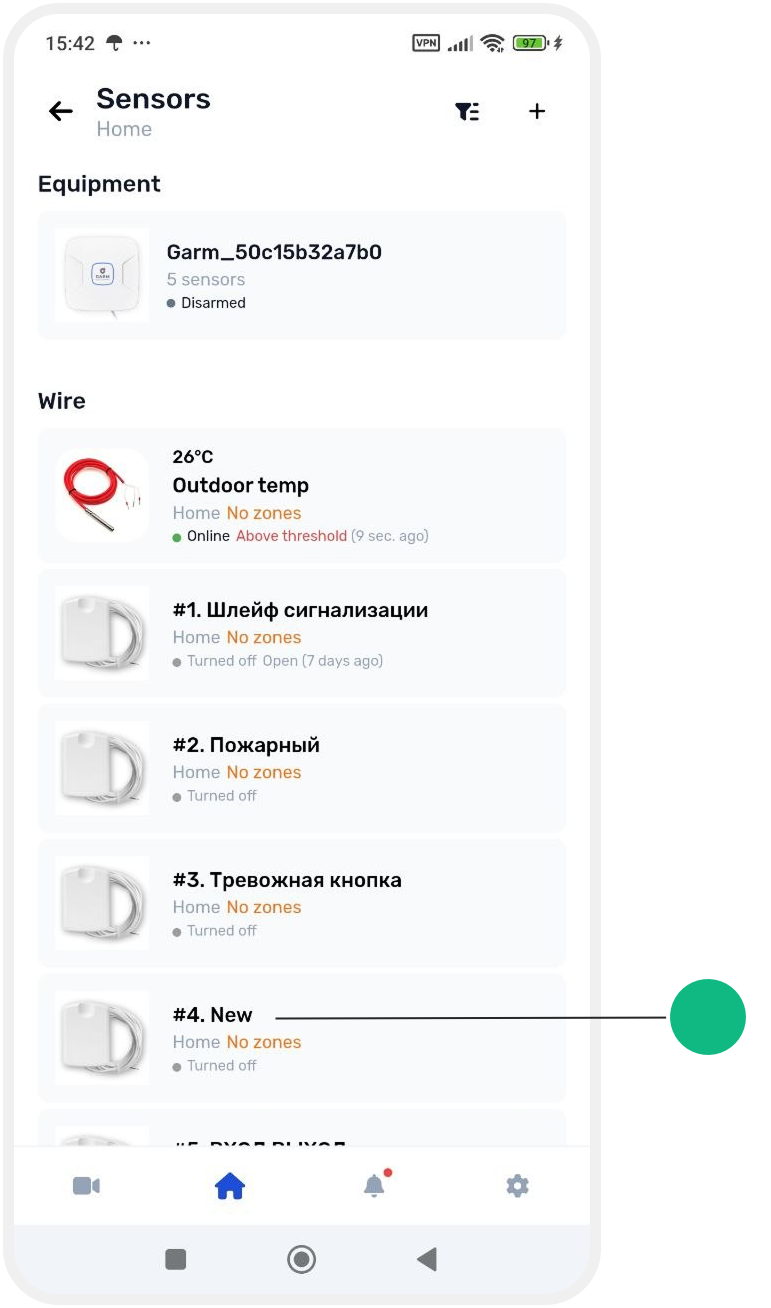
3. The wired sensor card will open

Configuring the sensor
Enable the sensor
To activate the alarm loop in the system, turn on the Enable the sensor loop switch.

Sensor type
Select the type of connected sensor.


Sensor name
Enter a name for the device.


Assigning a zone
Select the zone to which the sensor will belong.
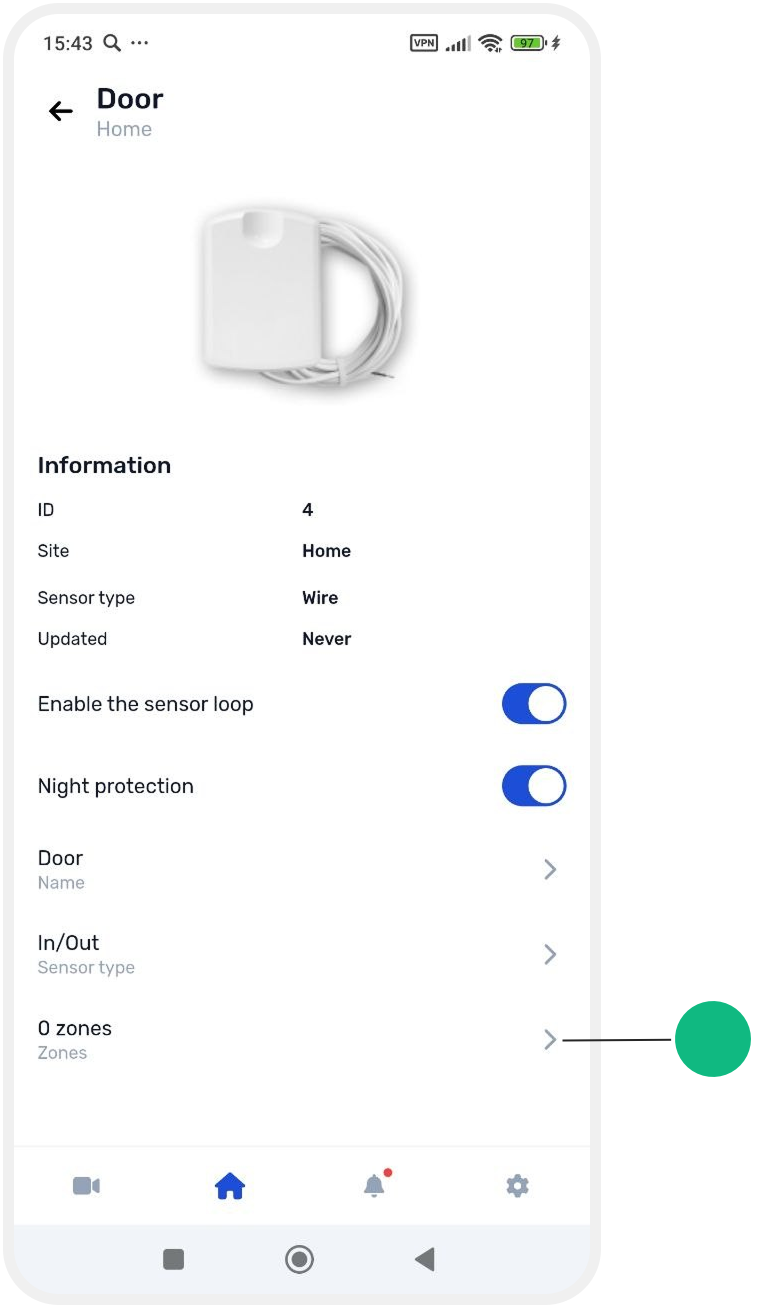
If the required zone already exists, select it from the list.
If the zone has not been created yet:
1. In the zone selection window, tap the + button in the upper-right corner


2. Create a new zone and continue the setup process

After saving the settings, the sensor will be added to the system and will begin operating in the selected zone.