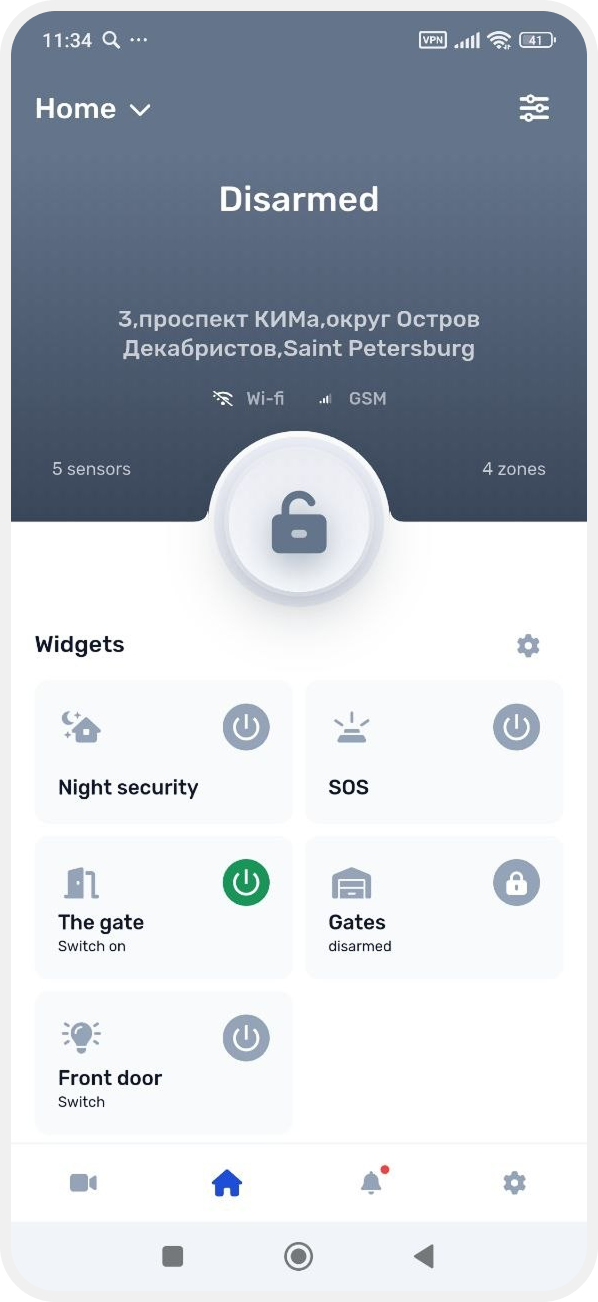
How to add an output control widget
The output control widget lets you quickly manage connected devices from the main Site screen — such as locks, lighting, sirens, gates, or other equipment.
1. On the main site screen, tap the gear icon above the pinned widgets

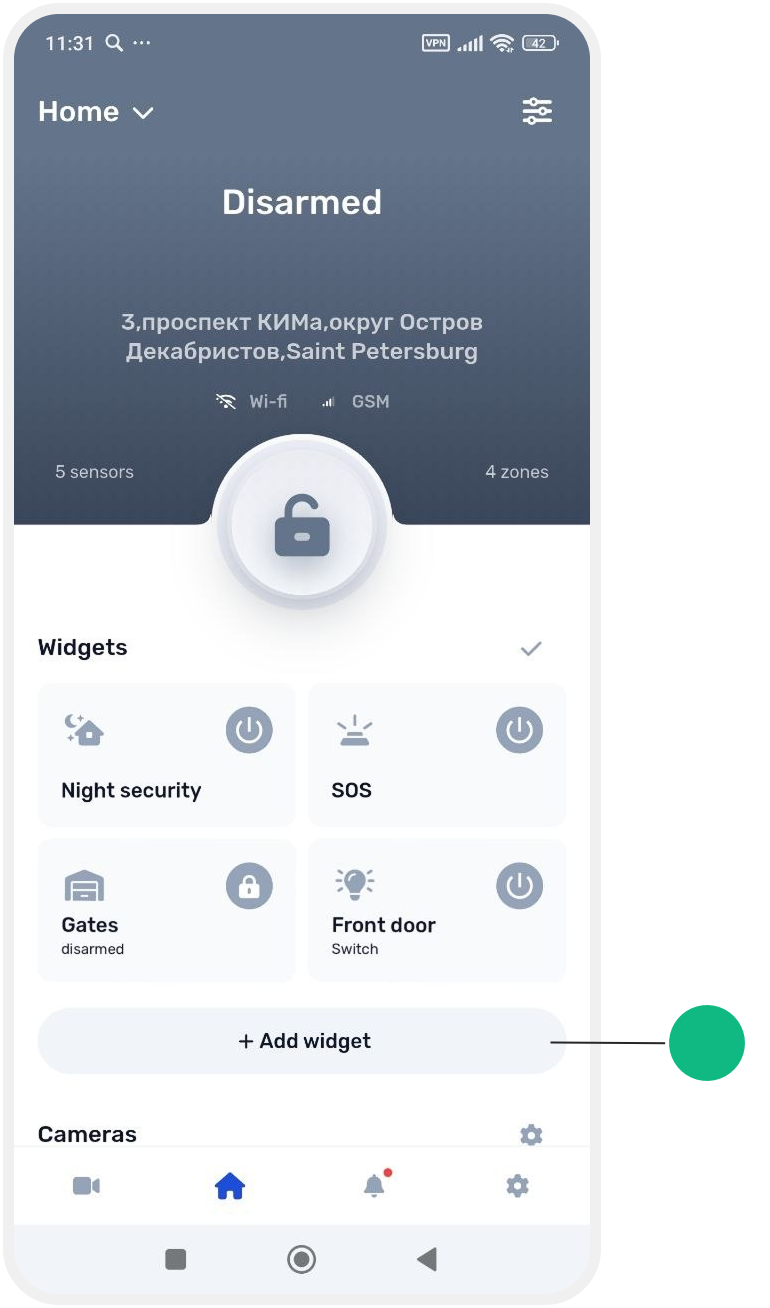
2. Tap Add widget
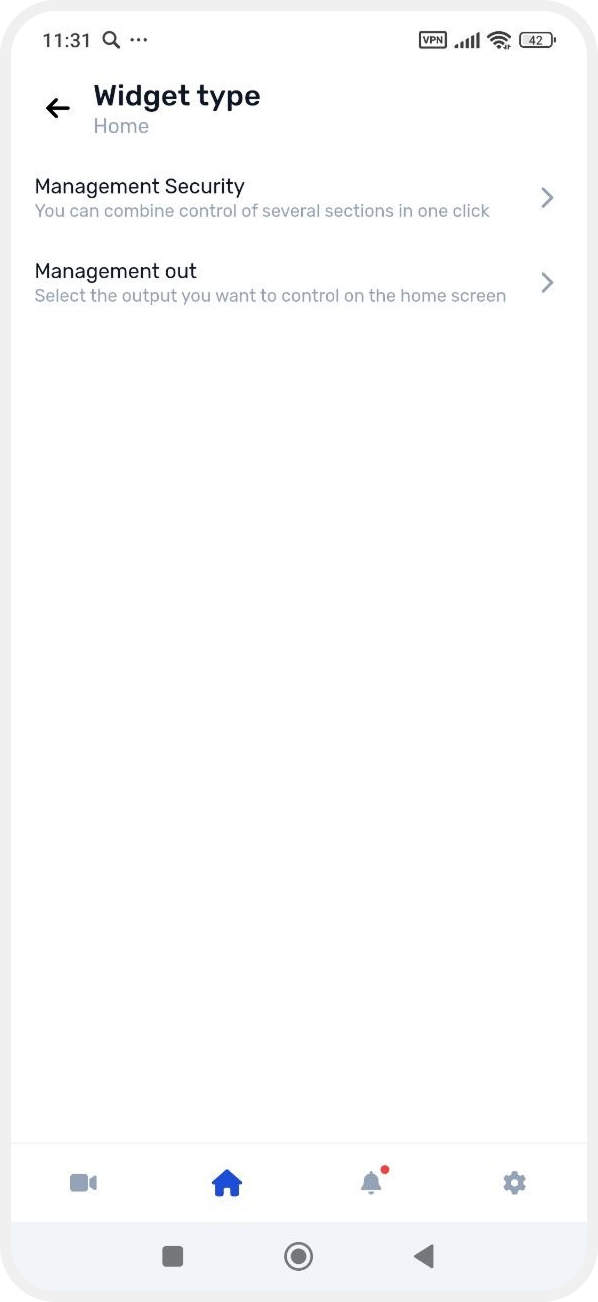
3. From the list, choose Management output
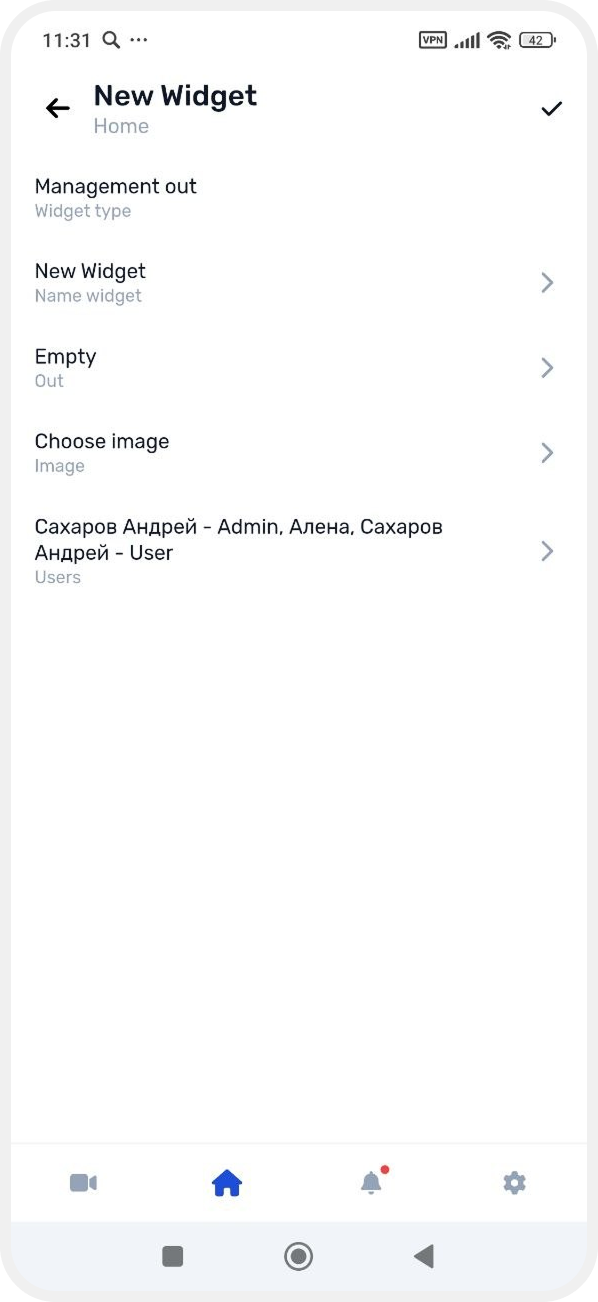
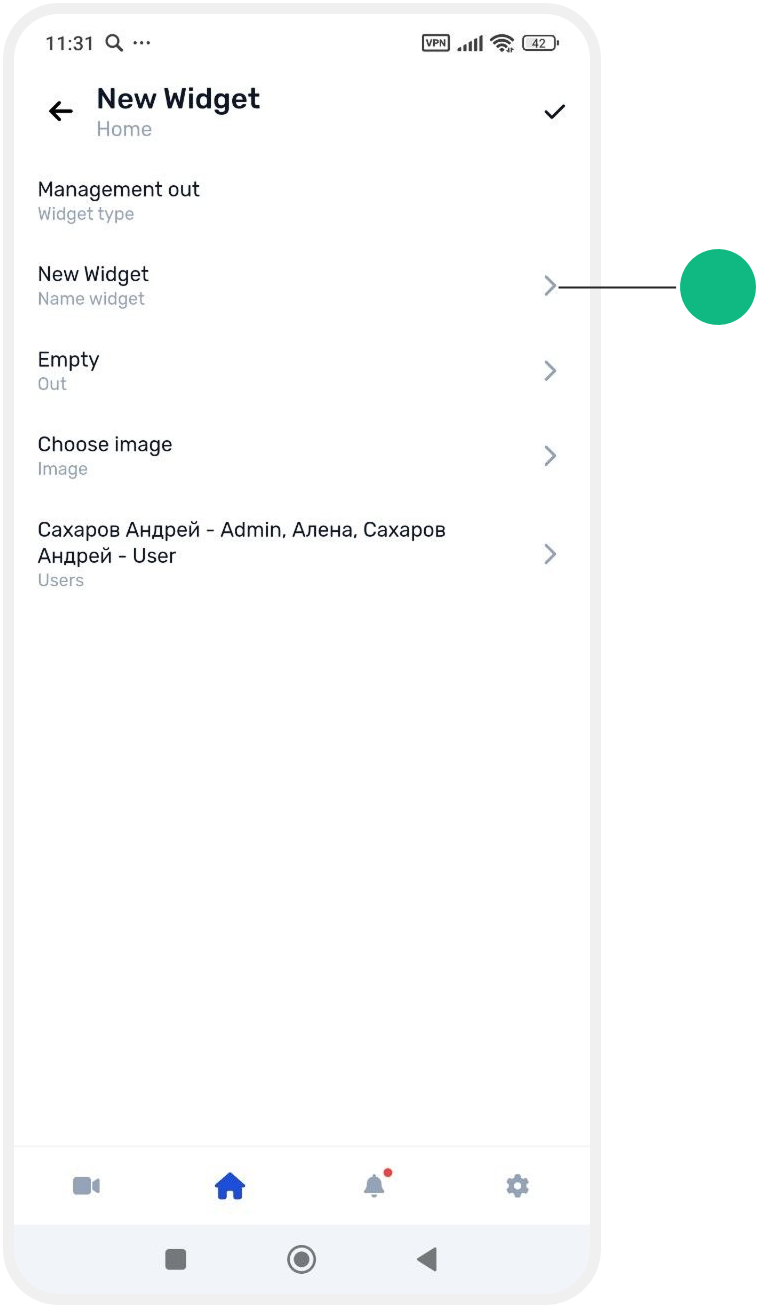
4. You will be taken to the widget setup screen:
-
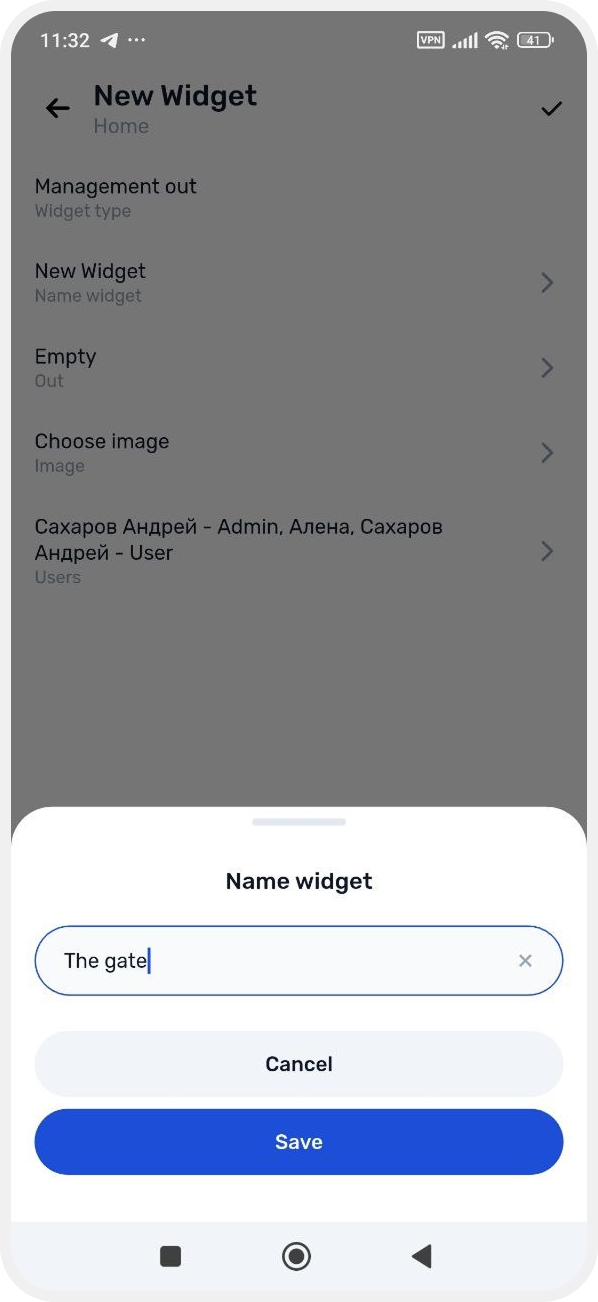
Name — enter a widget name
-
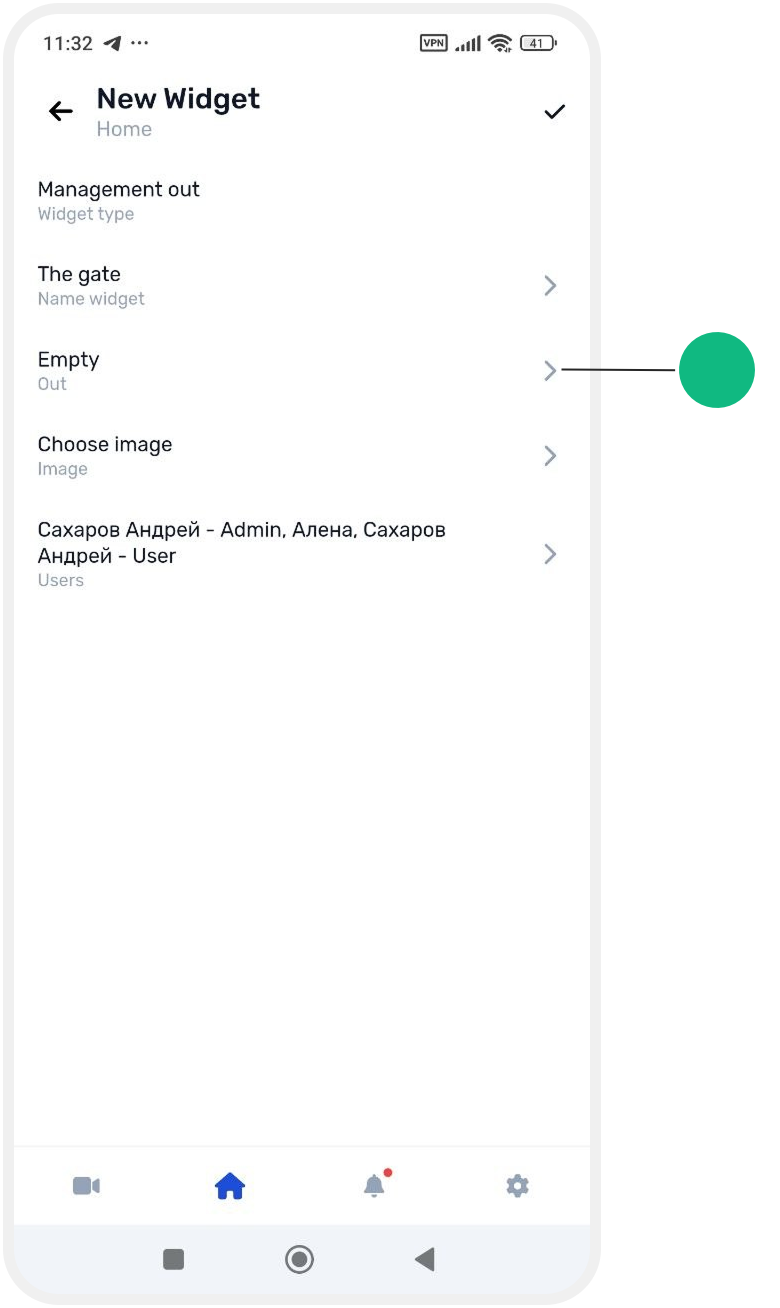
Output — select the output you want to control, then tap the checkmark in the top right to save
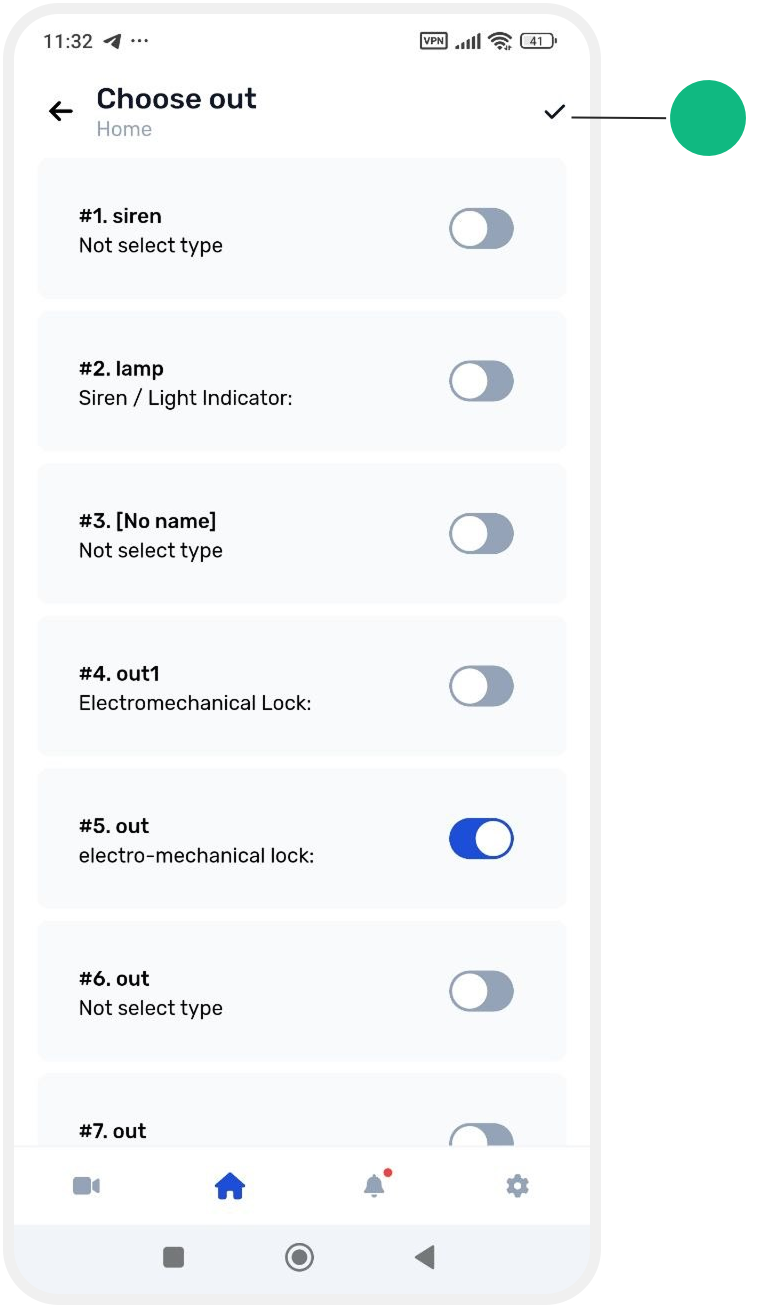
After selecting the output, choose its type:
-
Select the device type from the list
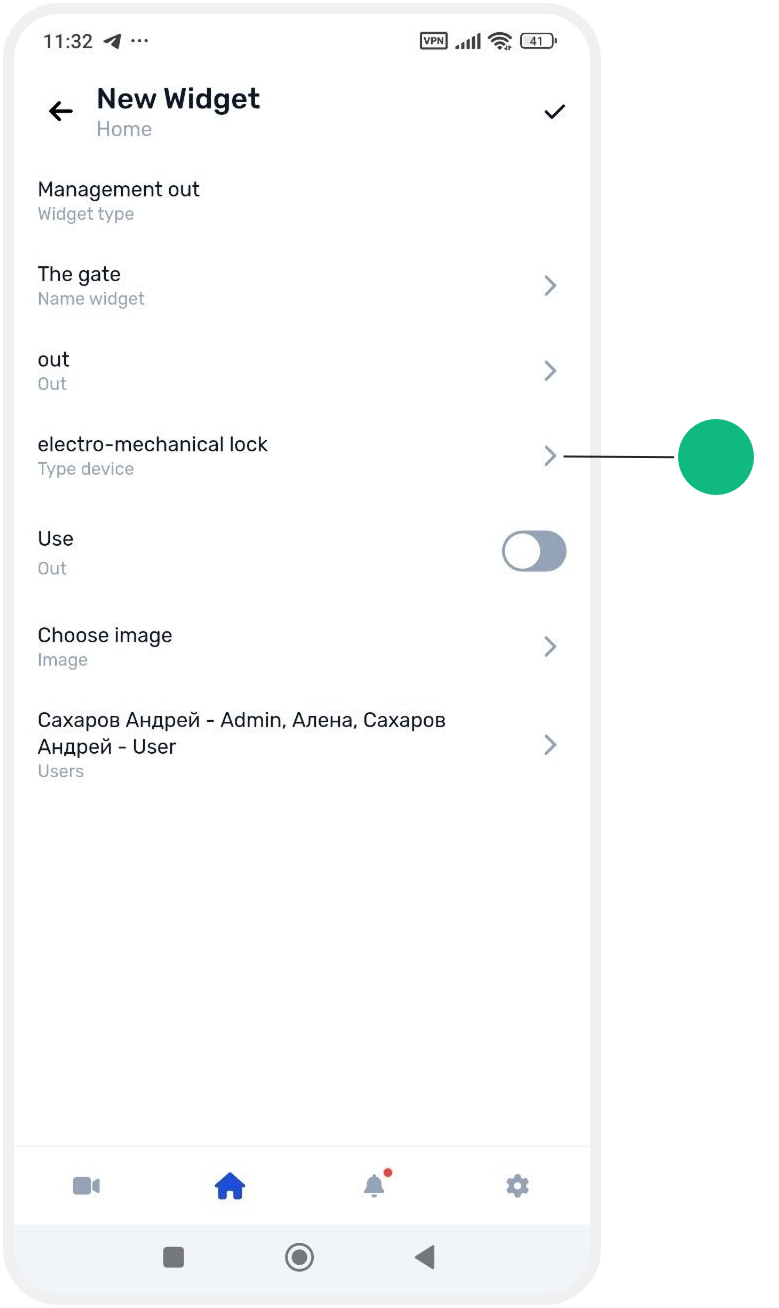
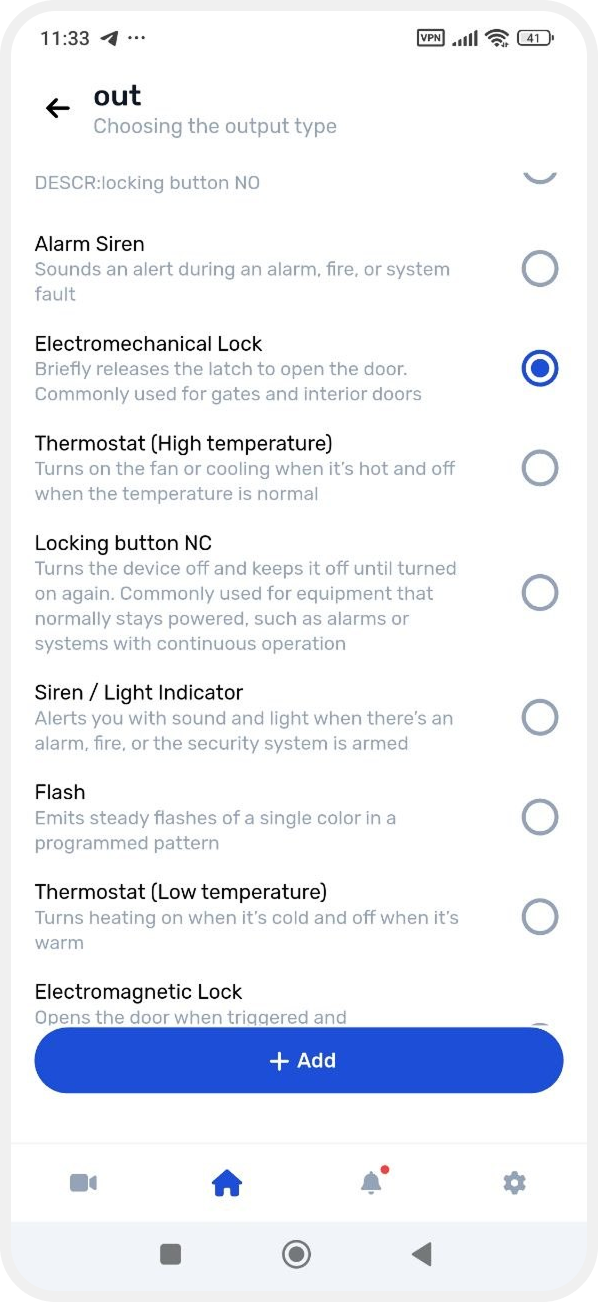
3. The new type will appear in the list and can be selected
-
Icon — choose an icon for the widget and confirm with the checkmark
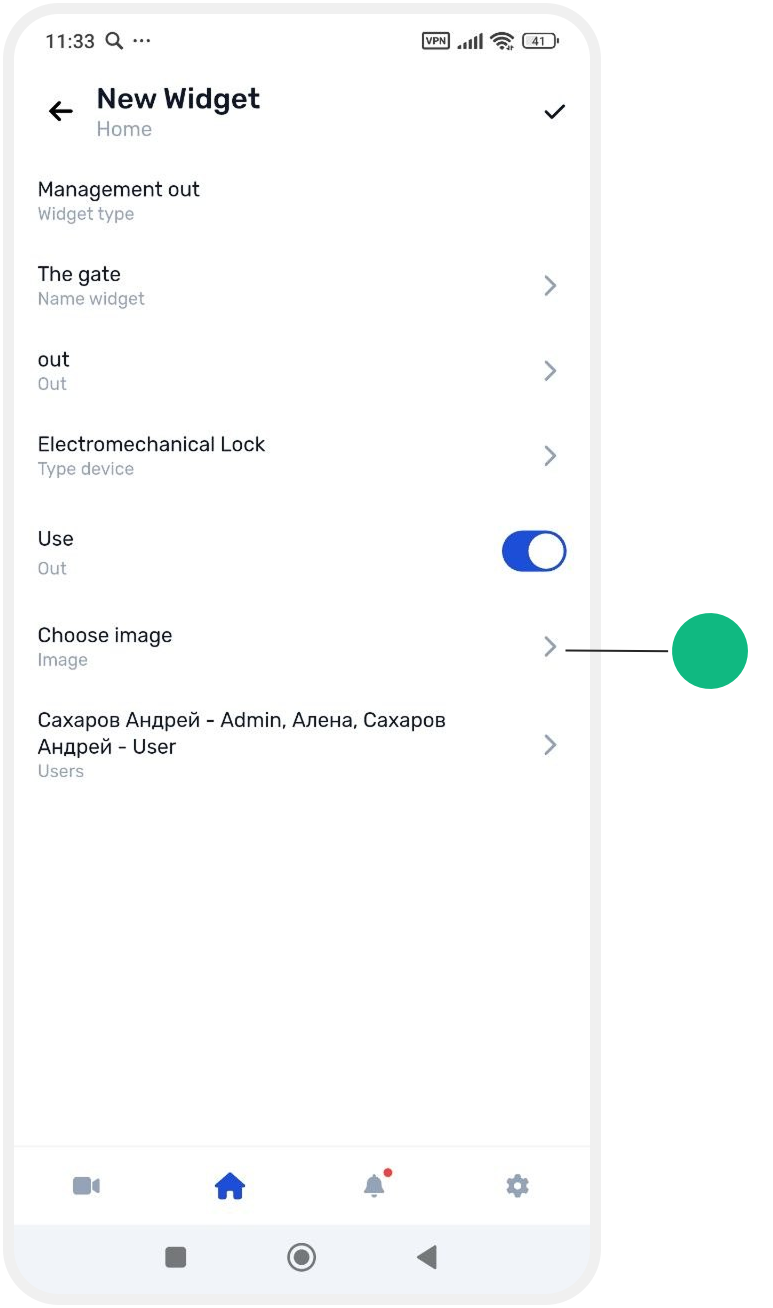
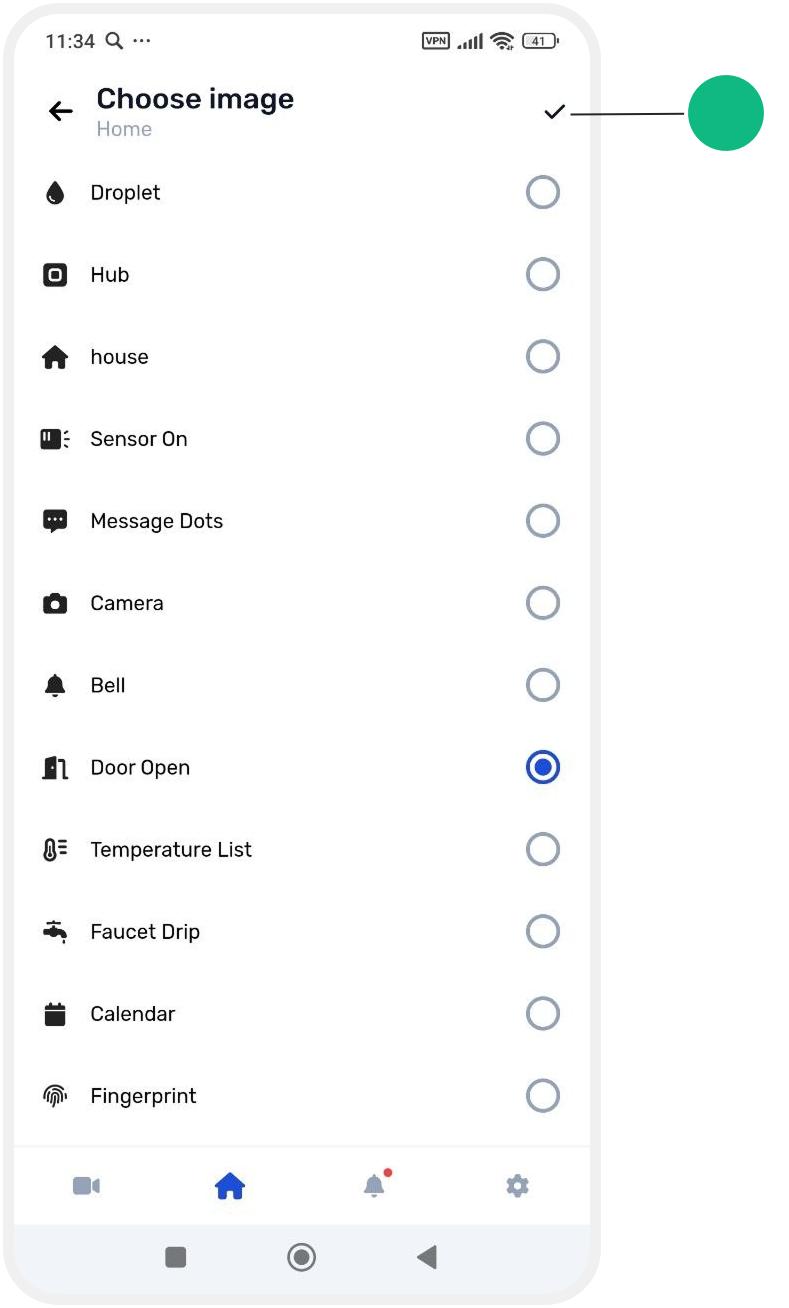
-
Access — select which users can use this widget
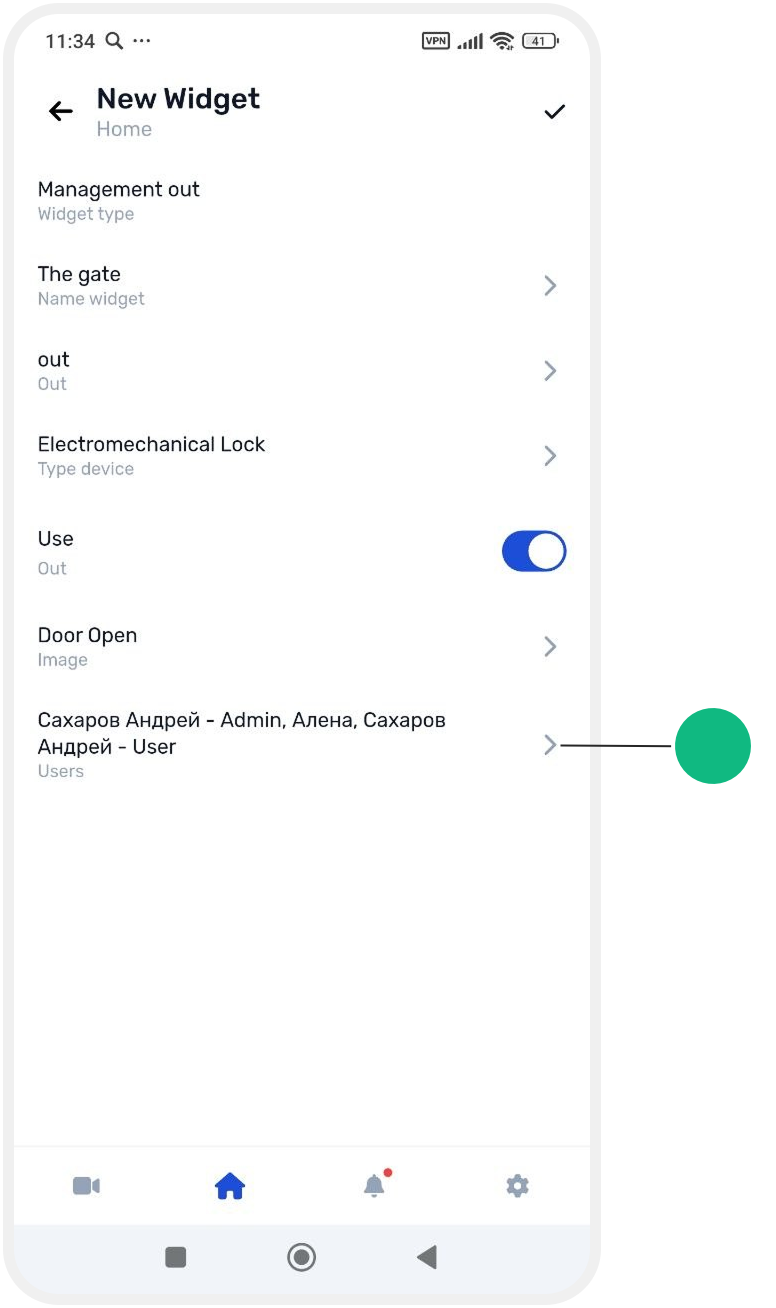

5. Tap the checkmark in the top right corner to save all settings
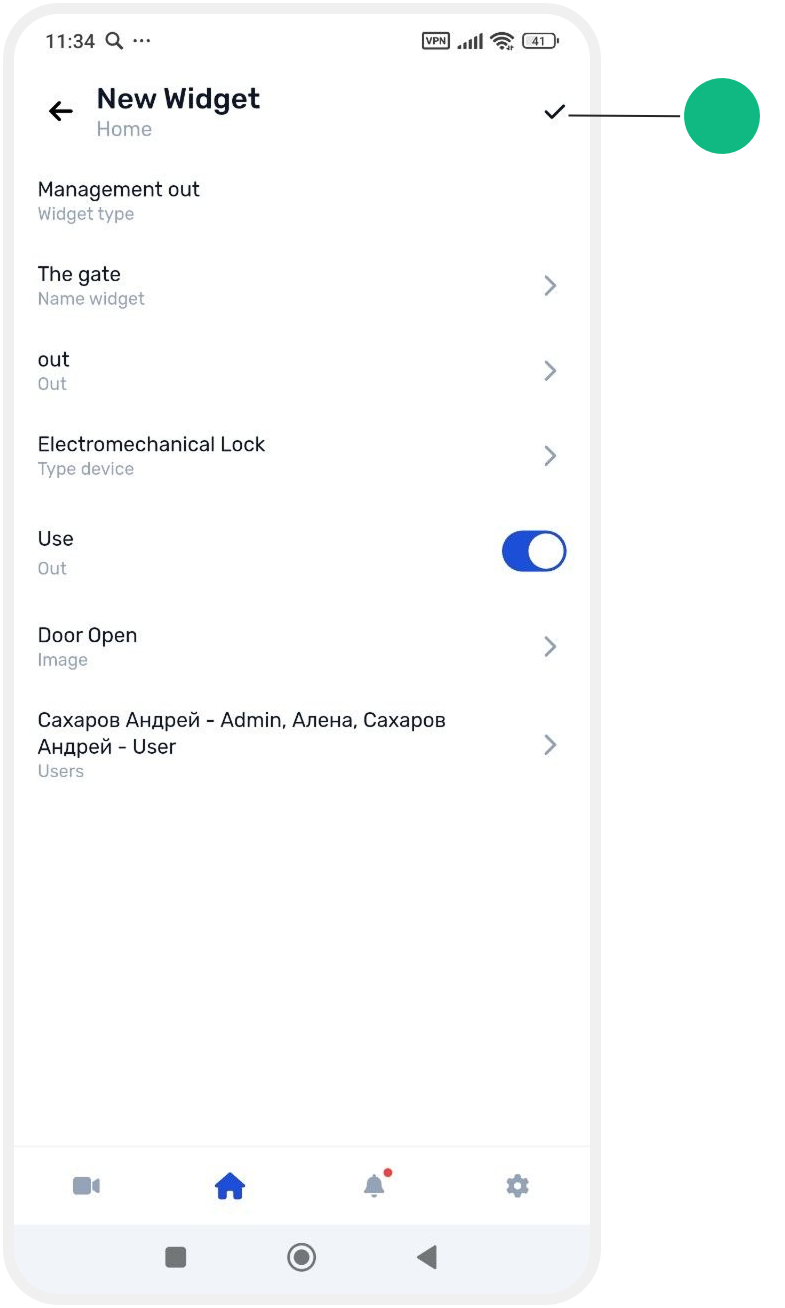
6. Confirm by tapping the checkmark next to widgets
The widget will now appear on the main site screen, allowing quick control of selected outputs.