Managing sensors
All added sensors are displayed in the Sensors tab on the main site screen.
Sensor list
1. Go to the Sensors tab on the main site screen
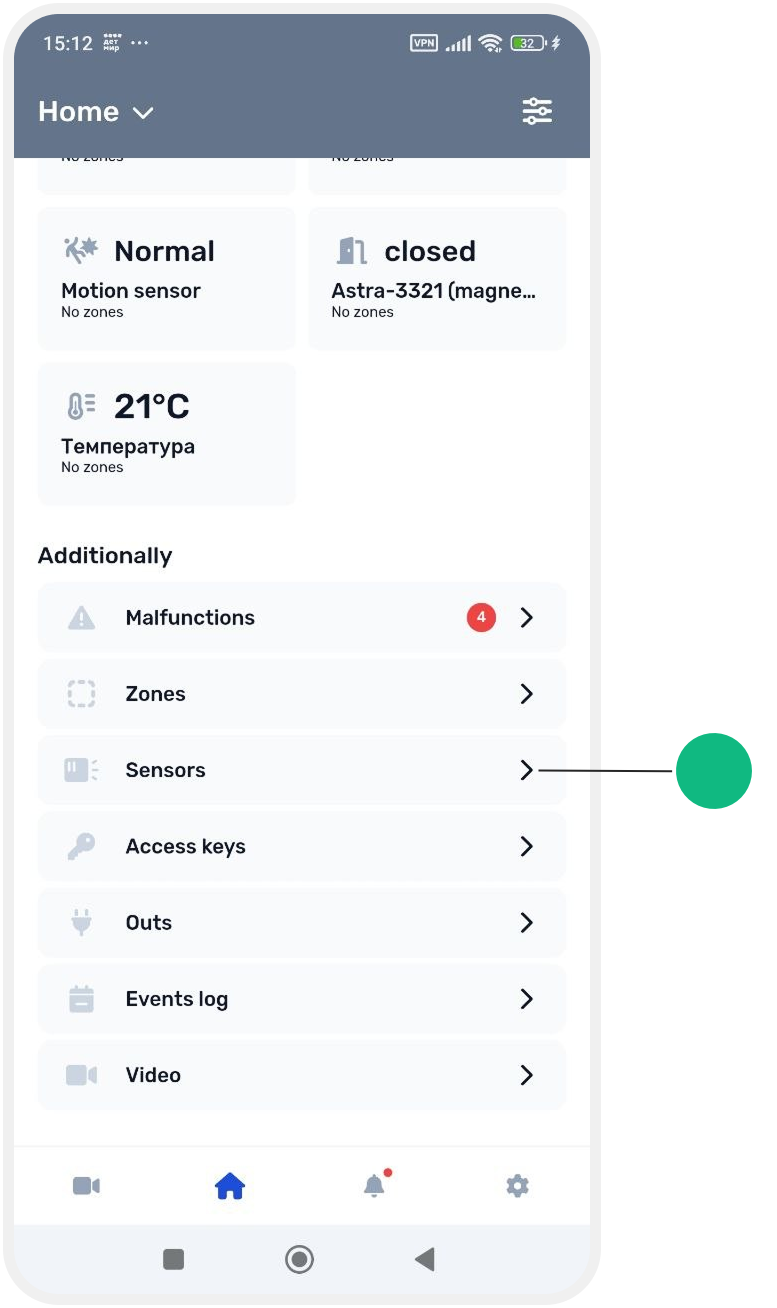
2. A list of all added sensors will open
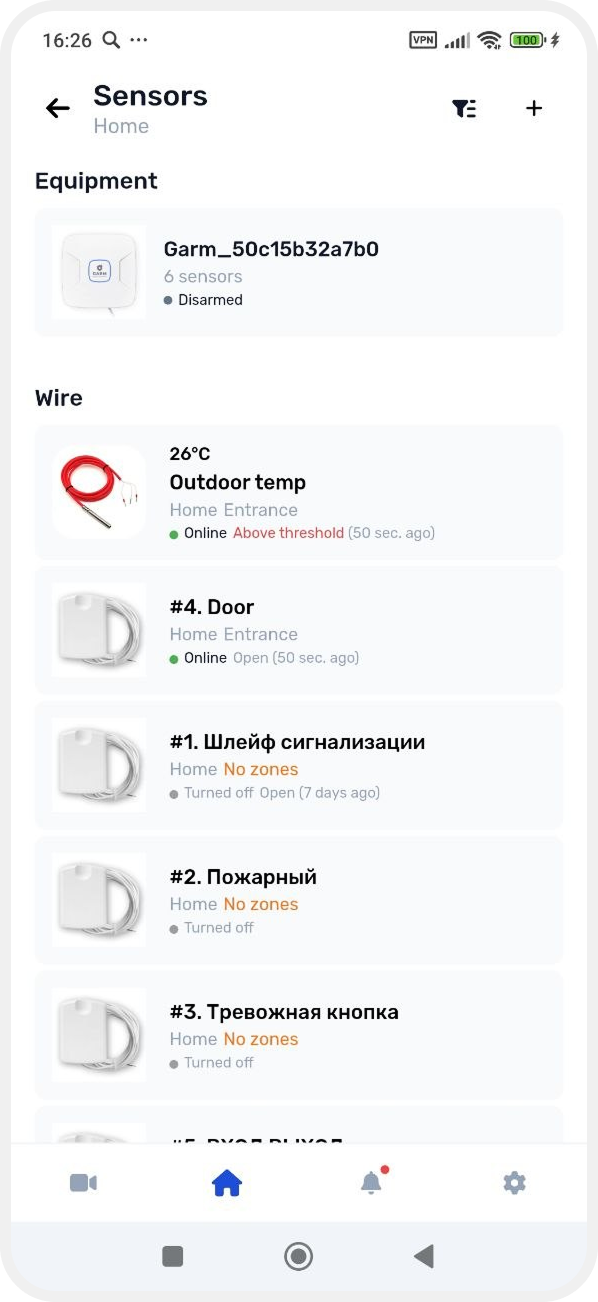
The list includes:
-
wireless sensors
-
wired sensors
-
temperature sensors
-
child sensors and other devices
Sensors that are not assigned to a zone may also appear in the list.
If a sensor has been added but not yet assigned to a zone, you can do it later.
How to move a sensor to another zone
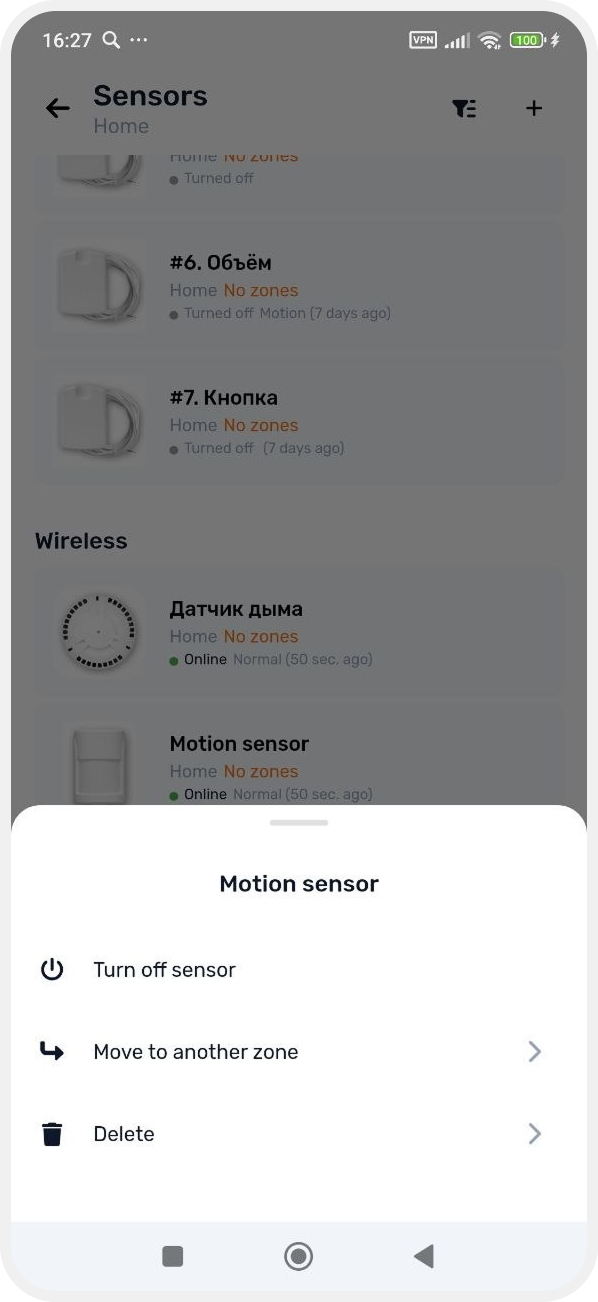
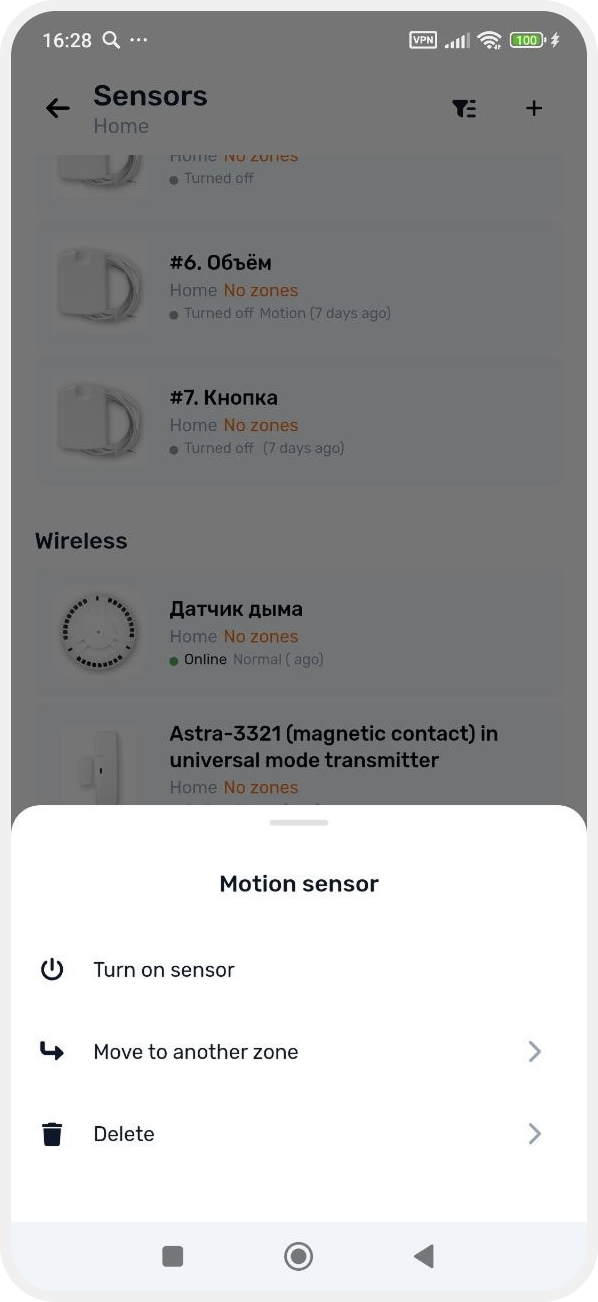
1. Press and hold the required sensor in the list
2. In the menu, select Move to another zone
3. Choose the target zone using the toggle
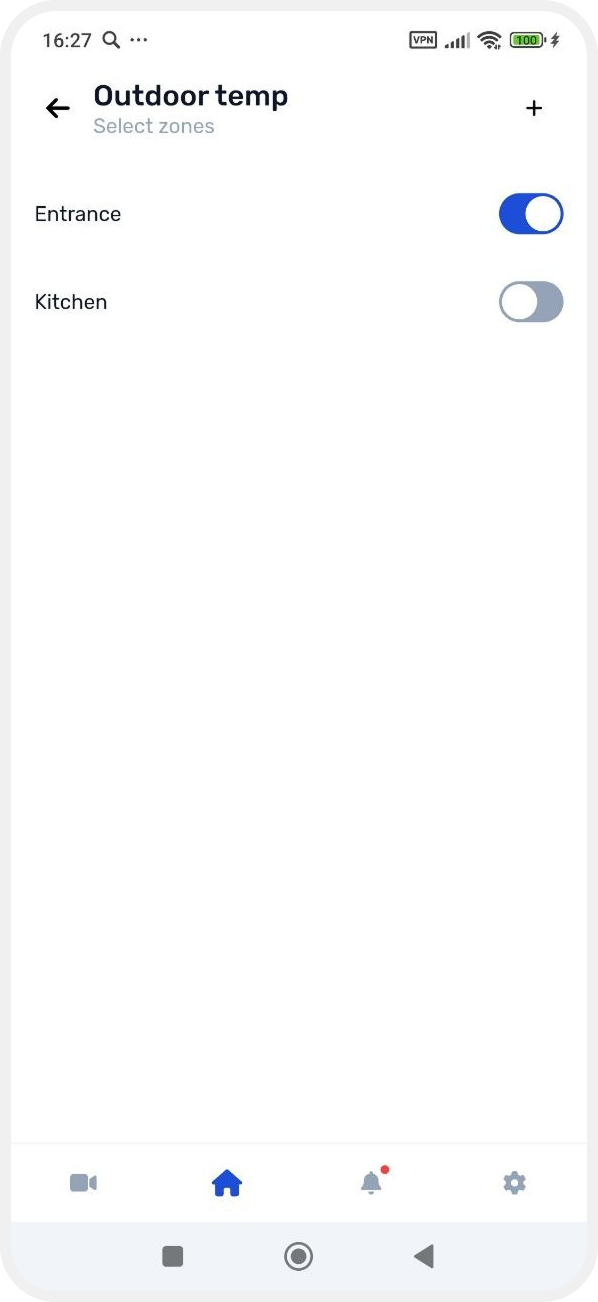
If the required zone does not exist:
-
tap the + button in the top right corner
-
create a new zone


After that, the sensor will be moved to the selected zone.
How to enable or disable a sensor
Via sensor card
Turn on the switch Enable sensor.

Via sensor menu
1. Press and hold a sensor in the list
2. Select:
-
Turn on sensoror
-
Torn off sensor
The option depends on the current sensor state.
Display sensor data on the main site screen
For some sensors, you can display readings directly on the main Site screen (for example, temperature or sensor status).
How to enable display
1. Open the sensor card
2. Enable Display indicators on site page
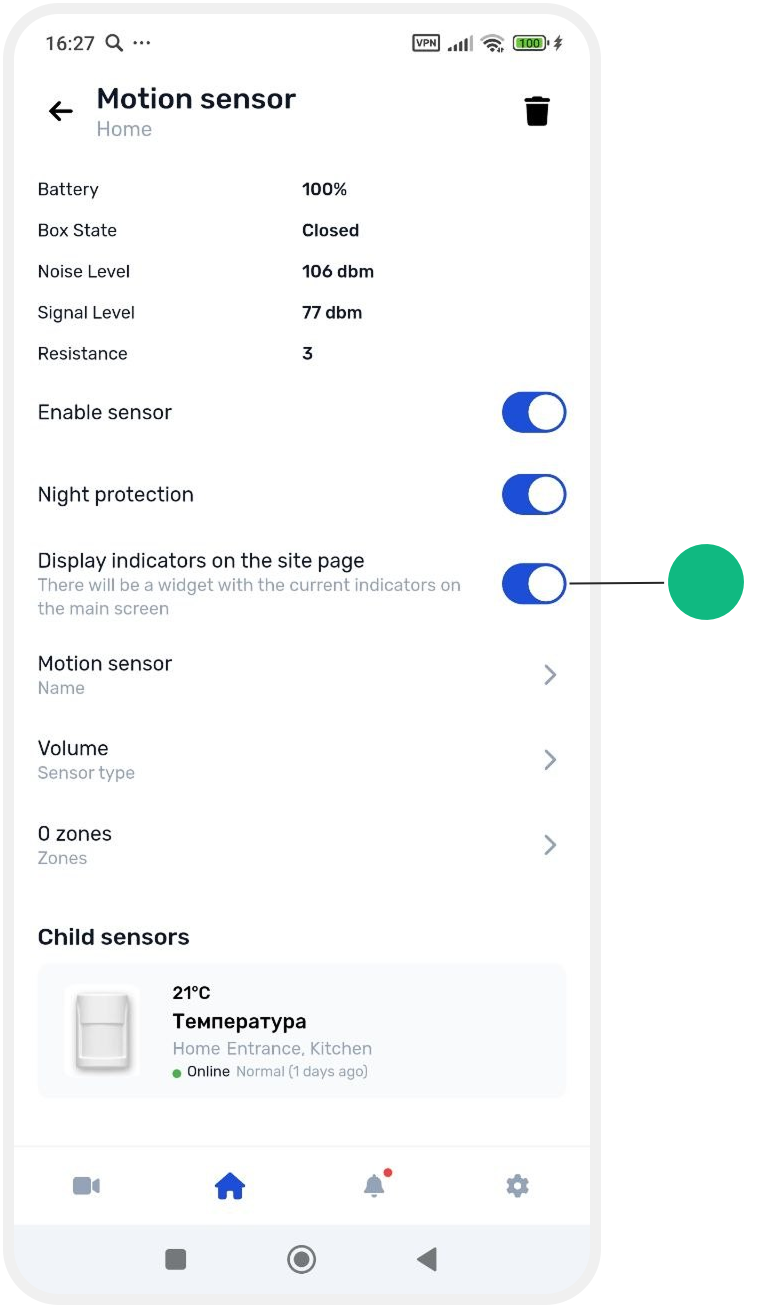
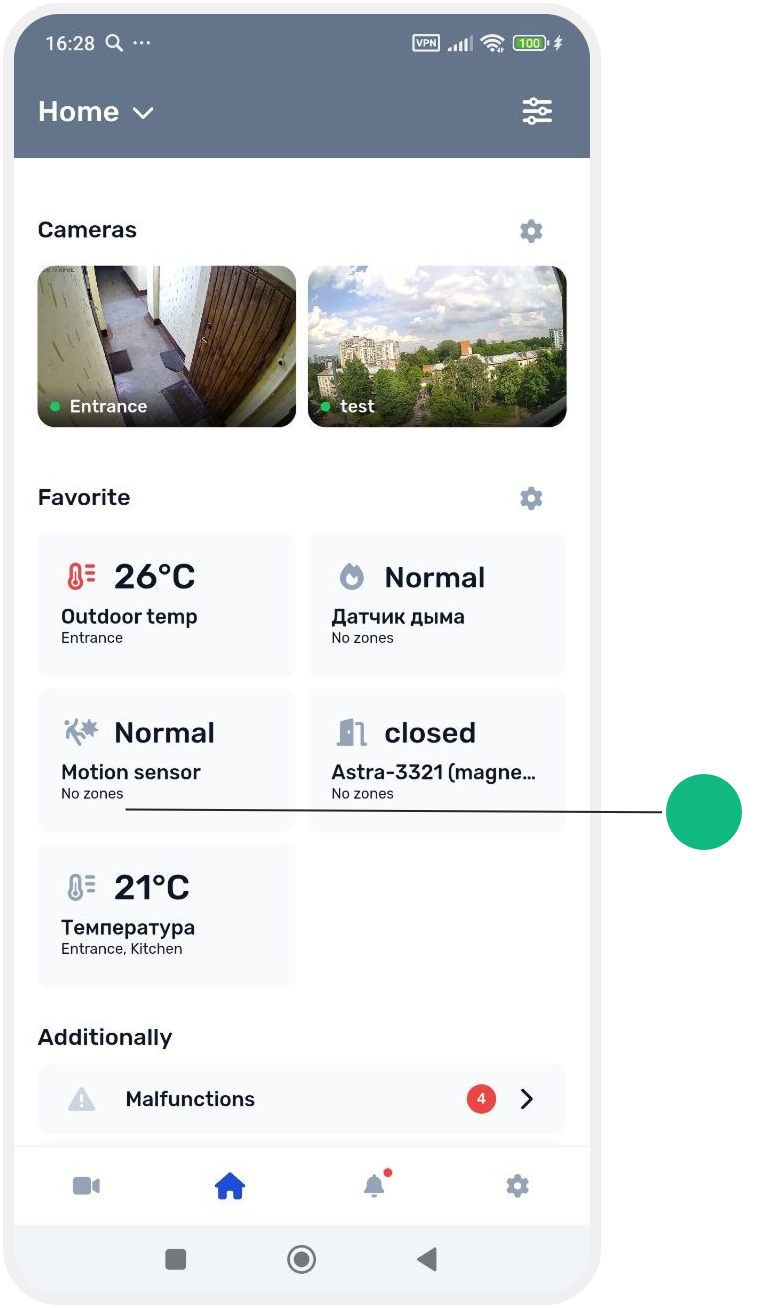
After that, sensor data will appear on the main site screen in the Favorites section.
By tapping the value, you can quickly open the sensor details.
How to delete a sensor
You can delete a sensor in two ways.
Via sensor card
1. Go to the Sensors tab
2. Open the sensor card

3. Tap the delete icon  in the top right corner
in the top right corner4. Confirm deletion
Via sensor list
1. Press and hold a sensor in the list
2. Select Delete
After that, the sensor will be removed from the system.