Viewing all devices and sensors
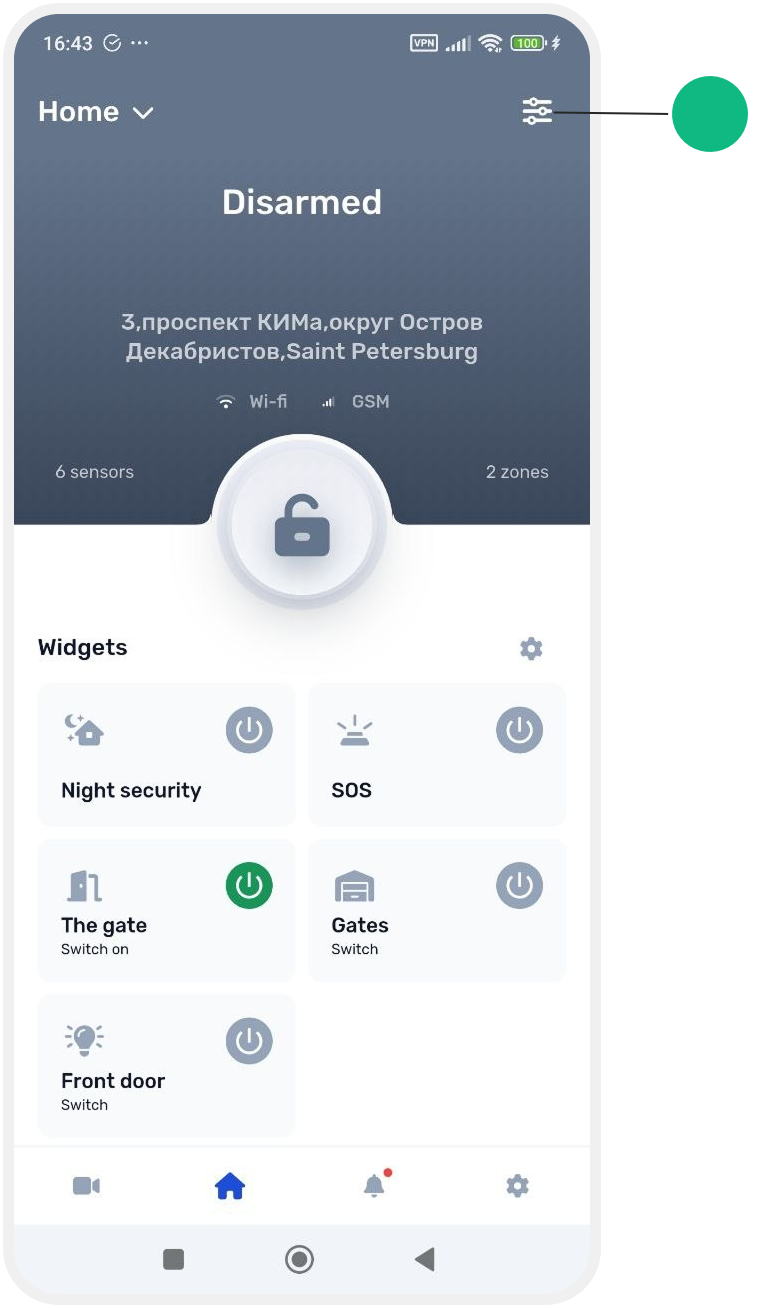
How to open devices
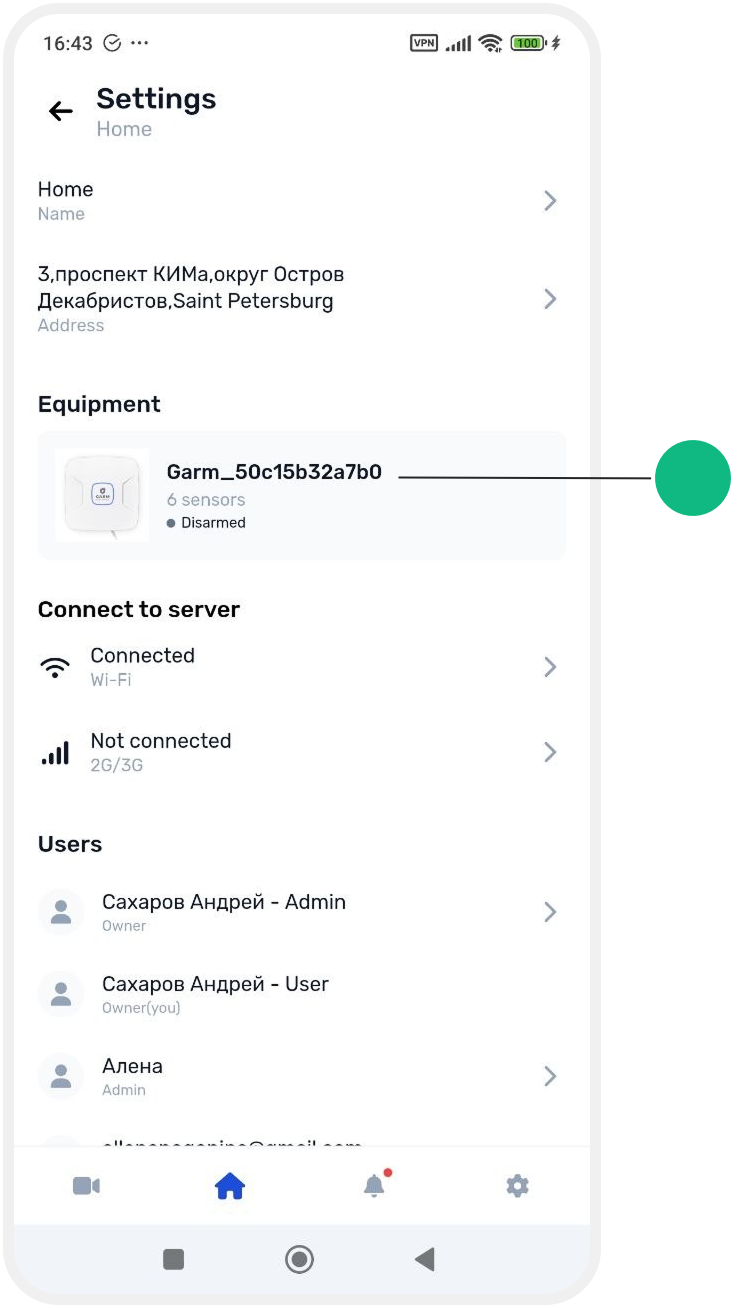
1. Go to Site settings
2. Open the hub card
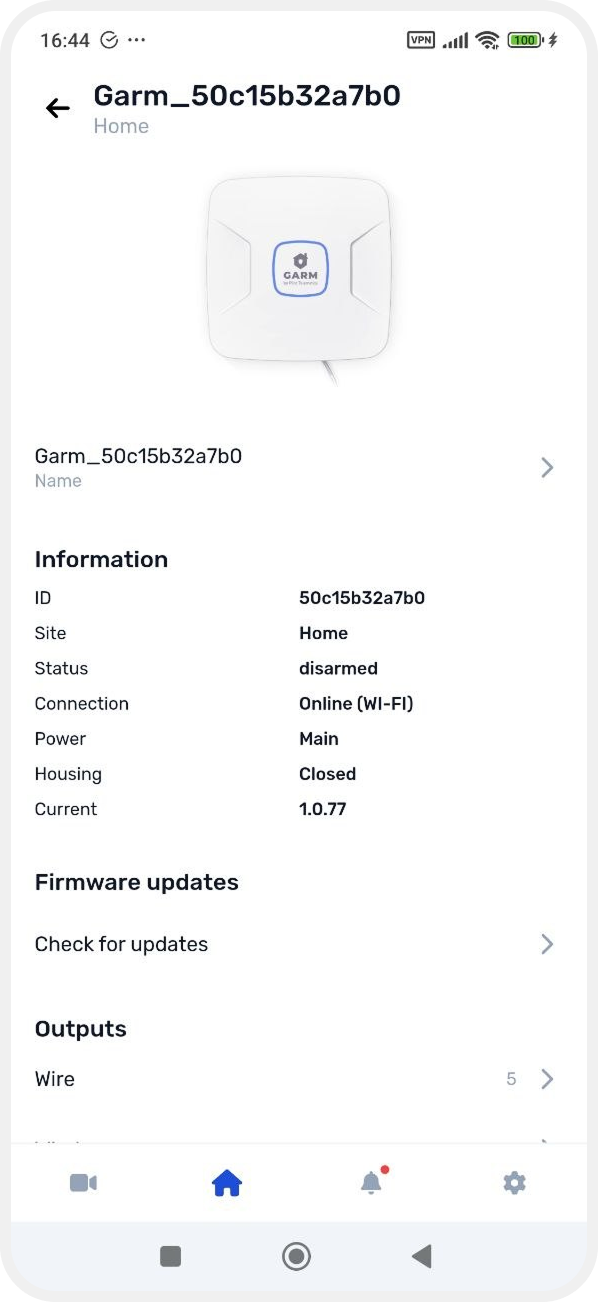
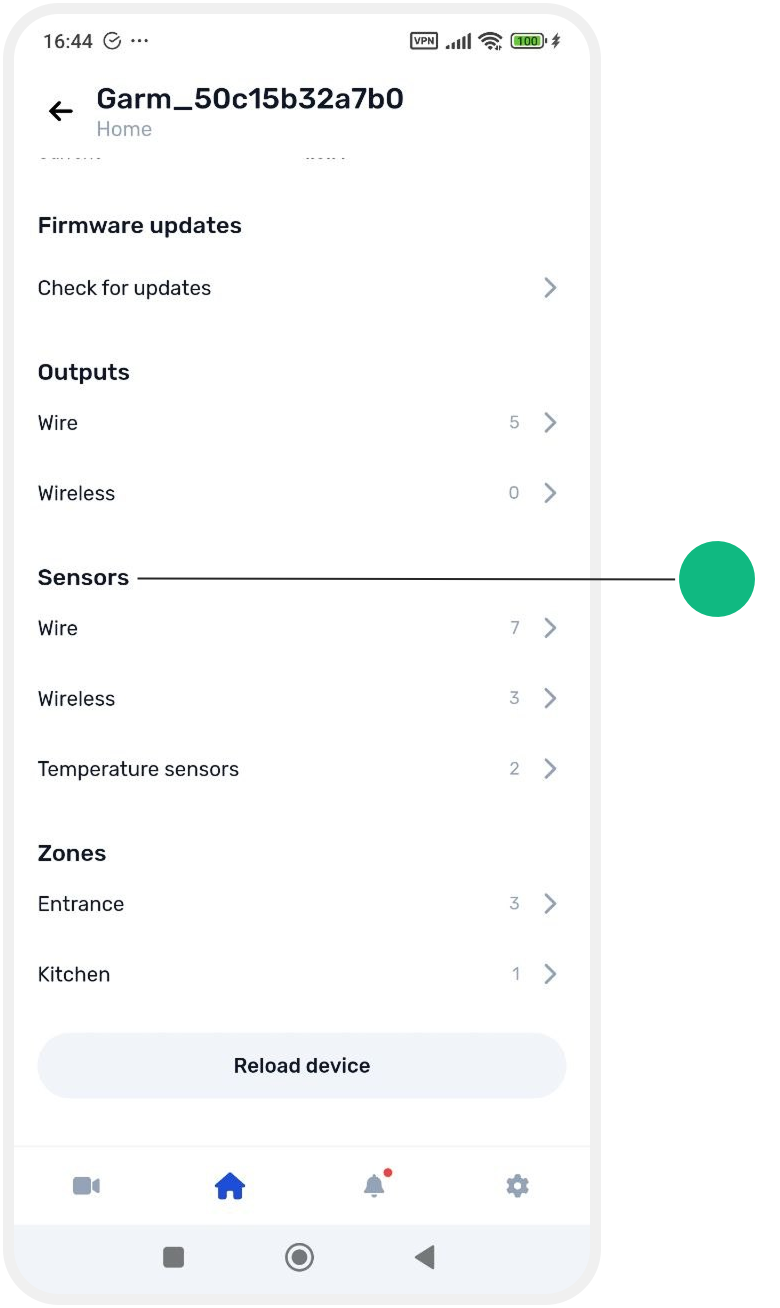
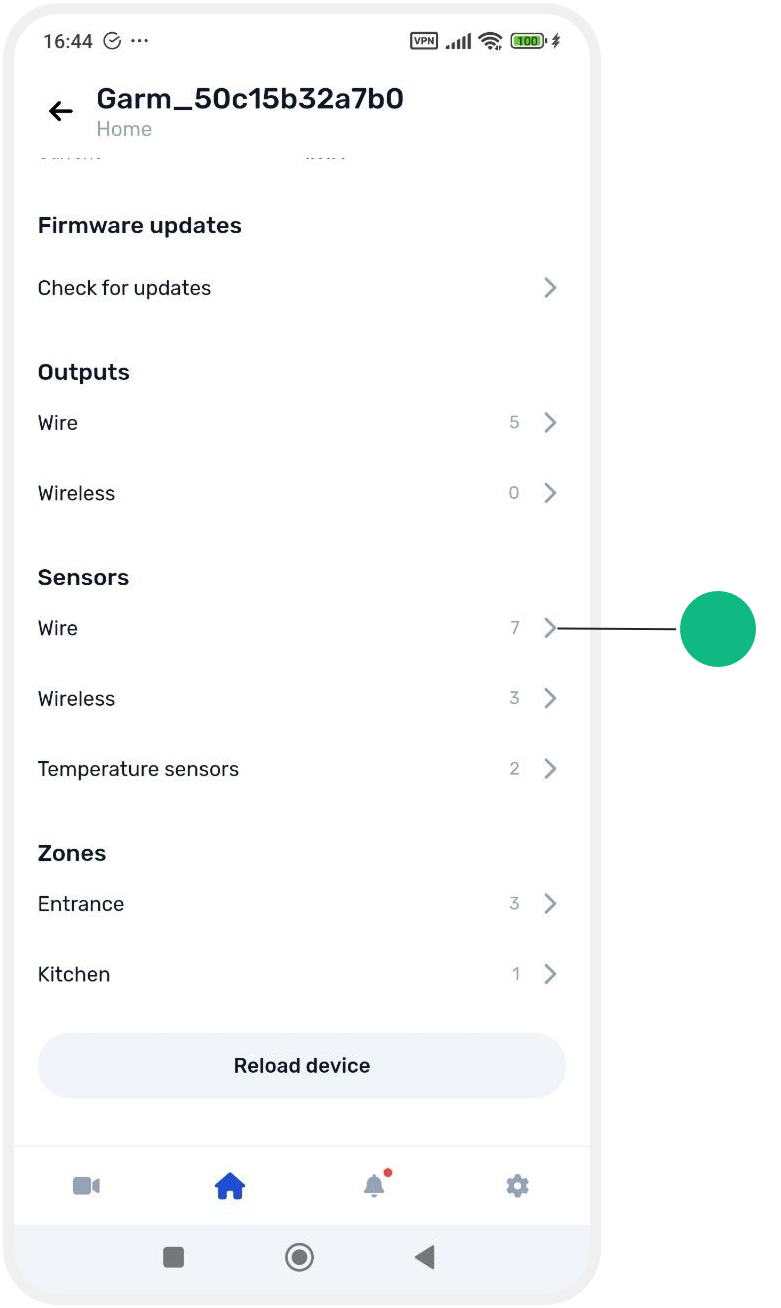
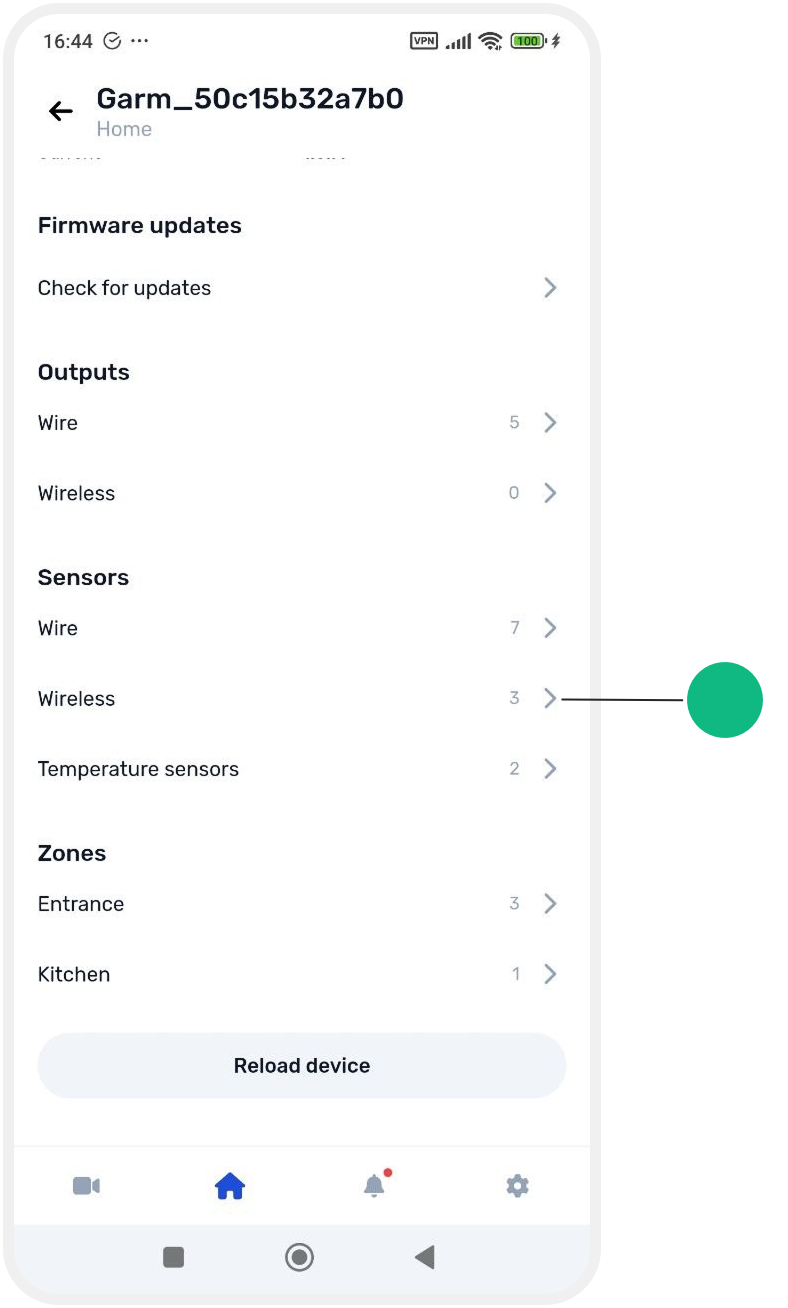
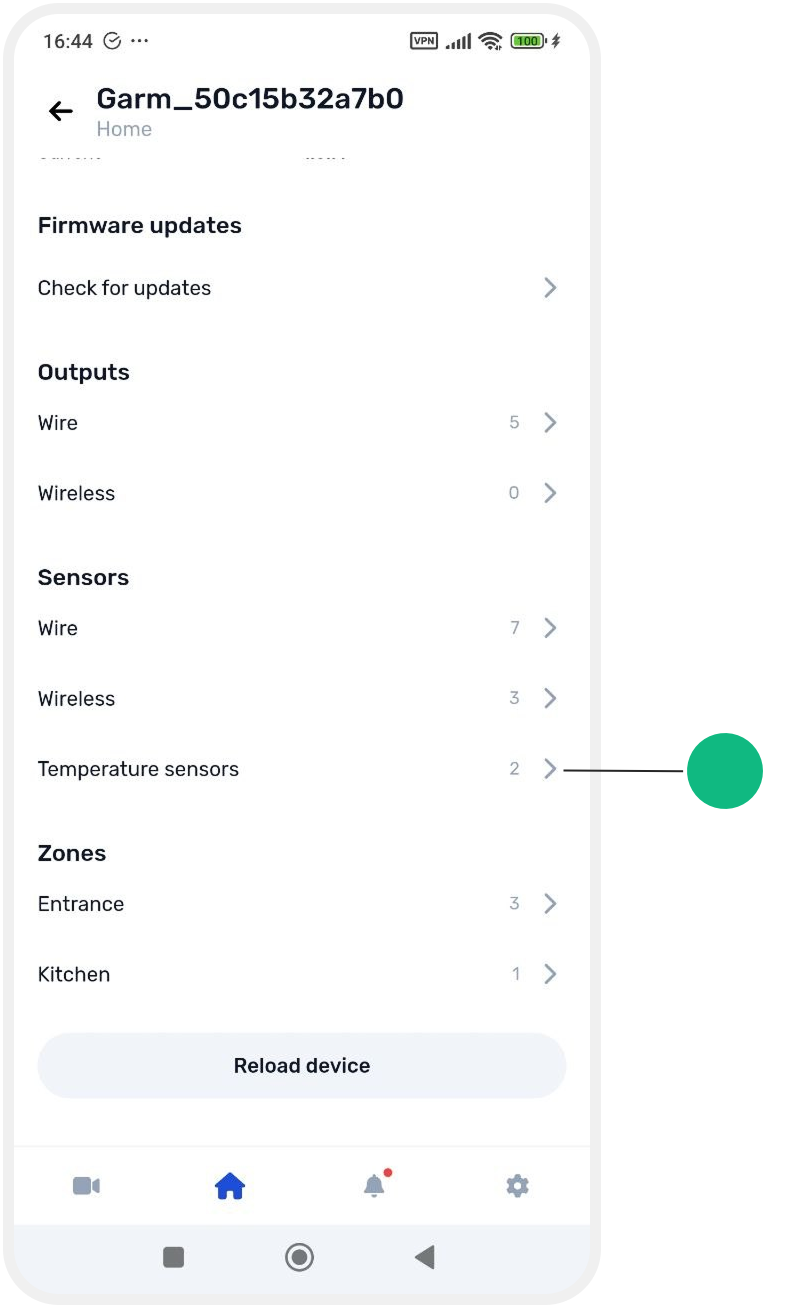
In this section you will see all connected devices grouped by type:
-
outputs
-
sensors
-
temperature sensors
-
wireless and wired devices

Outputs
Wired outputs
Wired outputs are relays that control connected devices (such as locks, sirens, or lighting).
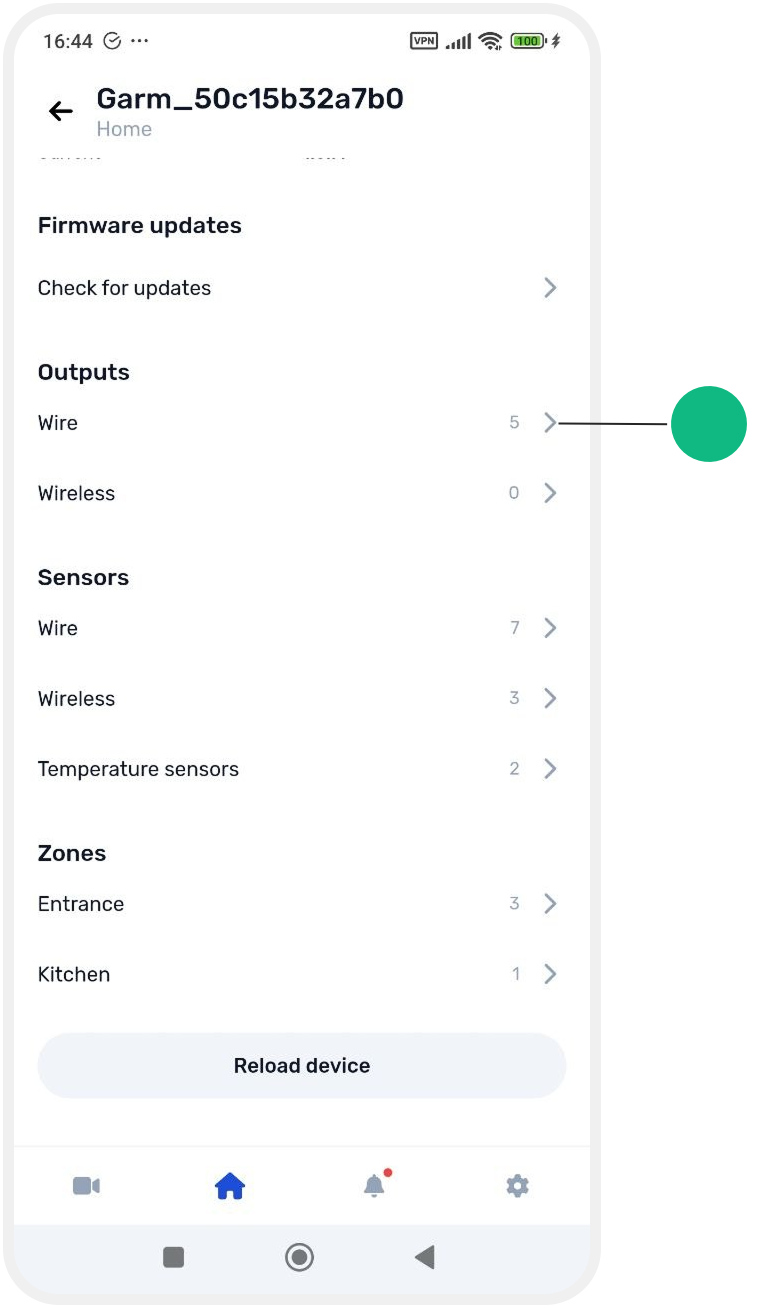
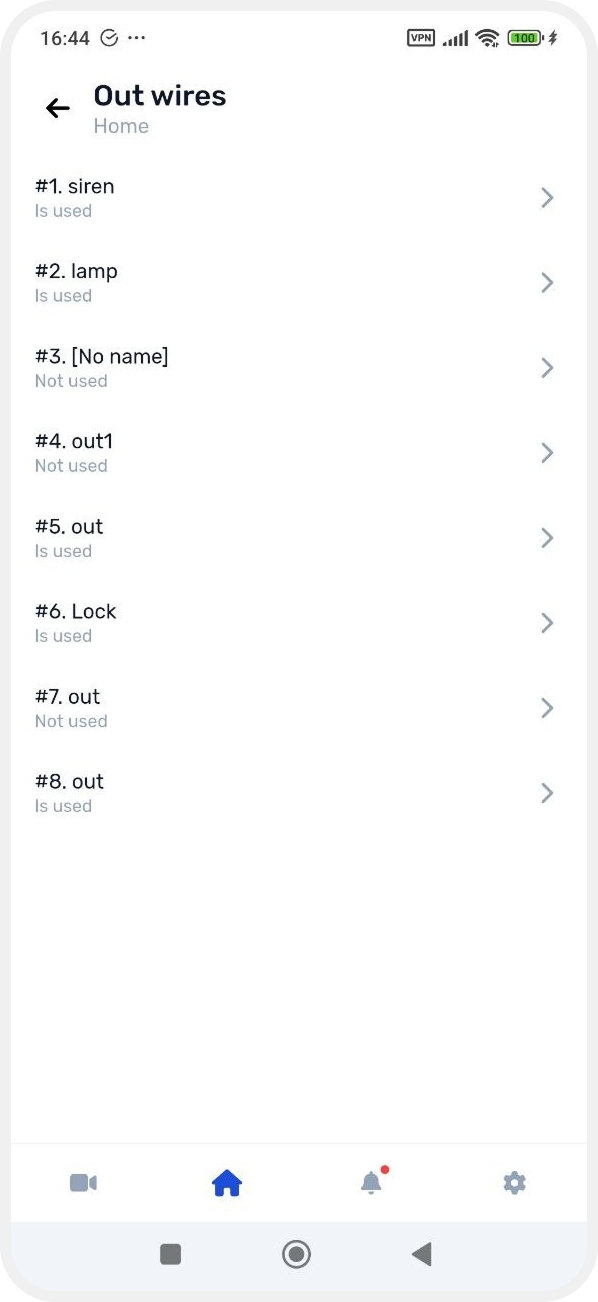
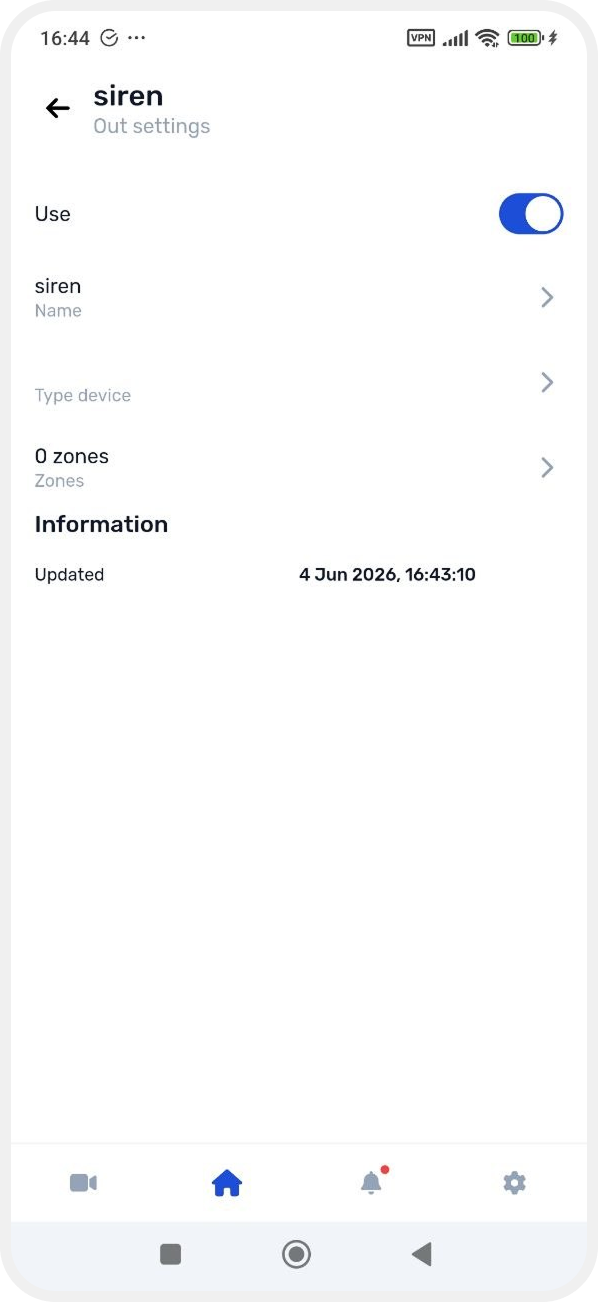
In the output card you can:
-
enable or disable the output (toggle Use)
-
change the name
-
select output type
-
assign it to a zone
-
view update information
Wireless outputs
Wireless outputs are radio relays that work without wired connection.

In the wireless output card you can see:
-
name
-
device type
-
last update date
You can also:
-
change settings
-
enable or disable the output
Sensors
Wired sensors
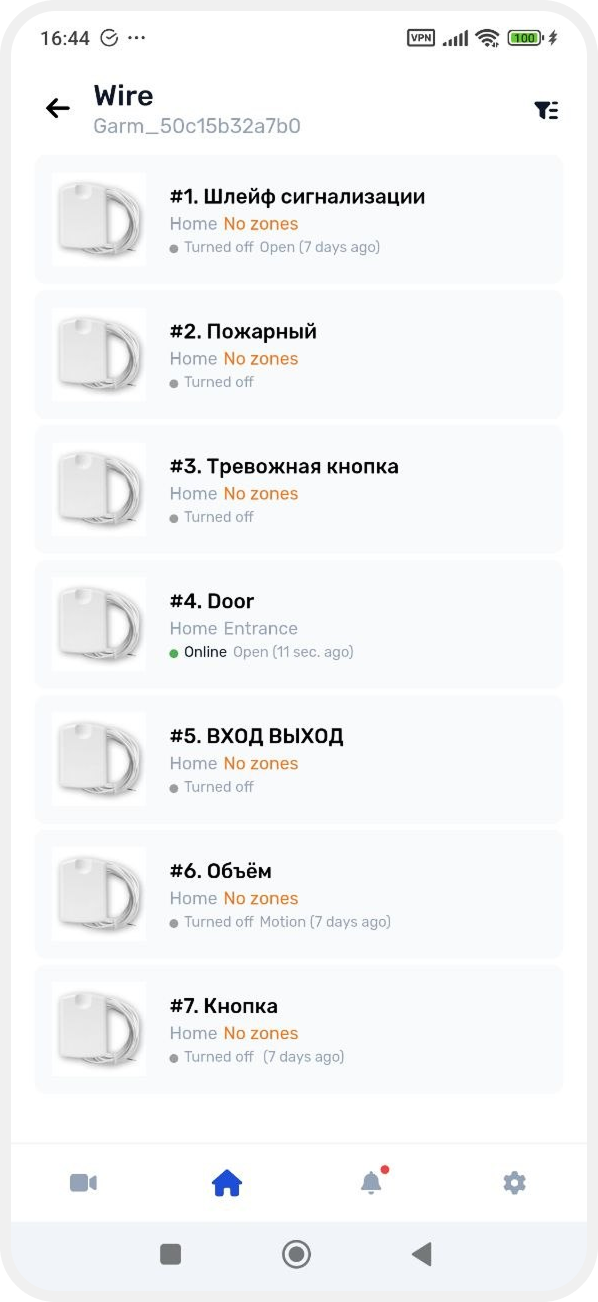
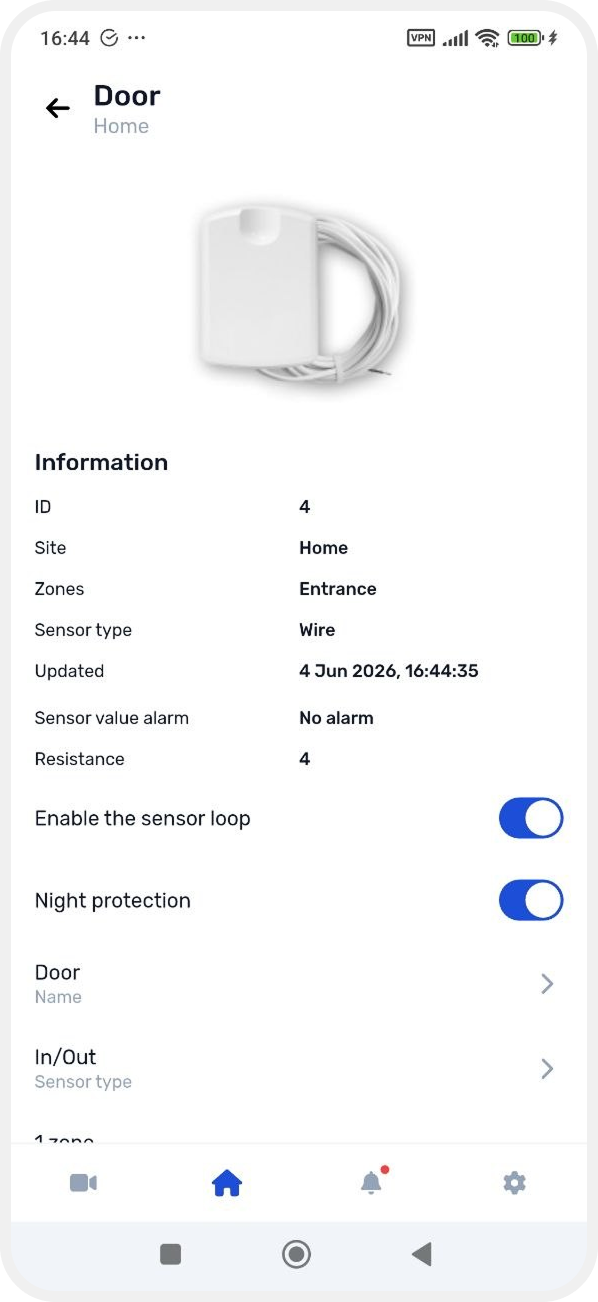
In the wired sensor card you can:
-
enable or disable the loop
-
enable night mode
-
change the name
-
select sensor type
-
assign to a zone
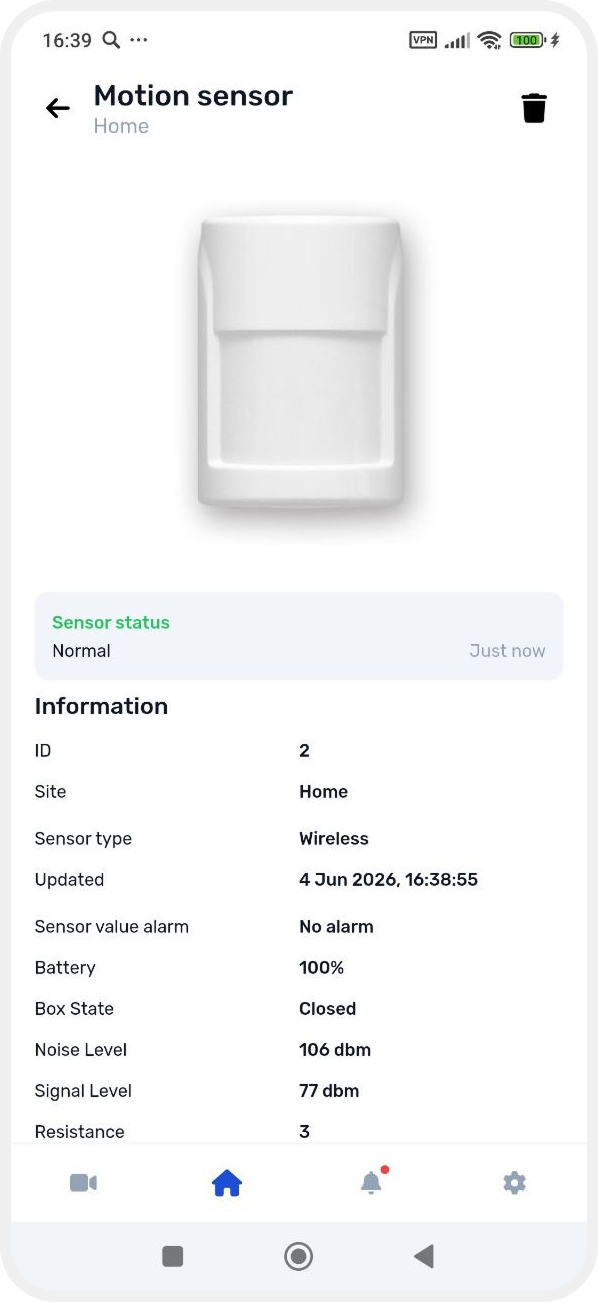
Wireless sensors

The card shows:
-
sensor status
-
device ID
-
linked Site
-
sensor type
-
last update time
-
battery level
-
enclosure status (open/closed)
-
signal and noise level
-
resistance
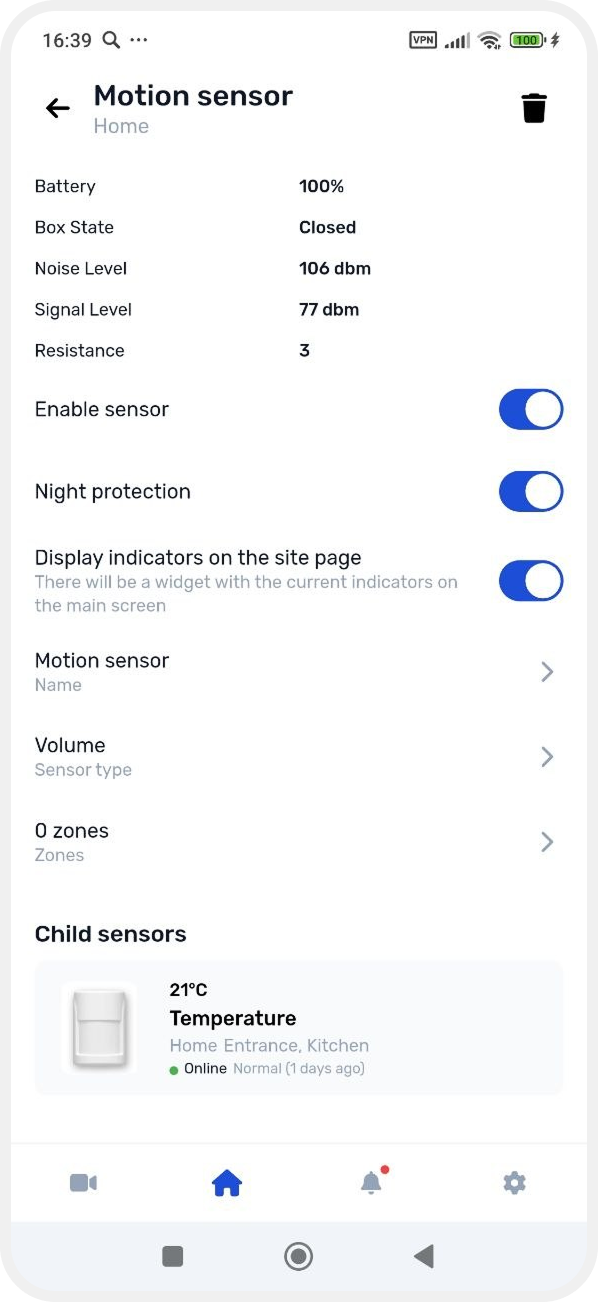
You can:
-
enable or disable the sensor
-
show readings on the main Site screen
-
change name
-
change type
-
assign to a zone
-
manage child sensors (if available)
Temperature sensors
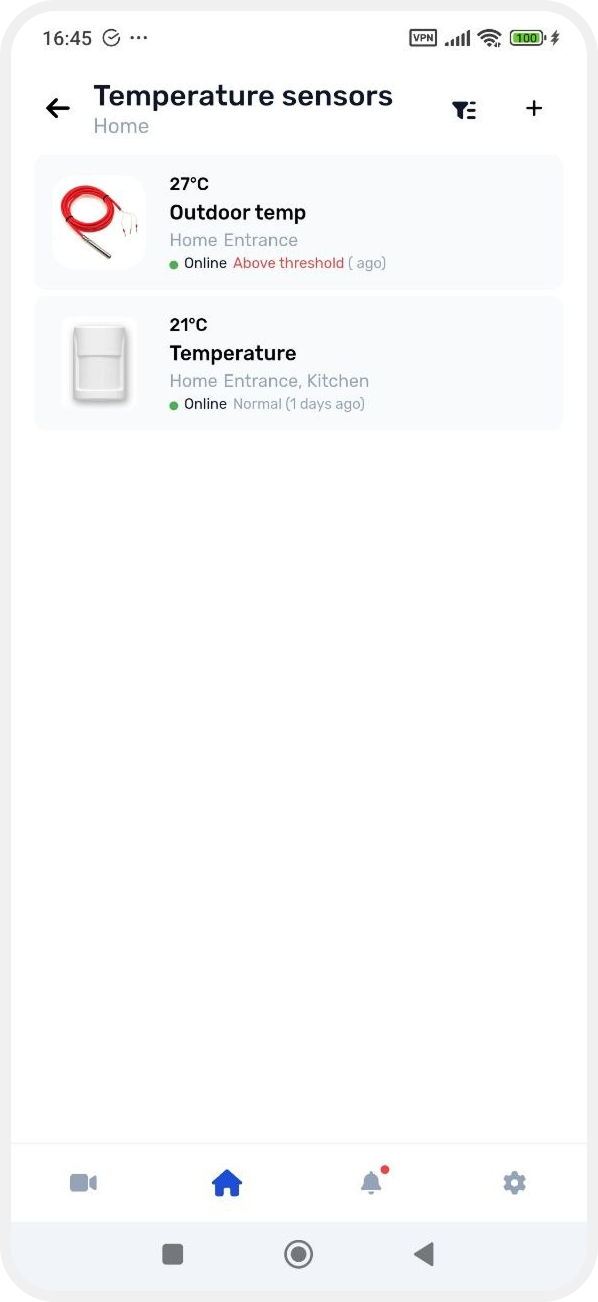
The card displays:
-
ID
-
Site
-
sensor type
-
last update
-
current temperature value
-
resistance
-
normal temperature range

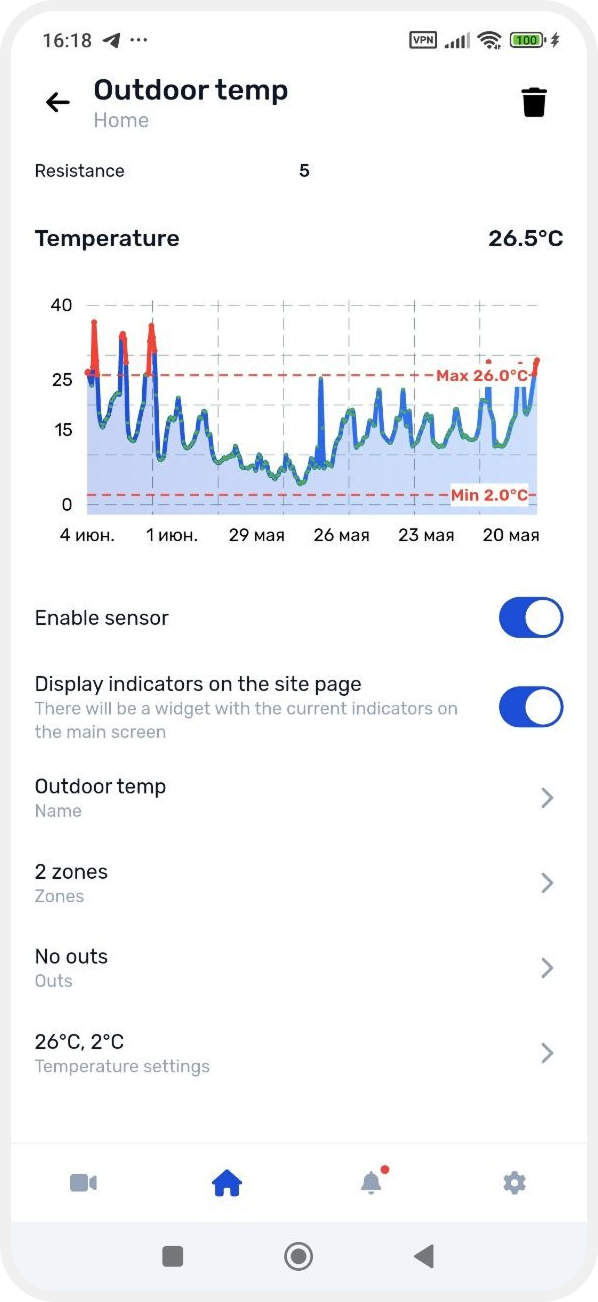
Settings:
-
enable/disable sensor
-
show on main Site screen
-
change name
-
assign to zone
-
set temperature thresholds
-
link outputs
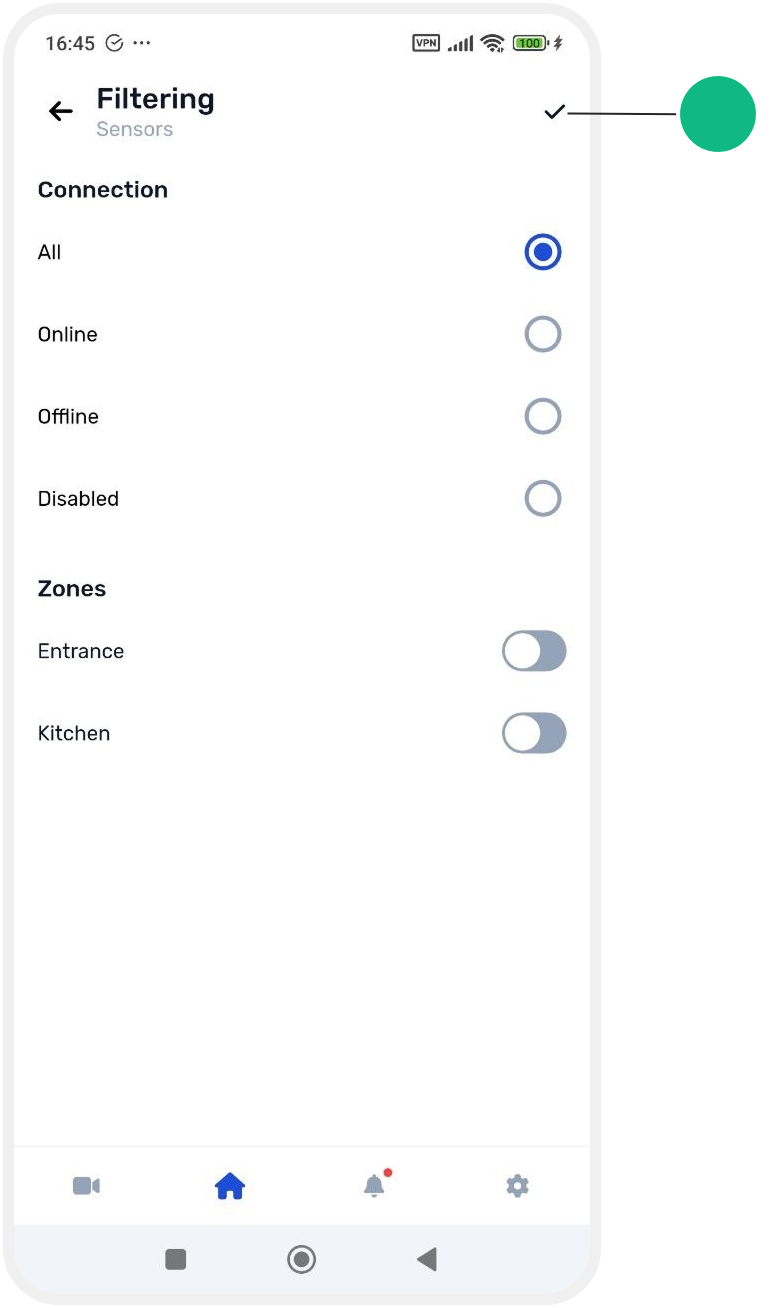
Sensor filtering
Filtering is available in all sensor lists.
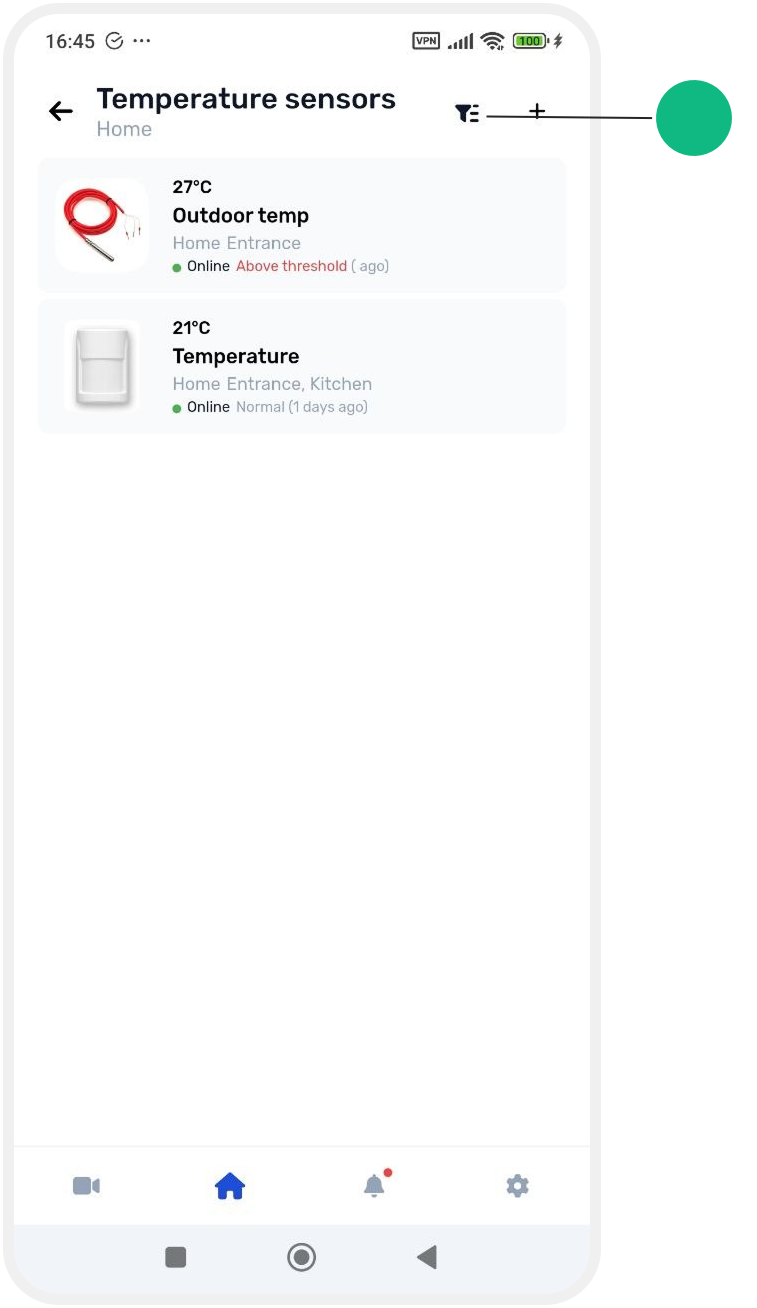

By connection status:
-
all sensors
-
online
-
offline
-
disabled
By zones:
You can select a specific zone to show only related devices.
After selecting filters, tap the checkmark in the top right corner to apply changes.