
Camera events
The camera can automatically detect events and save separate video recordings. For example, a recording may be created when motion is detected or when another configured event occurs.
Each event is saved separately and appears in the camera's event list with the date and time it was recorded.
Only the site owner can view camera events.
|
How to view camera events
1. Go to the Cameras section
2. Open the required camera from the All cameras or Favorites tab
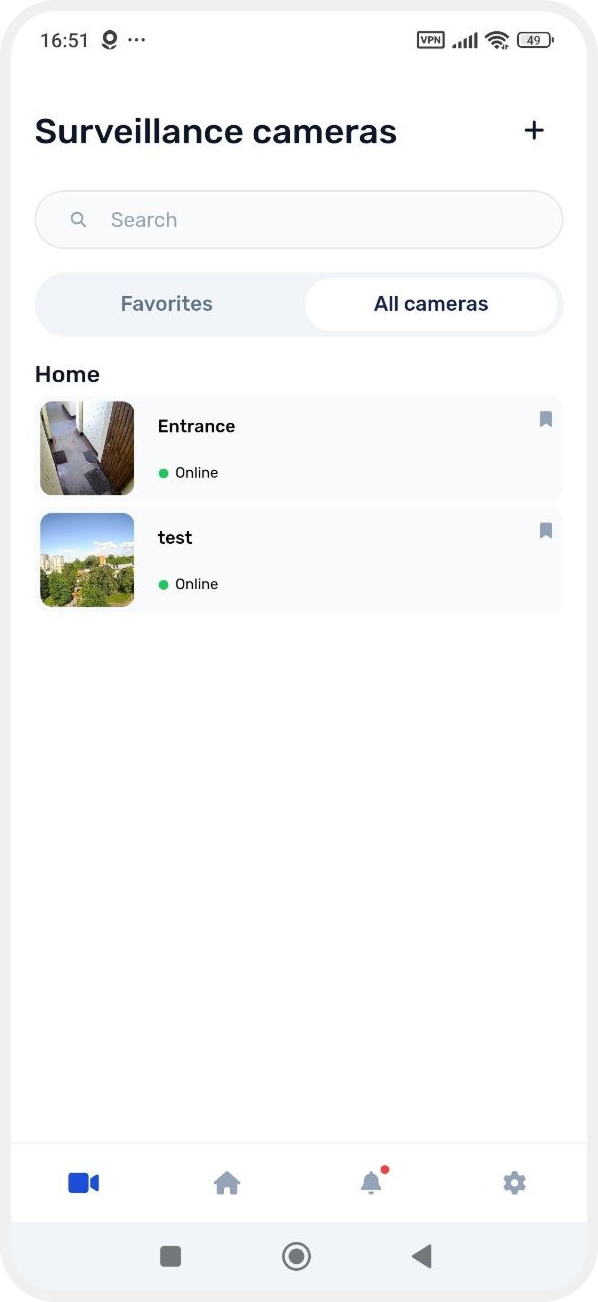
3. The camera page will open, displaying the live stream and a list of recorded events
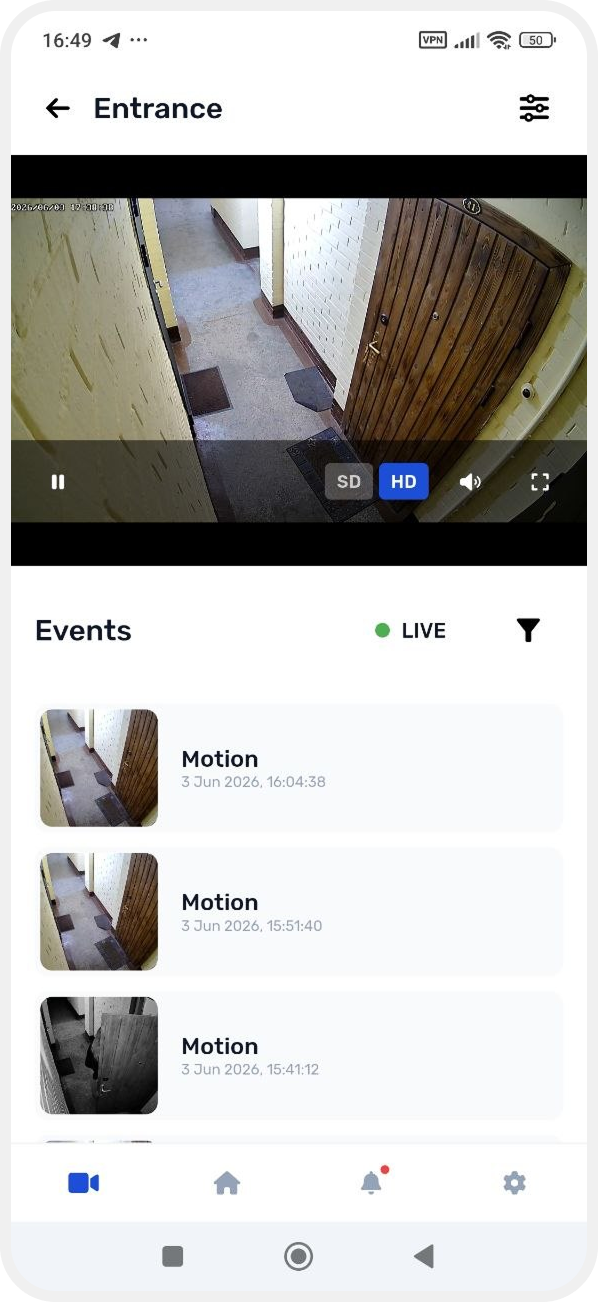
4. In the Events section, select the event you want to view
The event card shows the date and time when the event was recorded.
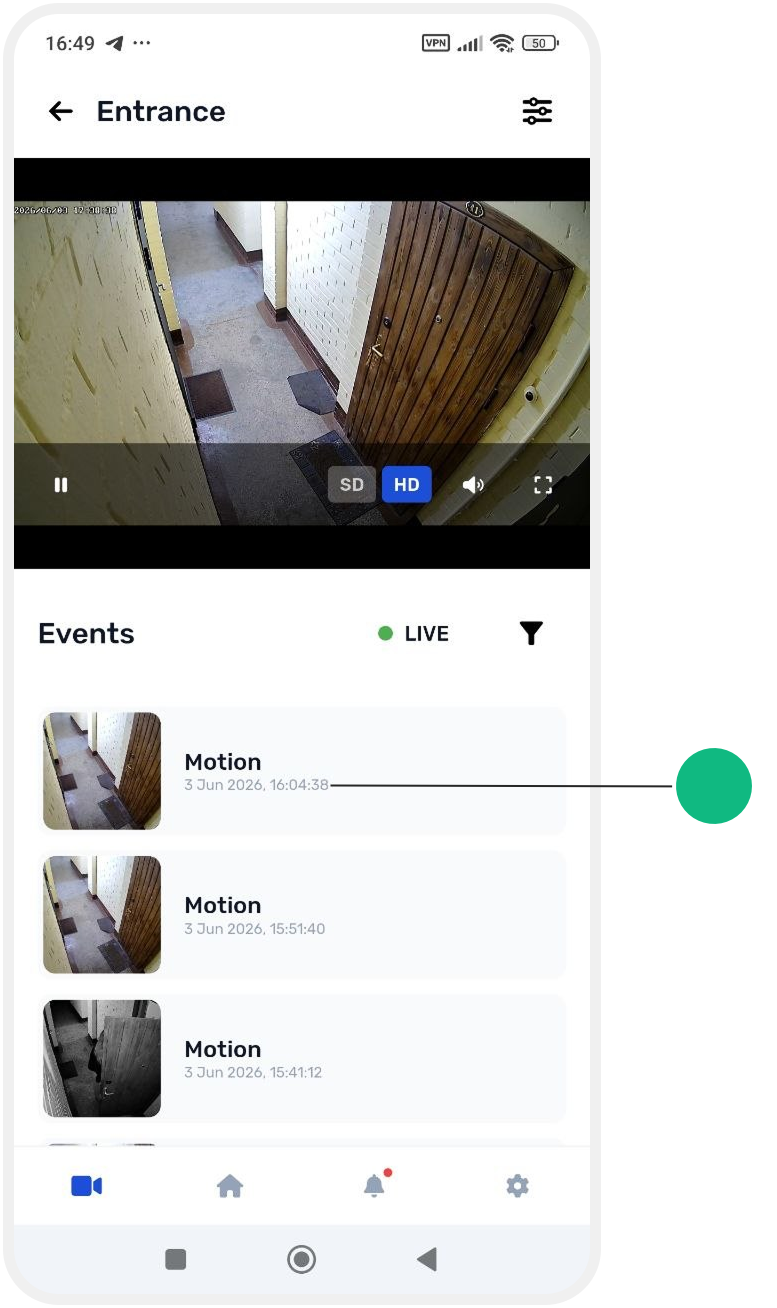
5. Tap the event to open the recording
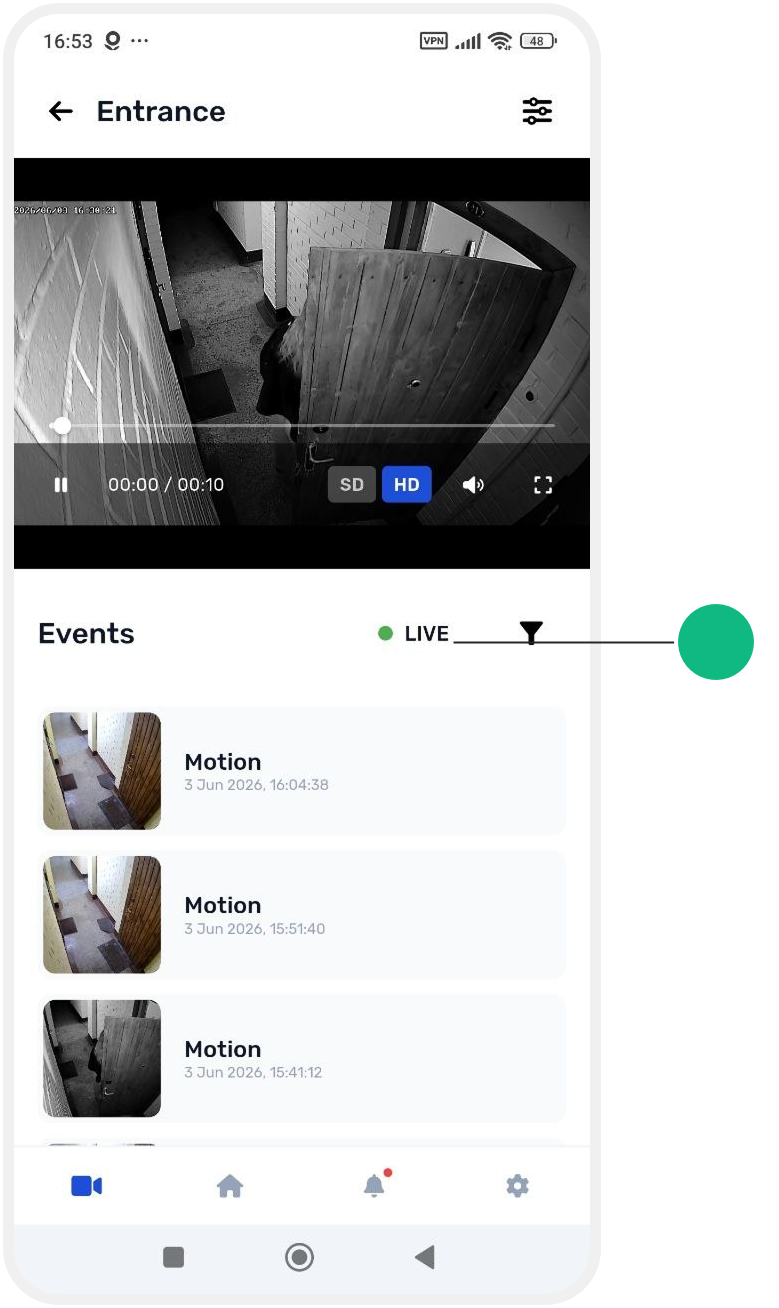
Viewing a recording
In the video player, you can
-
watch the event recording
-
rewind or fast-forward the video
-
pause playback

To return to the live camera stream, tap Live.
Event filter
If there are many events, you can use the filter to display only the recordings you need.
The filter allows you to select:
-
event type
-
date
-
time
How to configure the filter
1. In the Events section, tap Filter

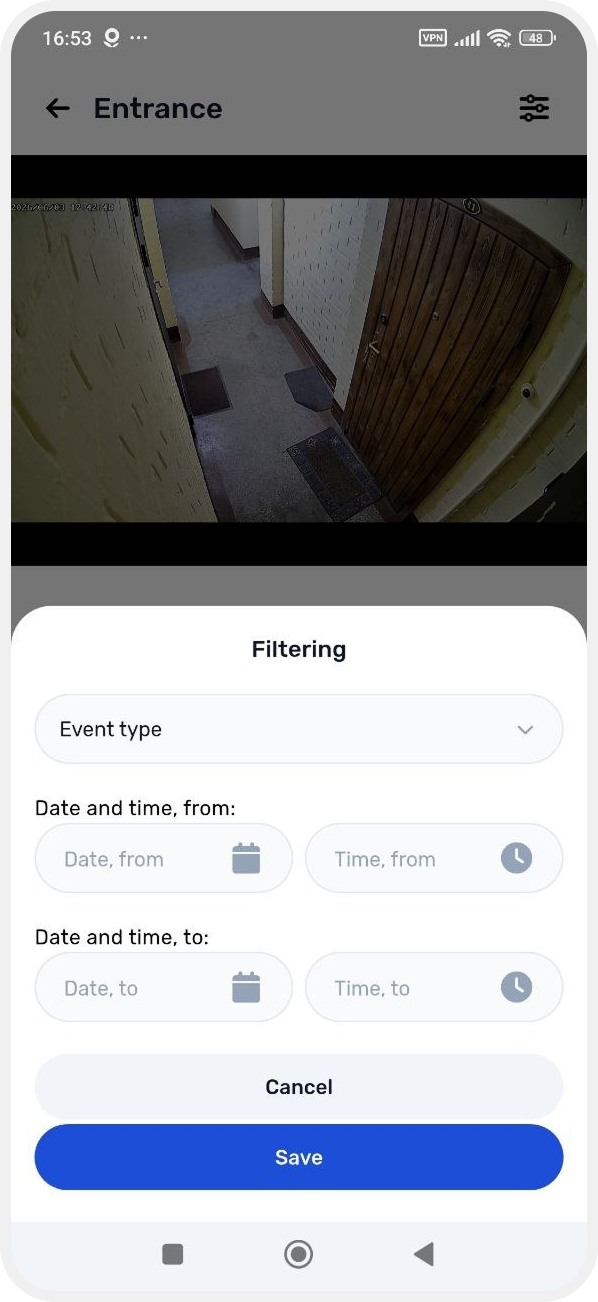
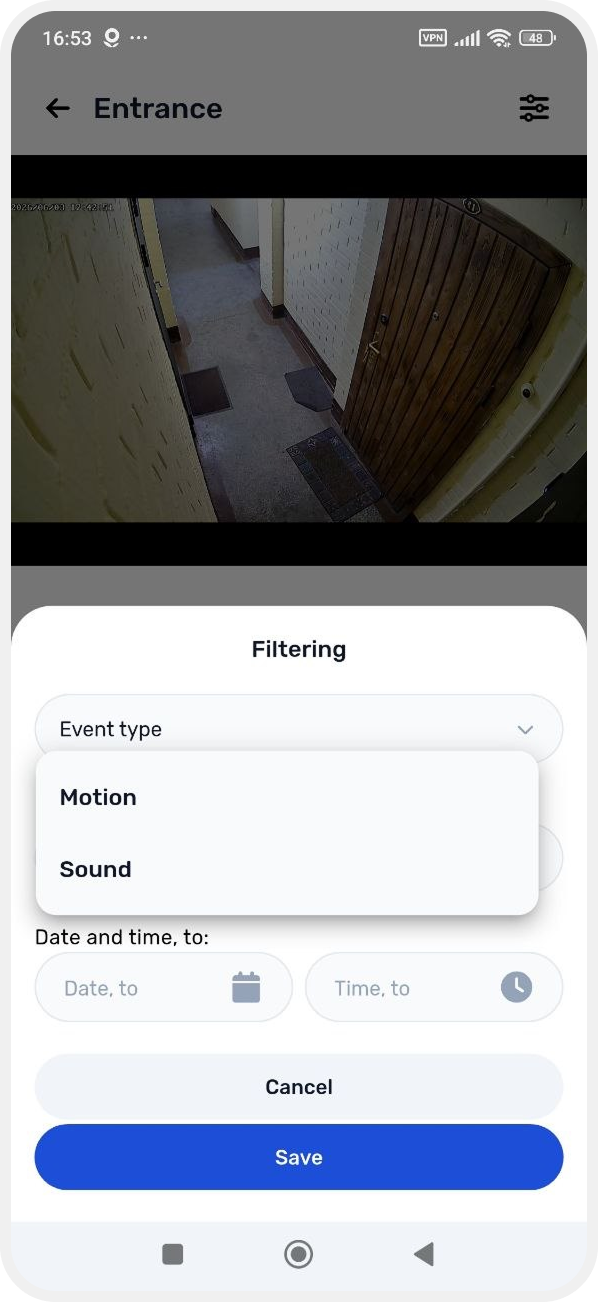
2. Select the event types you want to display
Motion
The camera detected movement within its field of view. These events help you quickly find moments when people, animals, or moving objects appeared in the frame.
Sound
The camera detected a sound above the configured threshold. For example, this could be a conversation, a door slam, a dog barking, or another nearby noise.
3. If needed, specify the time period for which you want to view events:
-
start date
-
end date
-
time
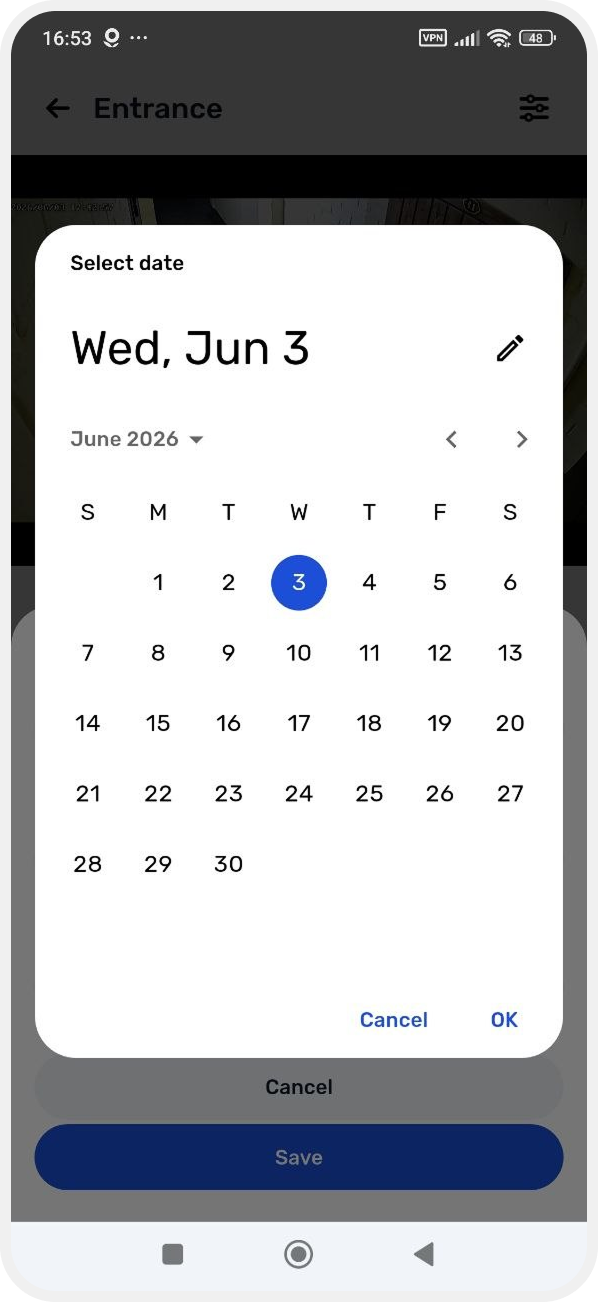
4. Tap Save
The event list will then display only the events that match the selected filter settings.
To view all events again, clear the filter or remove the selected restrictions.