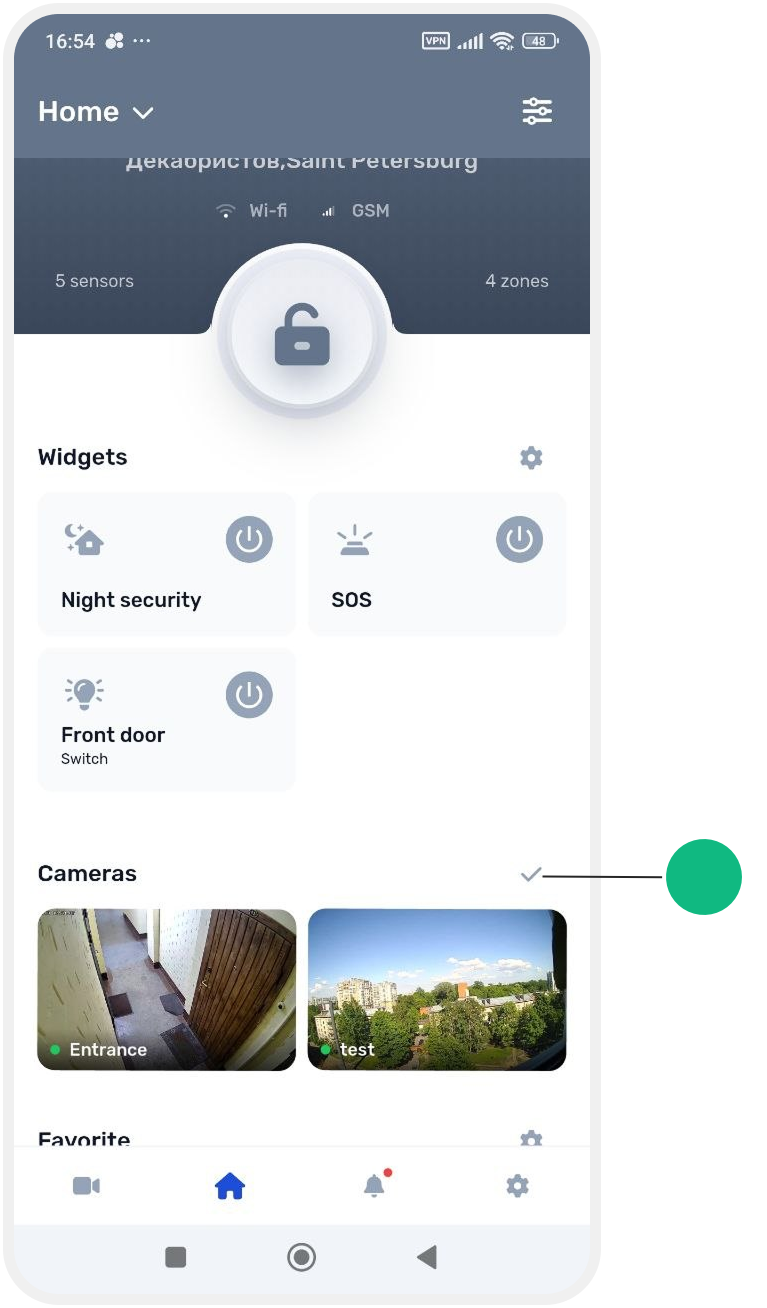
Displaying cameras on the site main screen
For quick access, you can display a camera directly on the site home screen.
How to enable camera display
Via the camera list
1. Go to the Cameras section
2. Find the required camera in All cameras or Favorites
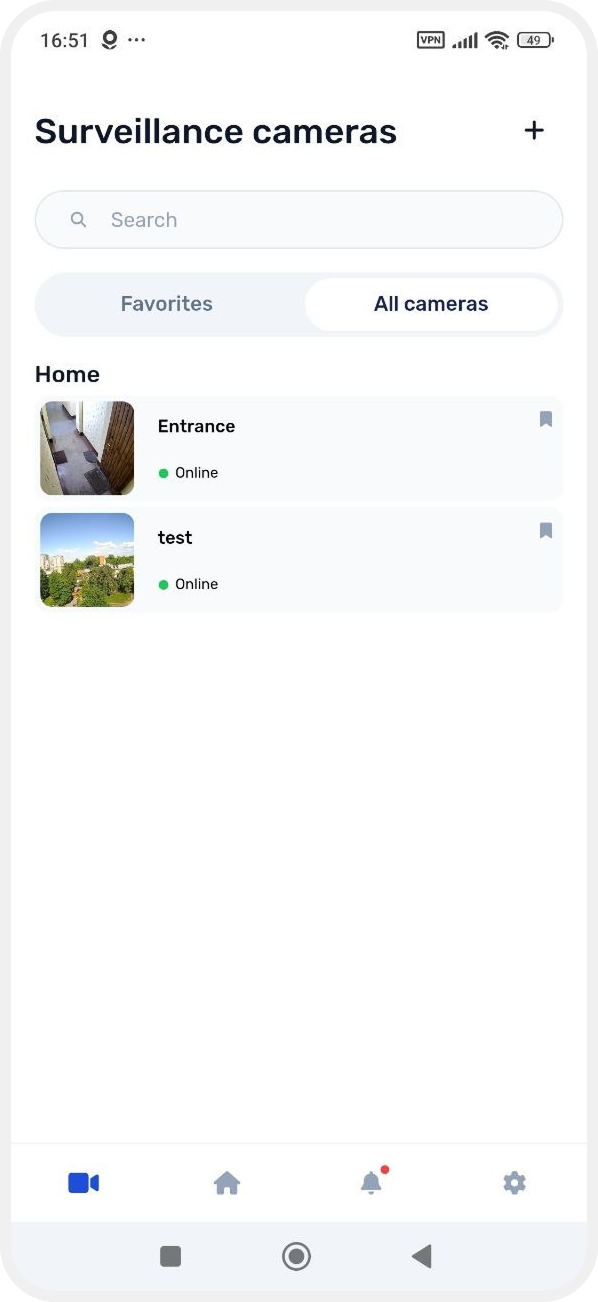
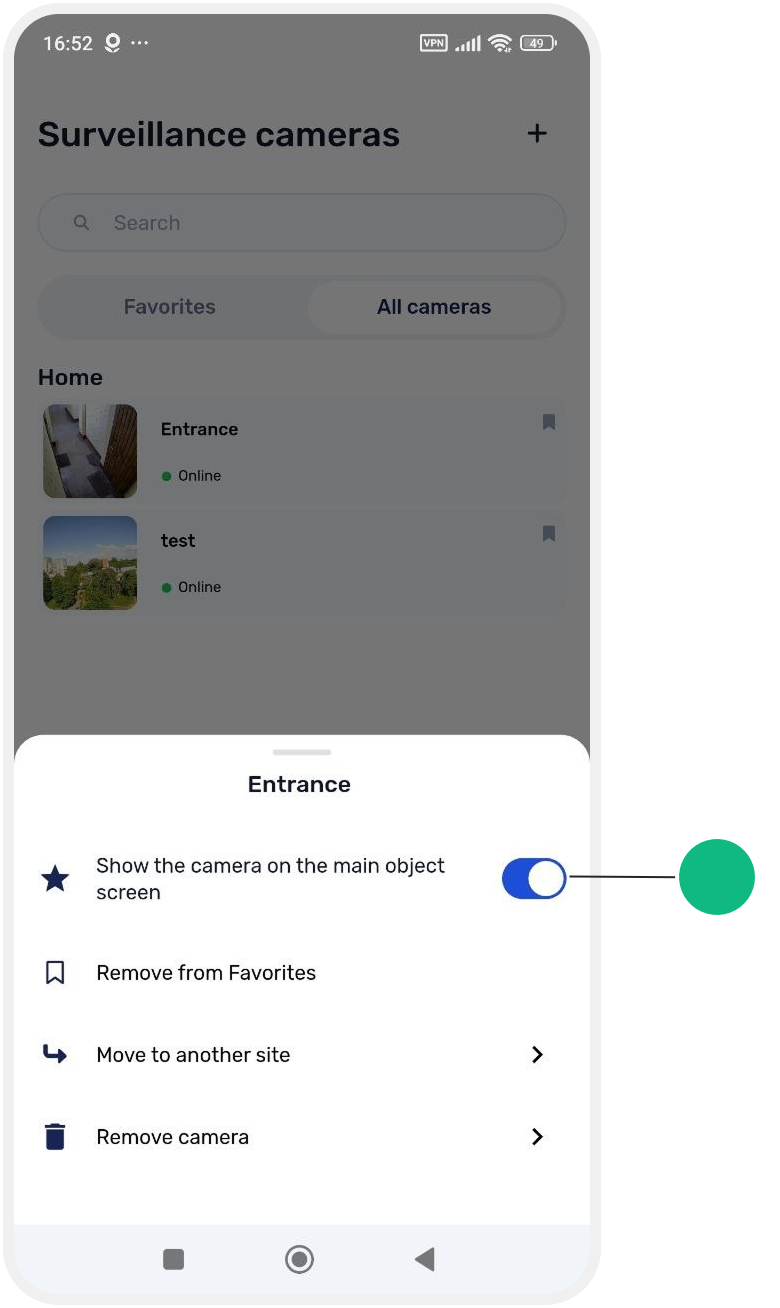
3. Press and hold the camera card
4. In the menu, enable Show camera on site main screen
After this, the camera will appear on the site screen.

Via the camera card
1. Go to the Cameras section
2. Open the required camera in All cameras or Favorites
3. Tap Settings in the top-right corner
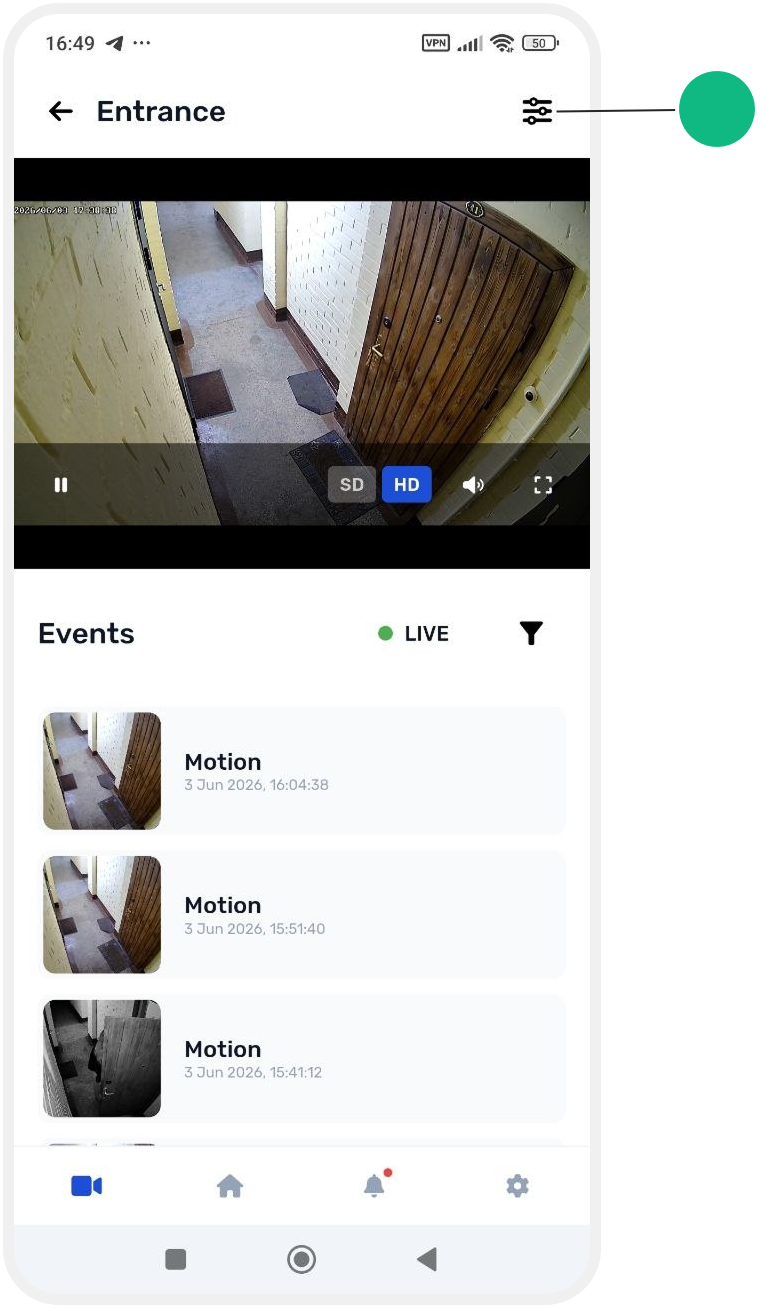
4. Enable Show camera on site main screen
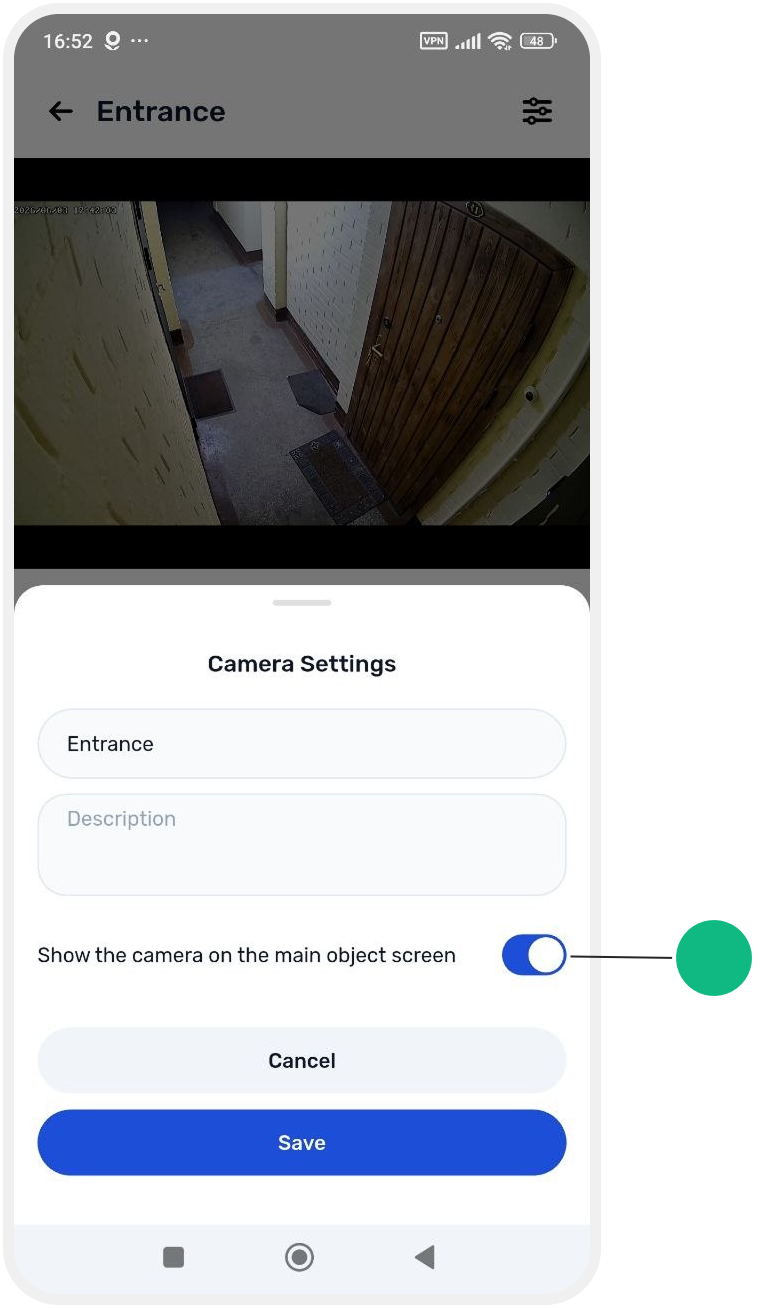
5. Tap Save — the camera will appear on the home screen
How to disable camera display
You can hide the camera from the home screen at any time:
— via the camera menu: turn off the toggle
— via settings: disable the toggle in camera settings


How to change camera order on the main screen
If multiple cameras are displayed, you can reorder them:
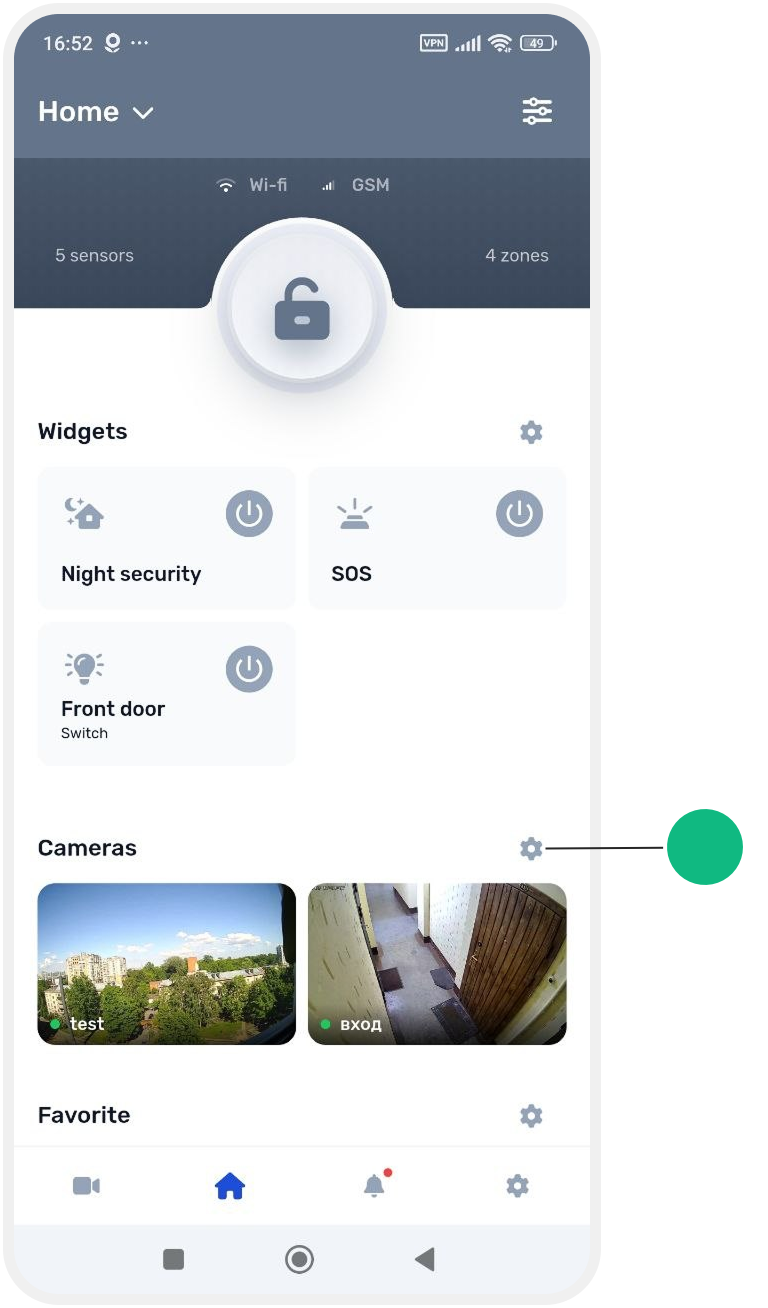
2. Drag cameras into the desired order
3. Tap the checkmark to save changes