
Events
The Events section is located in the bottom menu of the app and is marked with a bell icon. Here you can view all notifications and the history of GARM system activity for your sites.
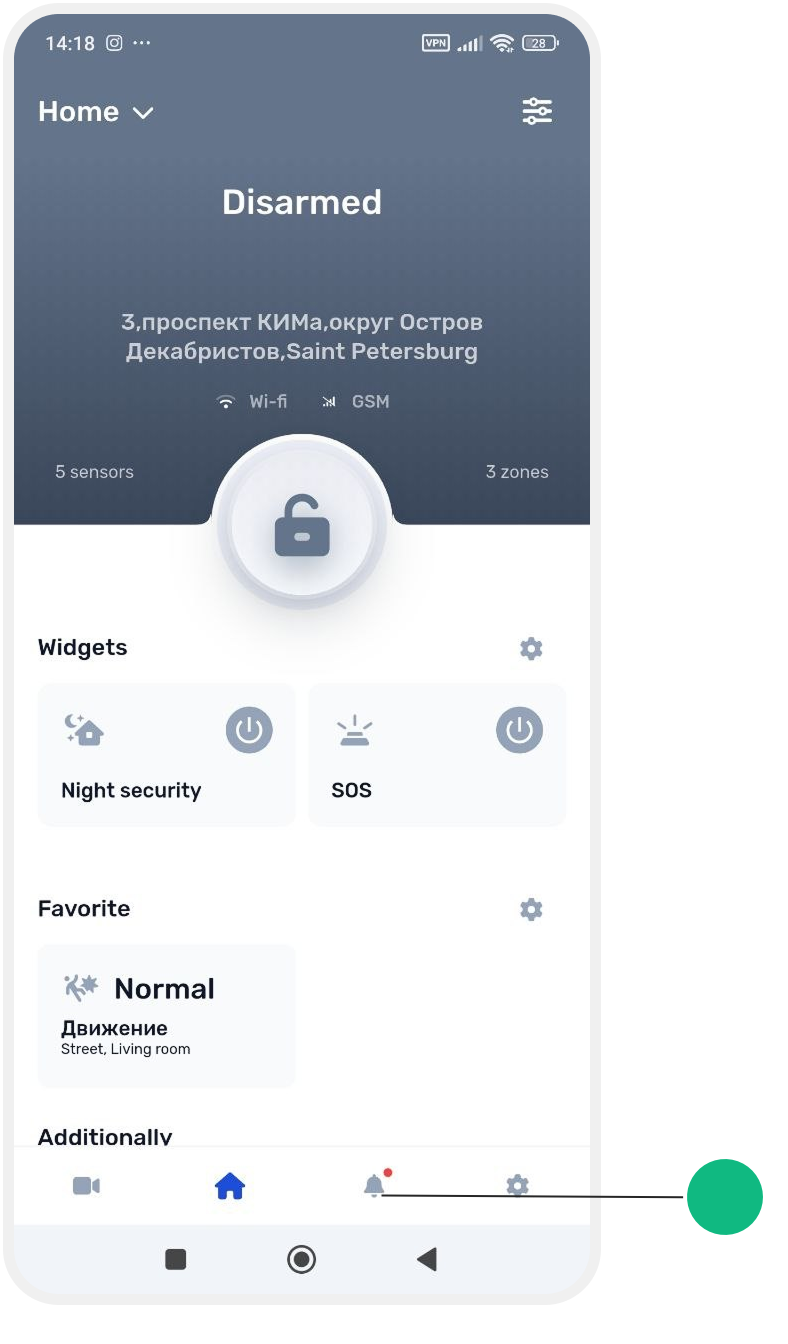
This section helps you understand:
— what is happening at the site right now
— whether there were alarms or faults
— who managed the system
— which devices changed their status
What events are displayed
The Events section may include:
• Alarms and sensor triggers
• Arming and disarming the site
• Partial Arm and Night Mode events
• Sensor status changes
• Device connection loss
• Low sensor battery warnings
• System messages and technical events
• Hub restart events
• Device connection and disconnection events
• User invitations
• User actions in the system
• Touch Memory electronic key usage
• Actuator events
• System settings changes
For each event, the following information is displayed:
— event type
— site
— time and date
— short description
Detailed event information
Tap any event in the list to open detailed information.
In the event card, you can see:
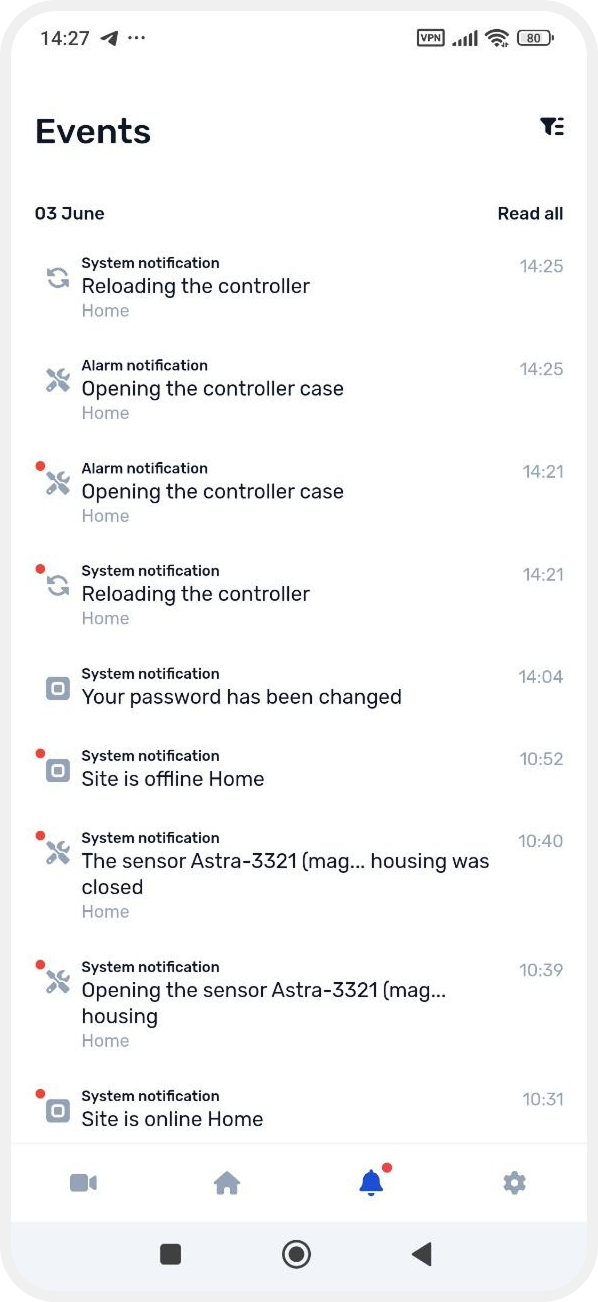

— when the event occurred
— on which site it happened
— which zone or device was involved
— the event type
— additional technical information
For example, if a sensor connection is lost, you will see:
— which sensor is unavailable
— the time the connection was lost
— the zone assigned to the device
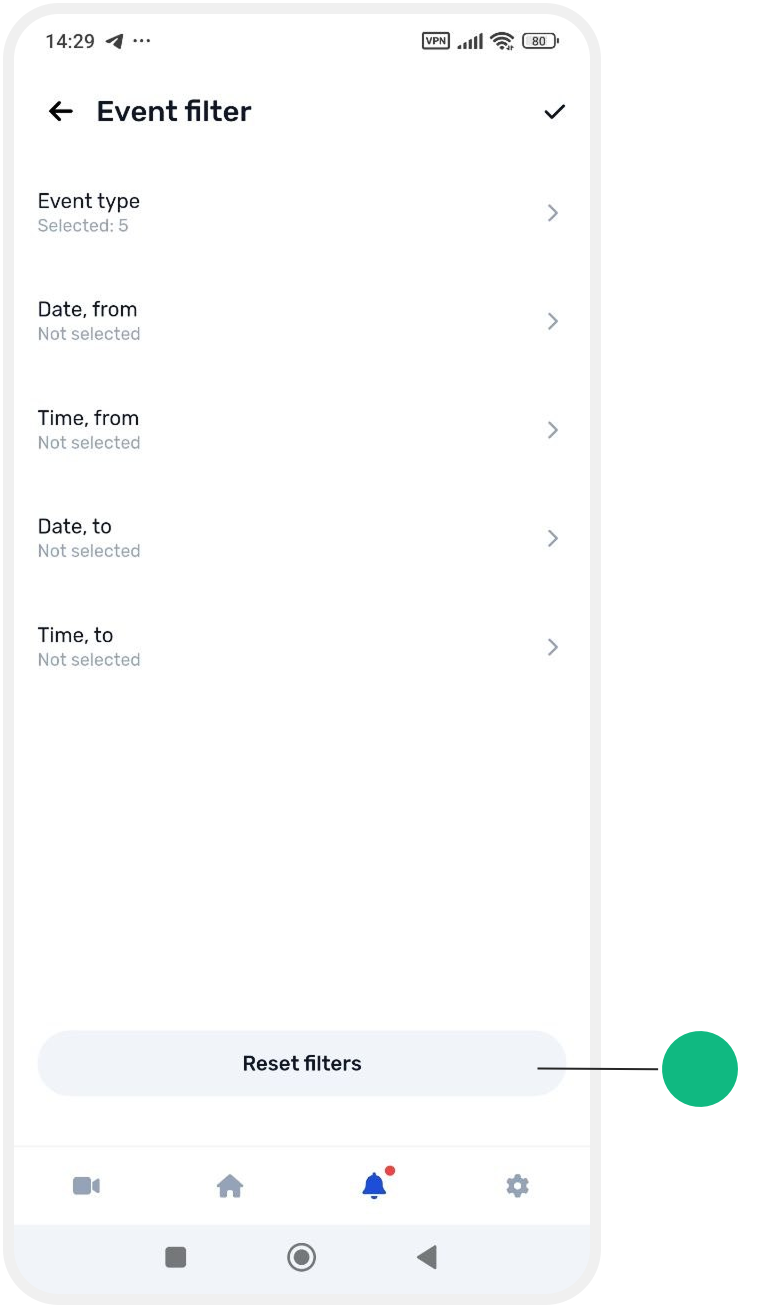
Event filter
Use the filter to quickly find the events you need.
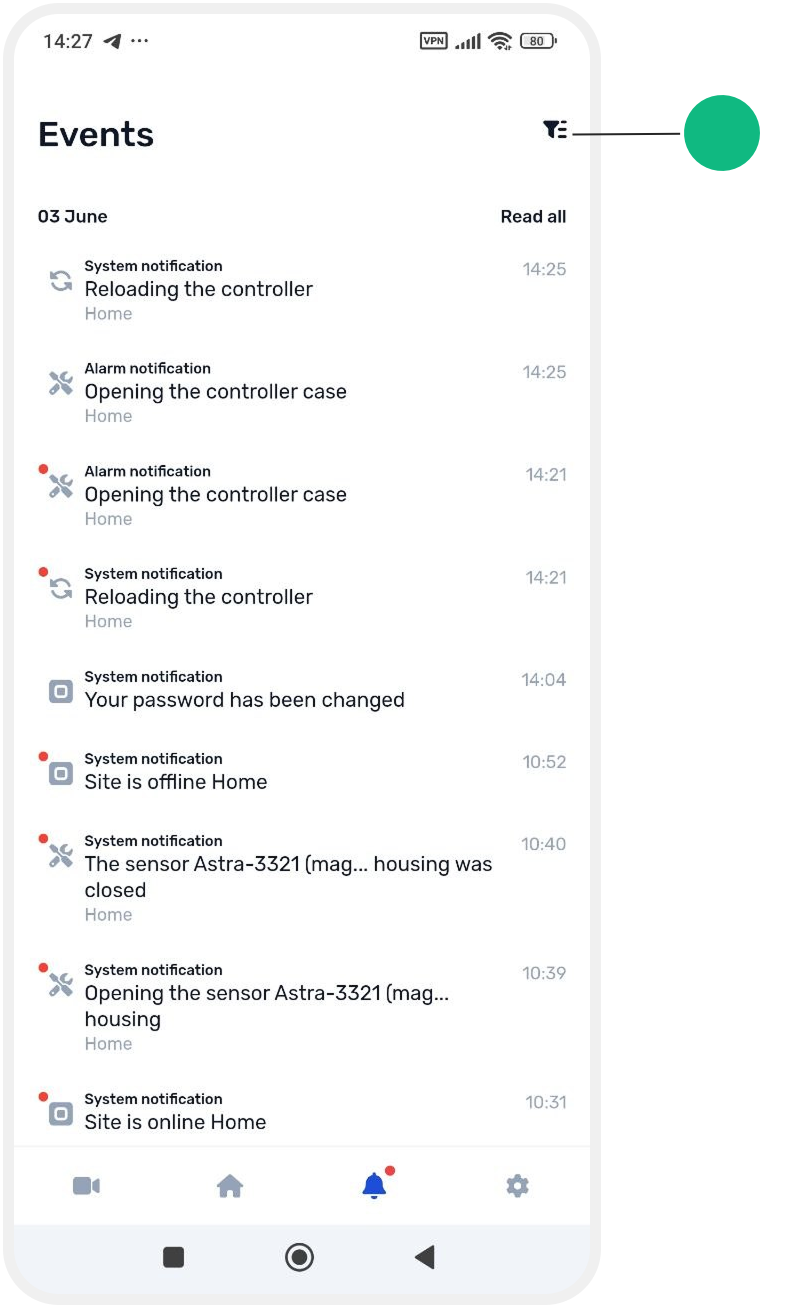
In the filter, you can:
— select event types
— choose a display period
— configure the date and time range

For example, you can display only:
• Alarms
• System events
• Access events
• Status changes
• Invitations
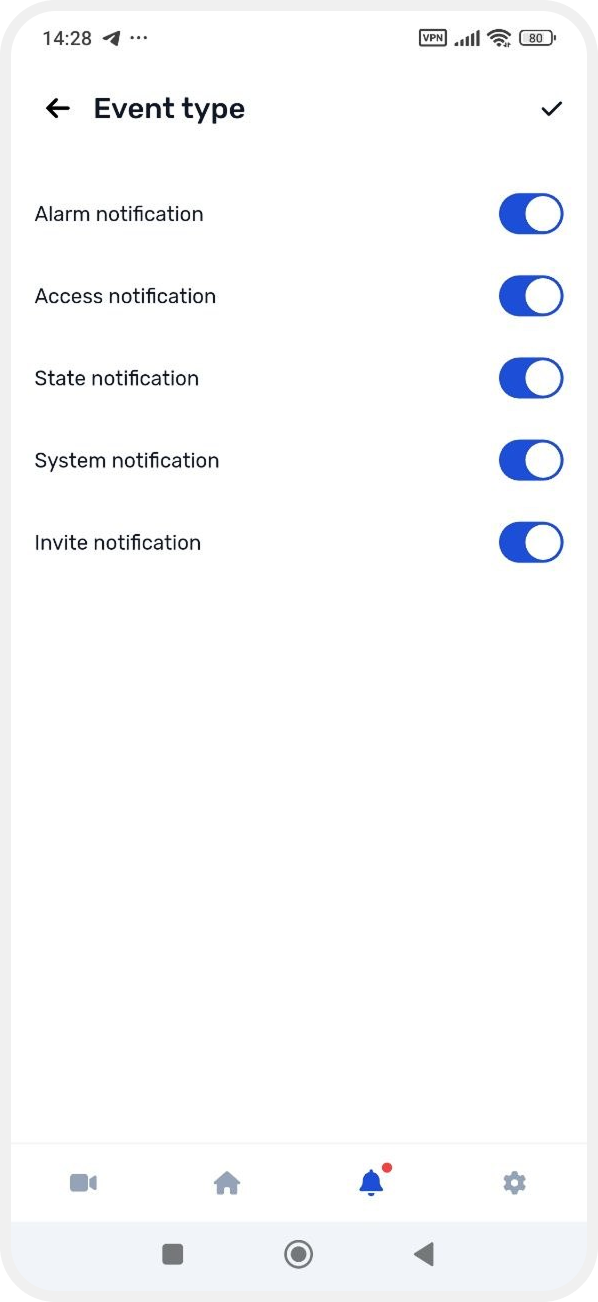
You can also view events only for a specific day or time period.


If you want to see all system events again:
1. Open Event filter
2. Tap Clear filters
After that, the full event history for the site will be displayed again.
After that, the full event history for the site will be displayed again.