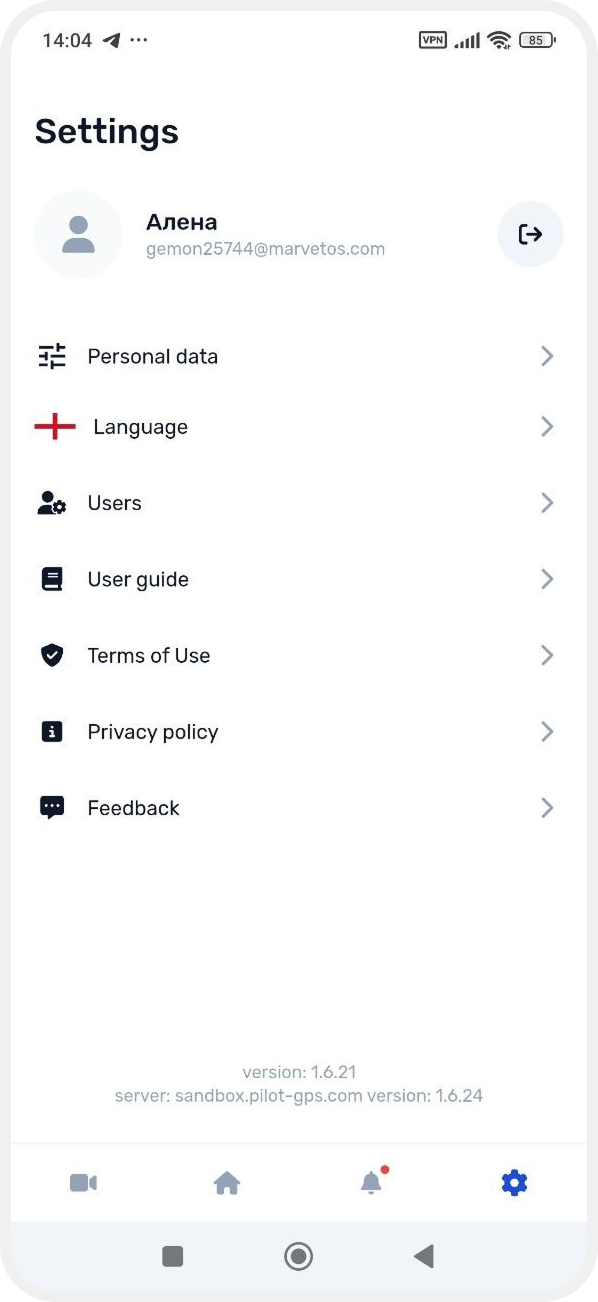
Account settings
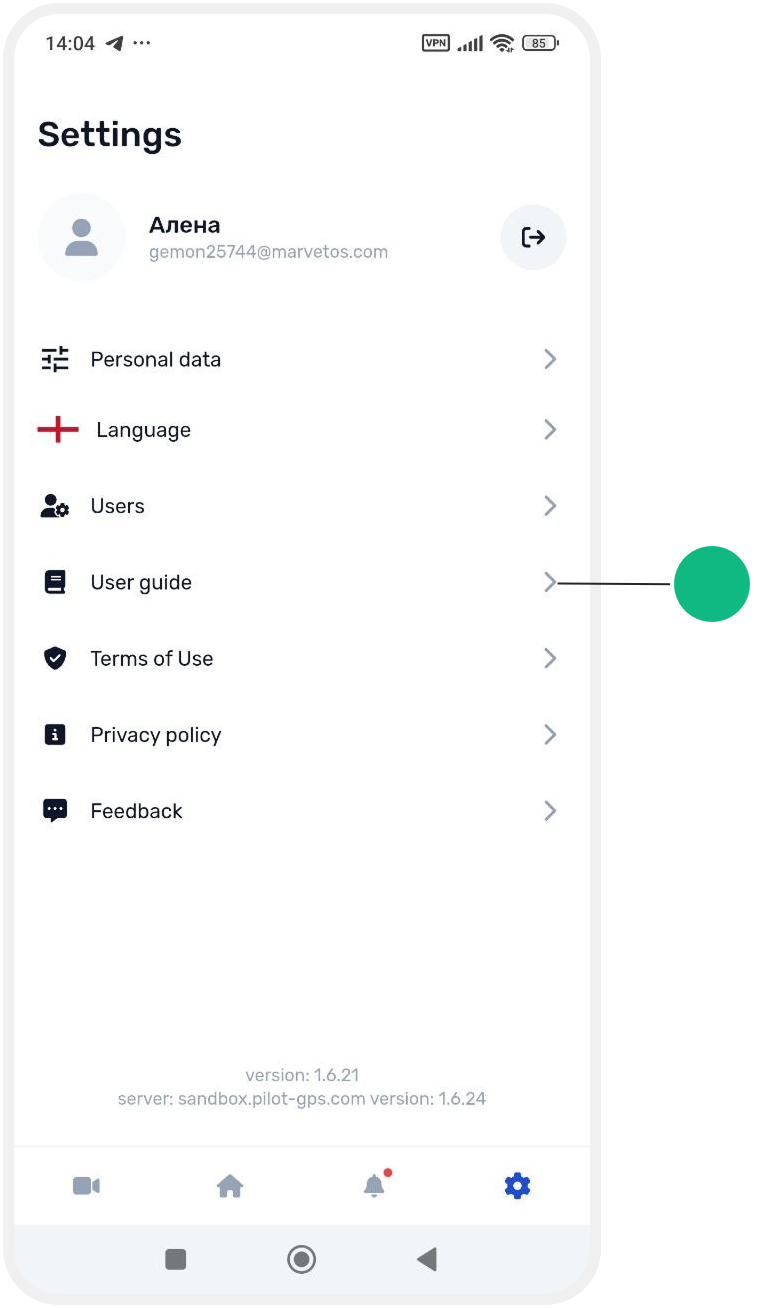
In the Account settings section, you can manage your account and the GARM app settings.
At the top of the Account settings screen, the following information is displayed:
— your name
— the email address linked to your account
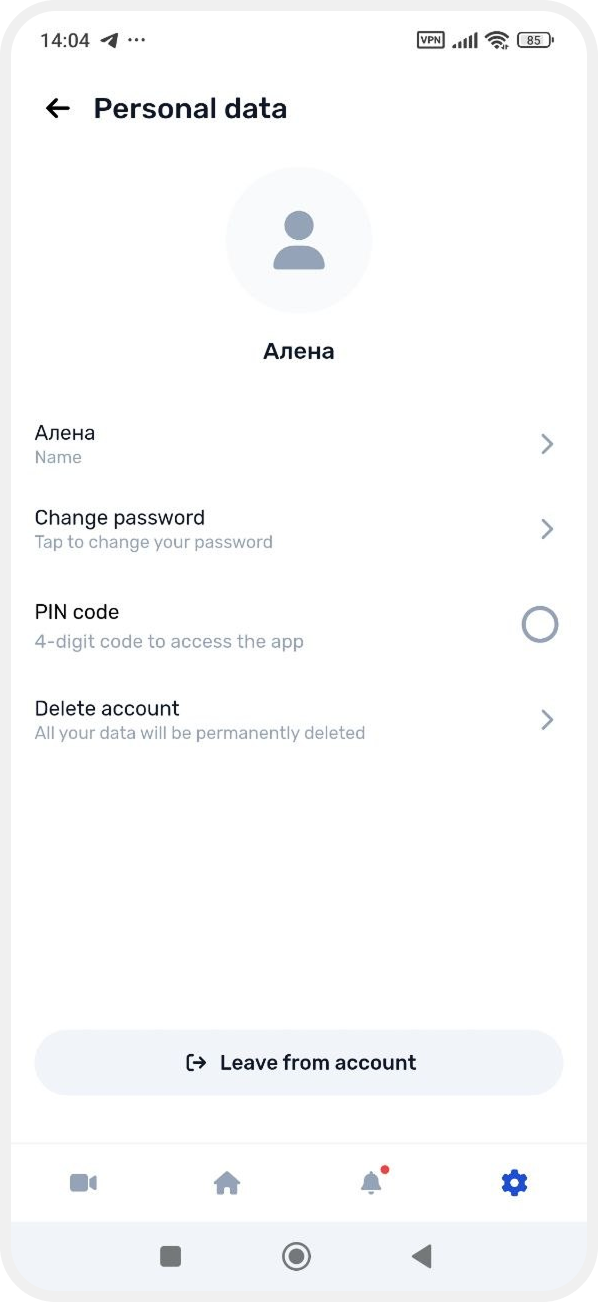
Personal data
Here you can manage your account information.

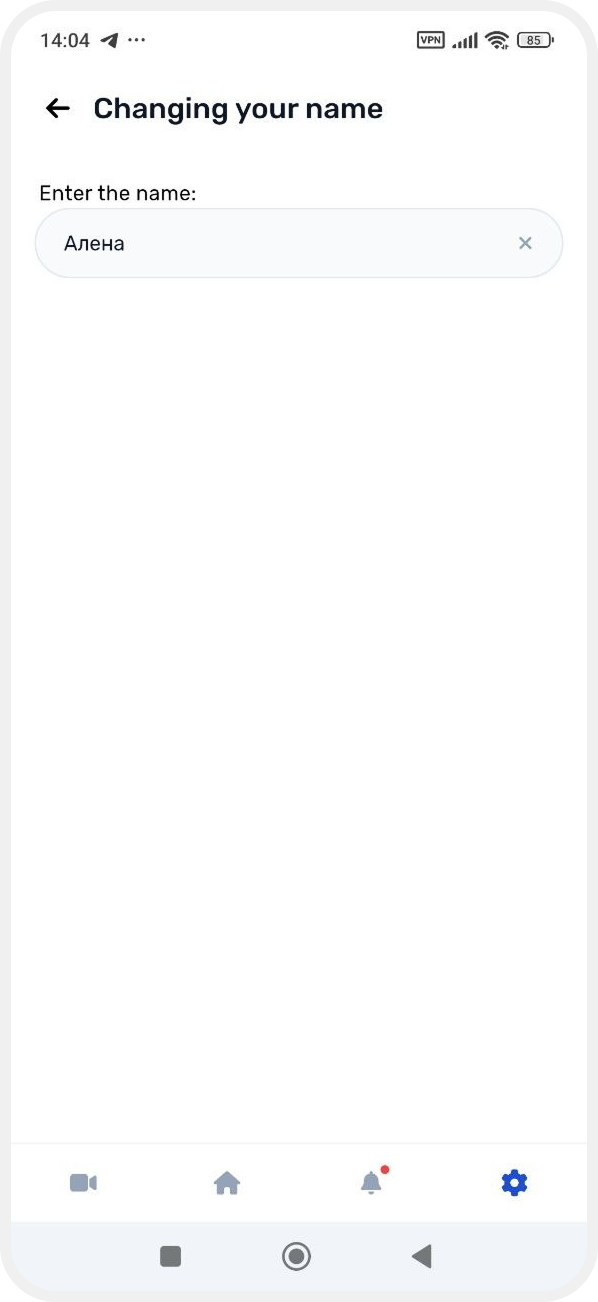
Change name
Enter a new name and save the changes.
Change password
To change your password:
1. Enter your current password
2. Tap Continue

3. Create and confirm a new password
4. Tap Continue
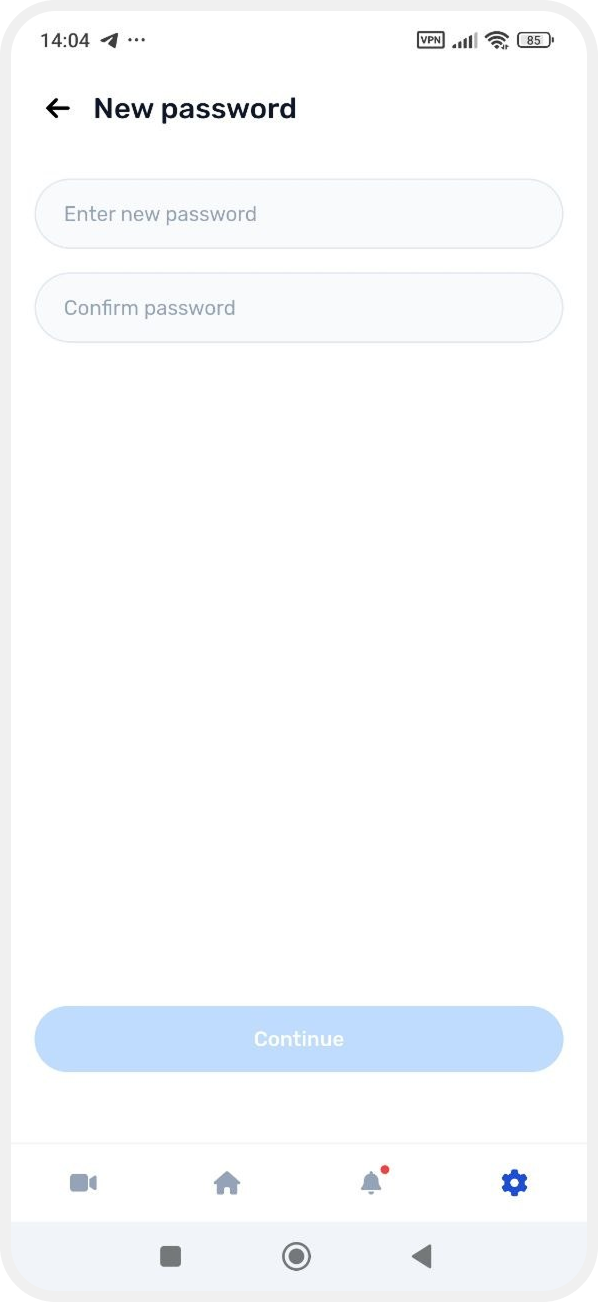
Your account password will then be updated.
Set a PIN code
You can set a 4-digit PIN code for quick access to the app.
After setup, you will no longer need to enter your password every time you sign in — simply enter the PIN code.

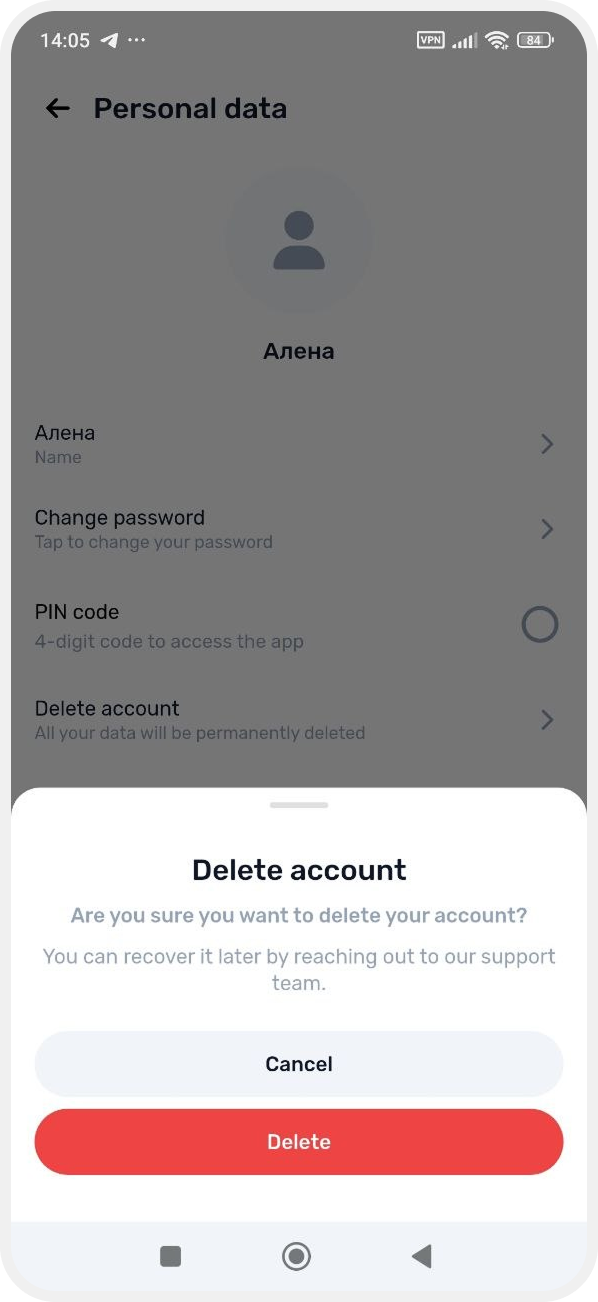
Delete account
If you no longer plan to use the GARM app, you can delete your account.
After deletion, access to the account will be disabled. To restore the account, you will need to contact support.
Language
In this section, you can select the app interface language.


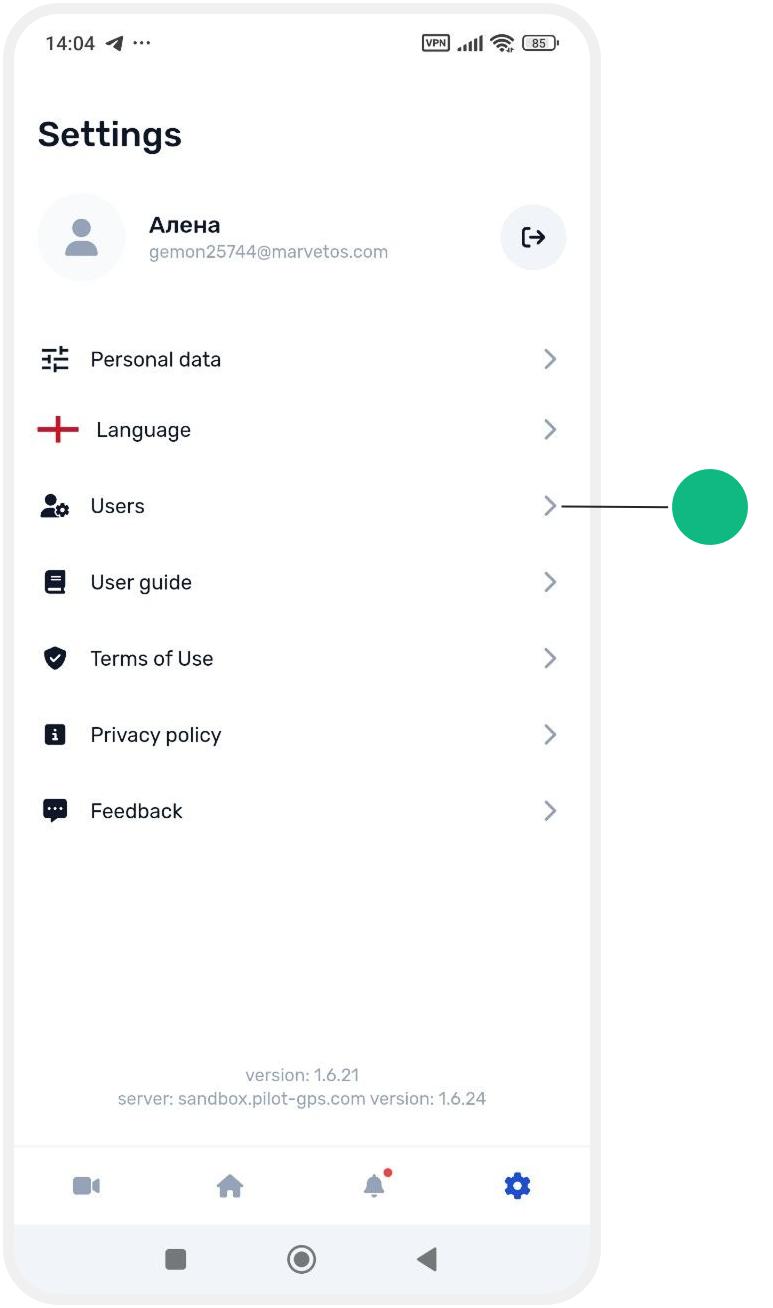
Users
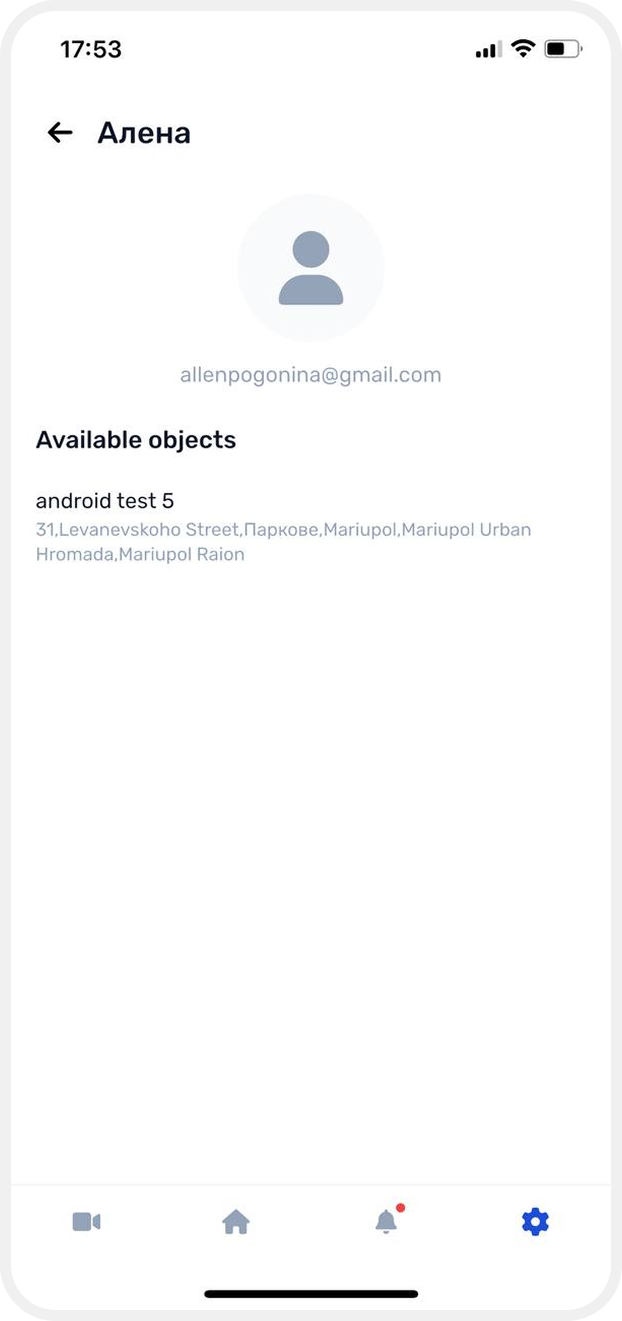
The Users tab displays a list of users and their access permissions for your sites.
Here you can see:
— who has been granted access
— which sites the user has access to
— what permissions the user has

User guide
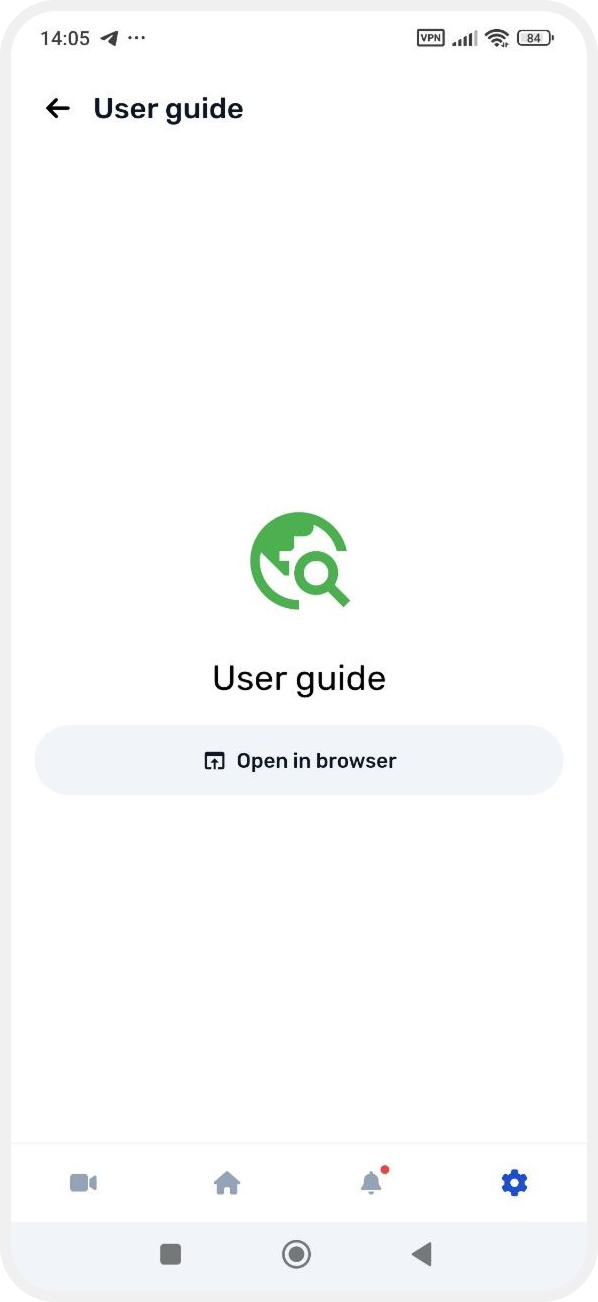
In the User guide tab, you can open the full GARM system manual in a browser.
Terms of use and privacy policy
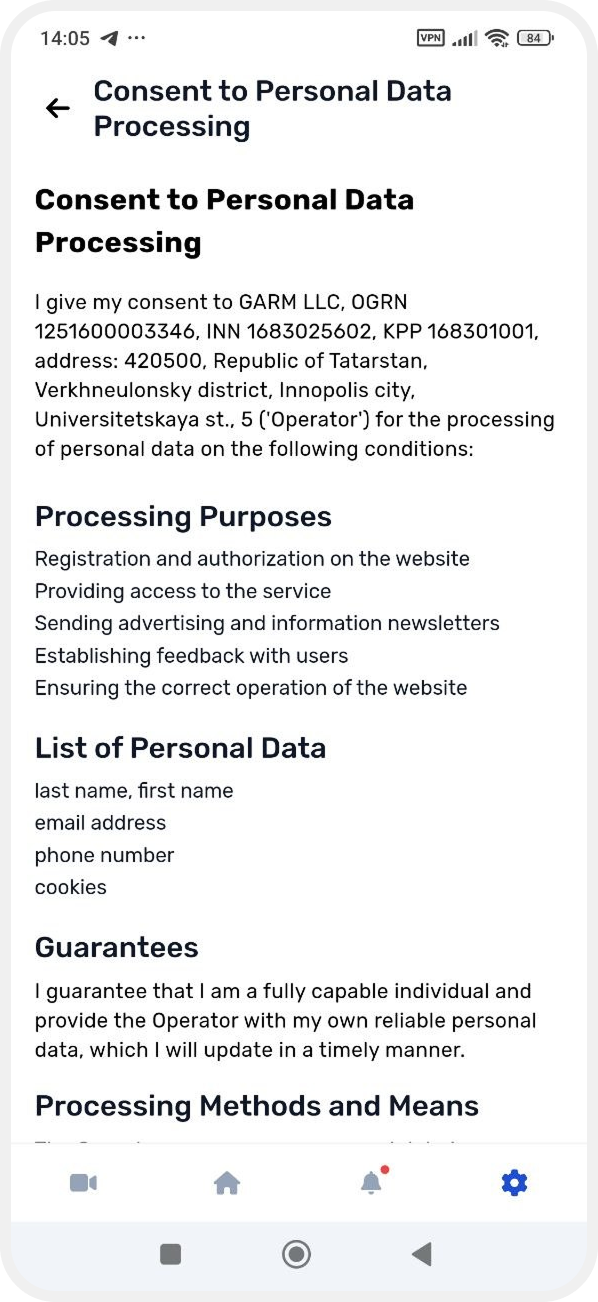
In these sections, you can review:
— the service terms of use
— data processing rules
— the privacy policy

Feedback
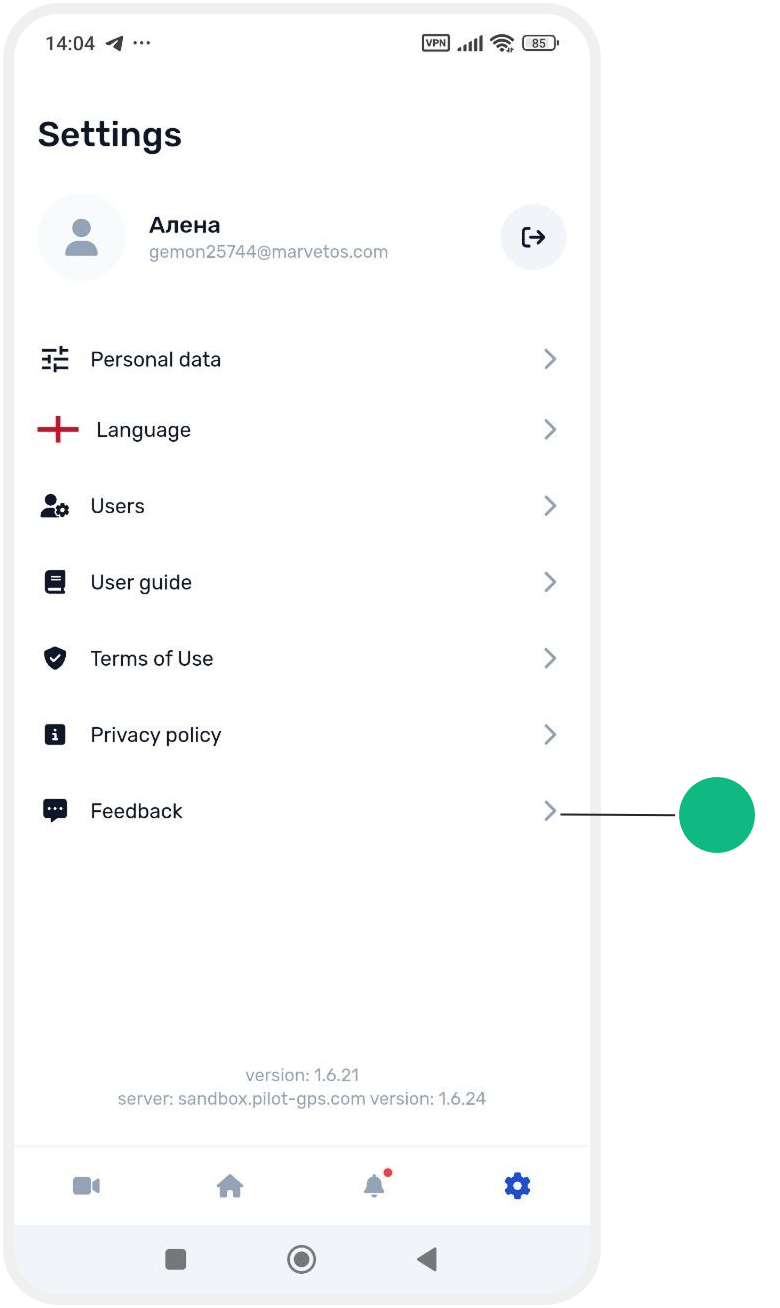
In this section, you can send a request to GARM support.
Open the Feedback tab and tap New request.

In the request form:
1. Enter the request subject
2. Describe your question, issue, or suggestion
3. Add a phone number for contact via Telegram or WhatsApp
4. Tap Send request

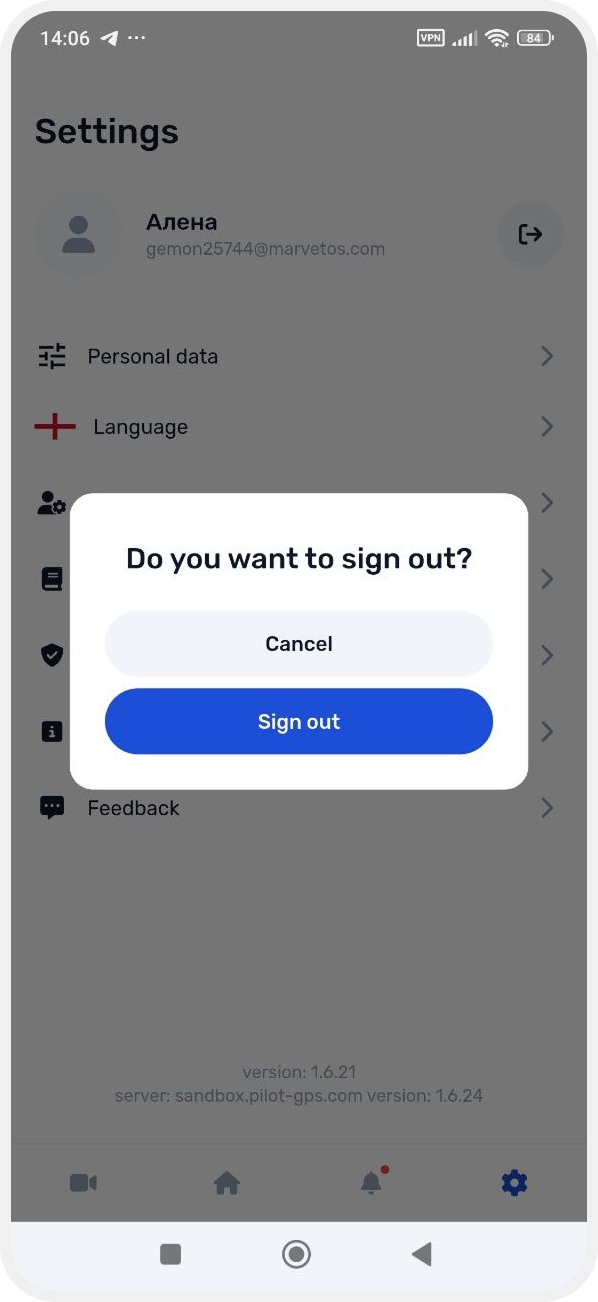
Log out
To log out of your account:
1. Tap the logout button in the upper-right corner of the Account settings section
2. Confirm logout