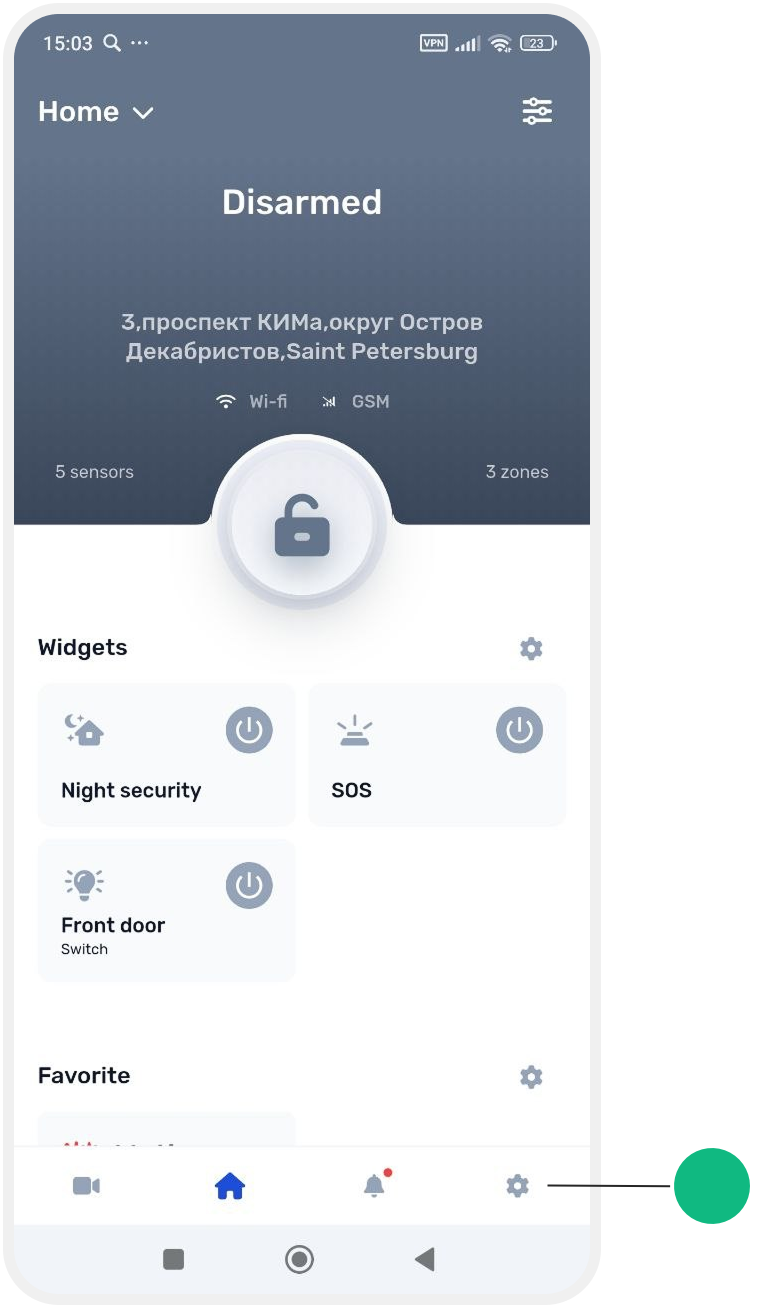
Site main screen
The main screen is the primary site management screen in the GARM app.
Here you can:
— check the site status
— arm and disarm the site
— control devices
— quickly navigate to the required system sections
The main screen opens when you tap the Home button in the bottom menu of the app.
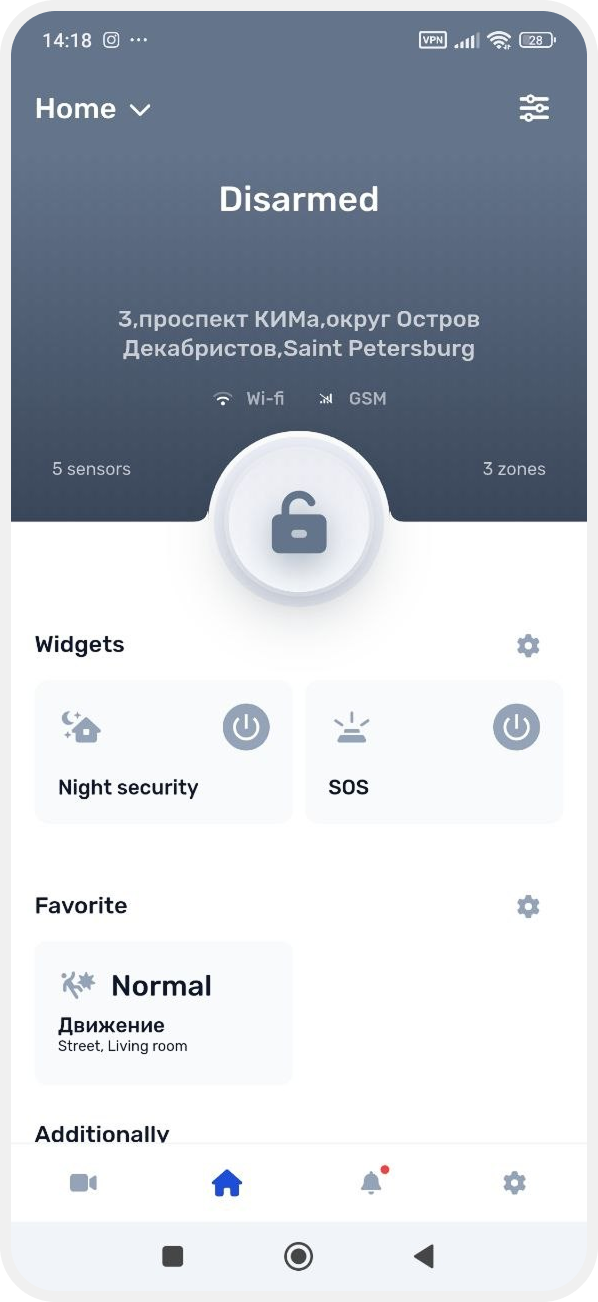
What is available on the main screen
Site name and address
The site name and address are displayed at the top of the screen.
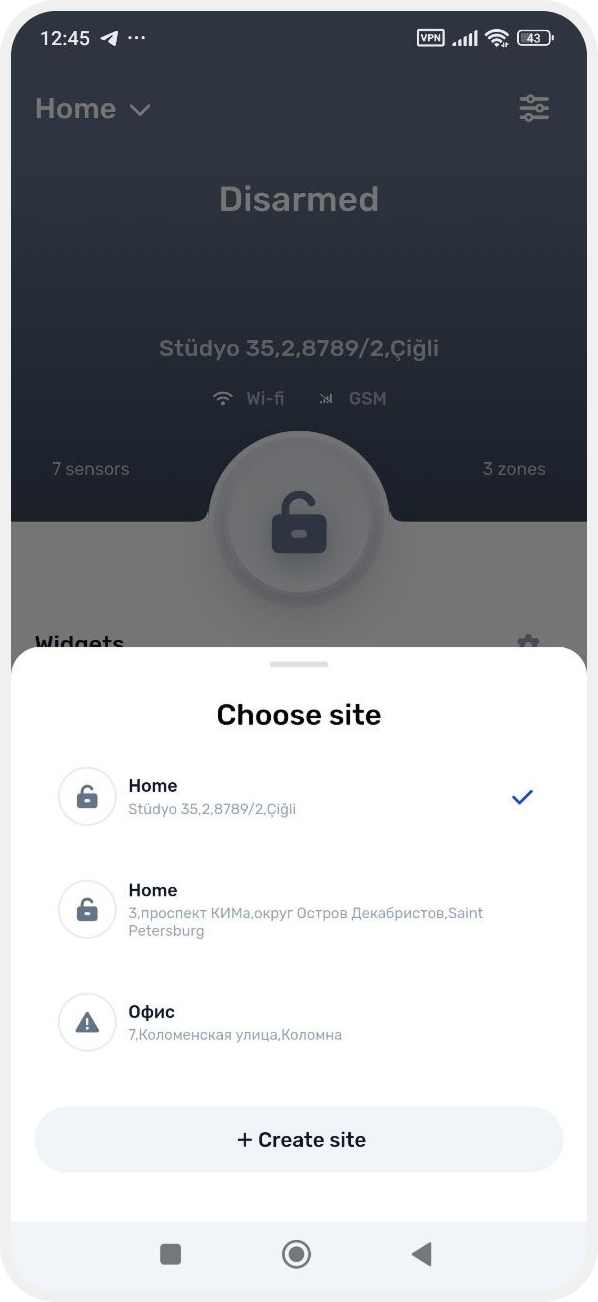
Site list button
Tap the site name in the upper-left corner of the screen to open the list of all available sites. Here you can see your own sites and the sites you have been granted access to.
For more details, see the “Site list“ article.
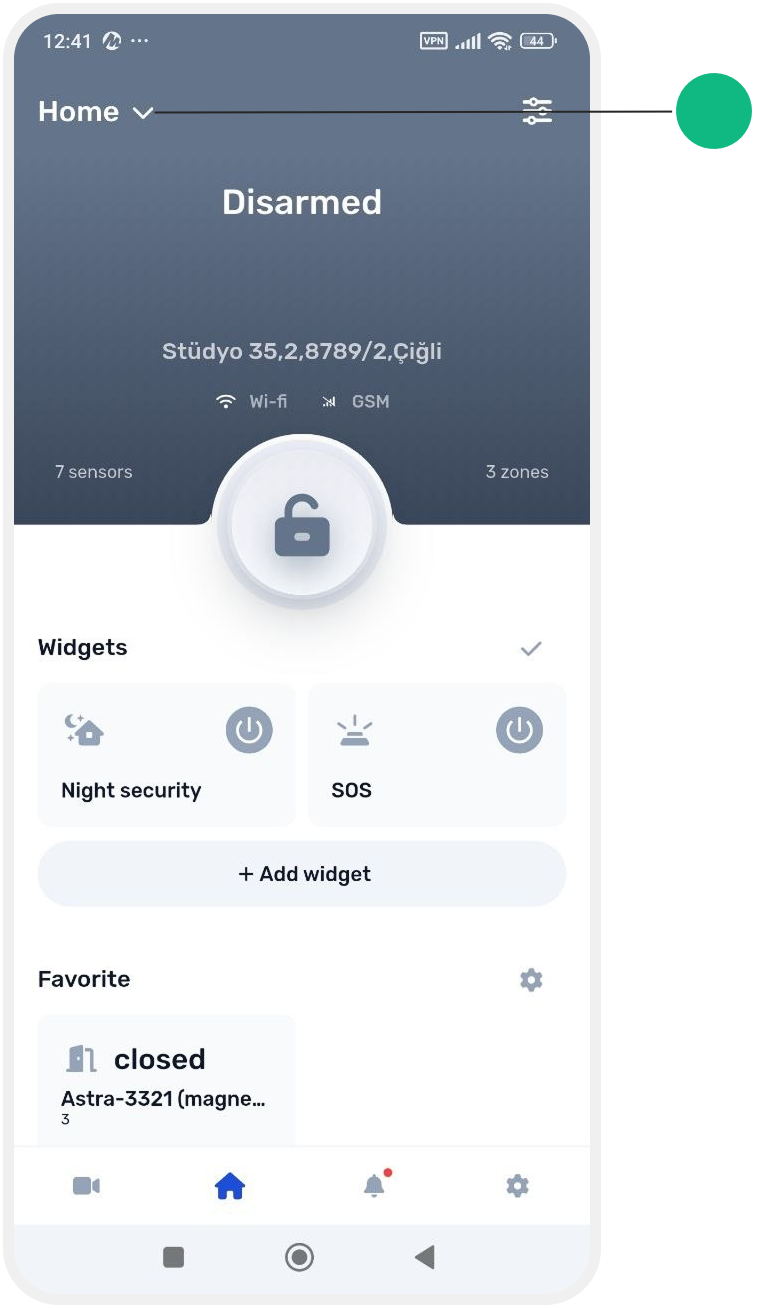
Site settings
The settings button is located in the upper-right corner of the screen.
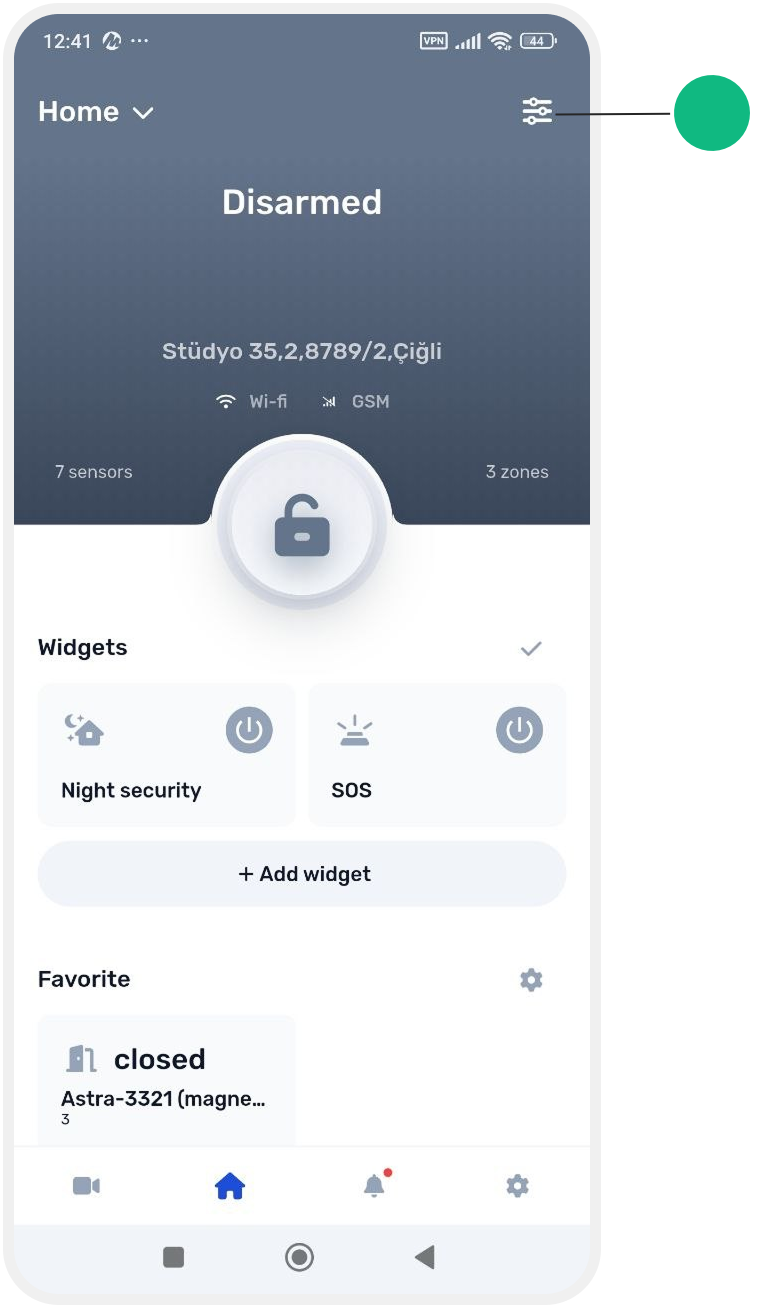
Here you can:
— change site settings
— configure the hub connection
— manage users
— configure widgets
— manage access keys
For more details, see the “Site settings” article.
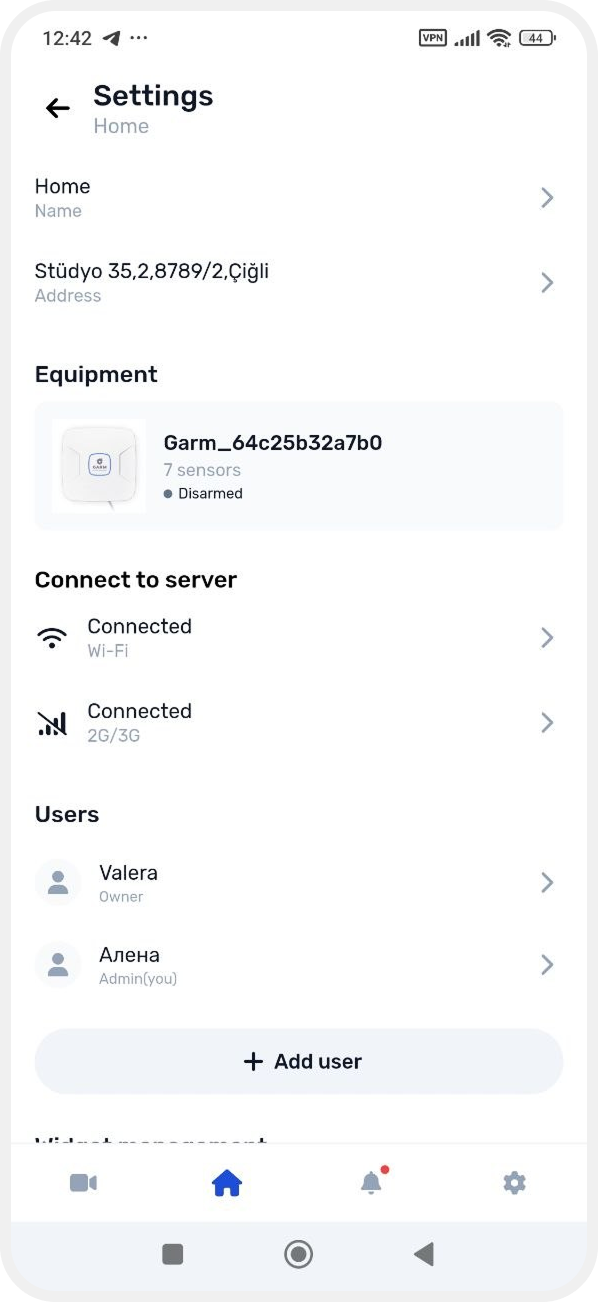

Security button
The security button allows you to quickly:
— arm the site
— disarm the site
The screen color changes depending on the current system status.
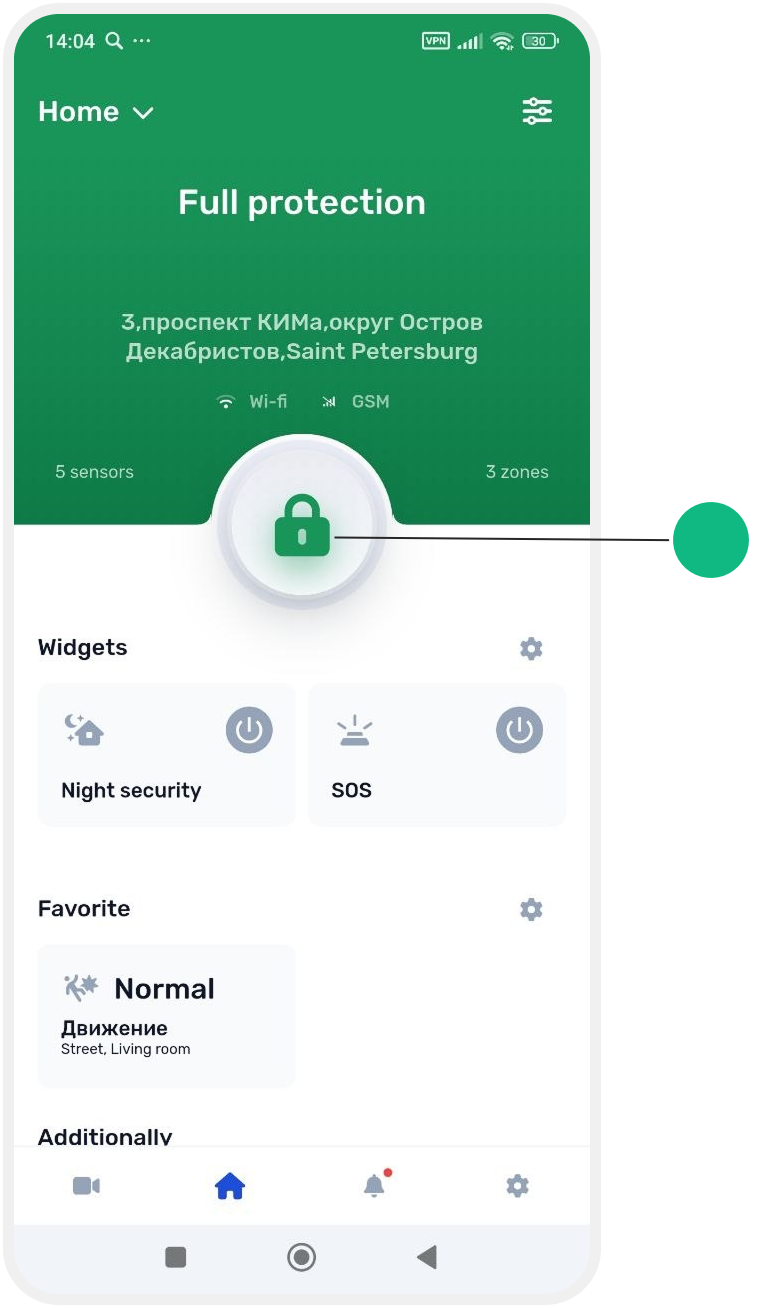
Control widgets
Quick control widgets may be displayed on the main screen.
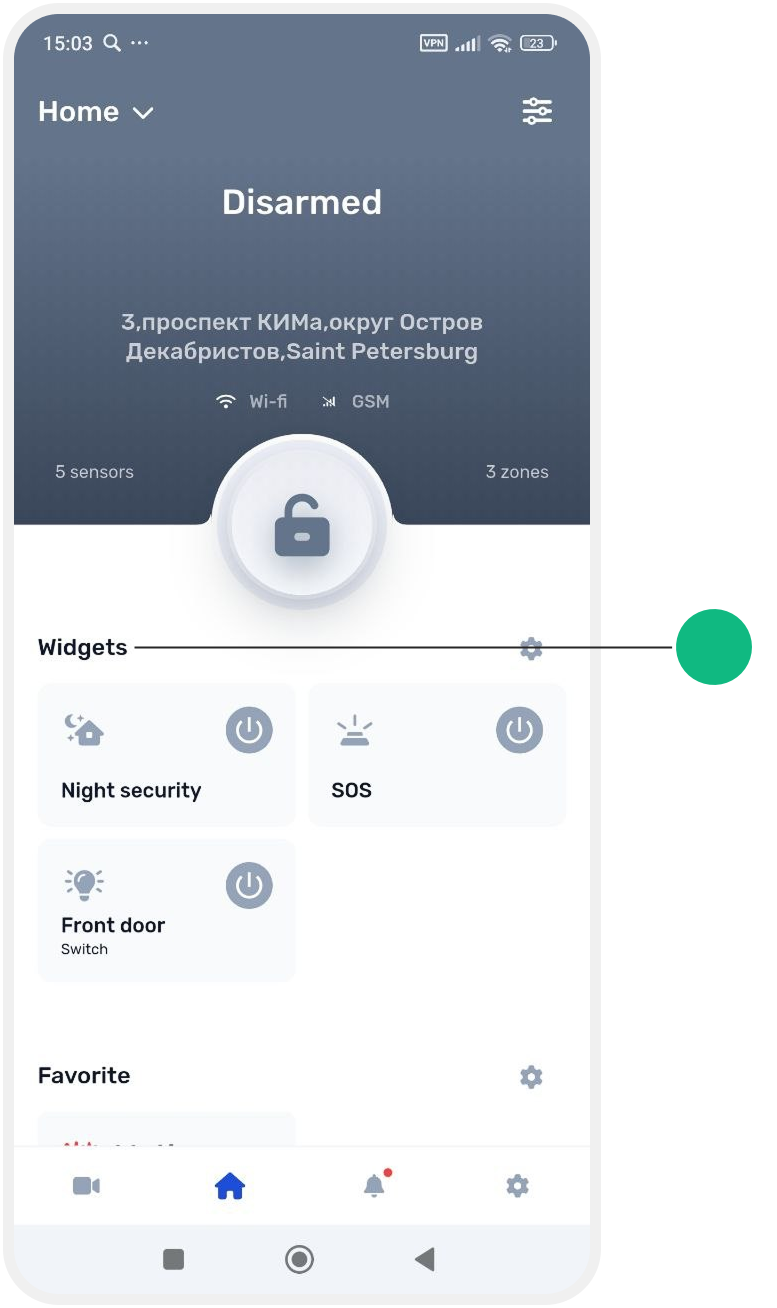
Using them, you can:
— control security modes
— control devices
— activate an SOS alarm
For more details, see the “Widgets” section.
Status color indication
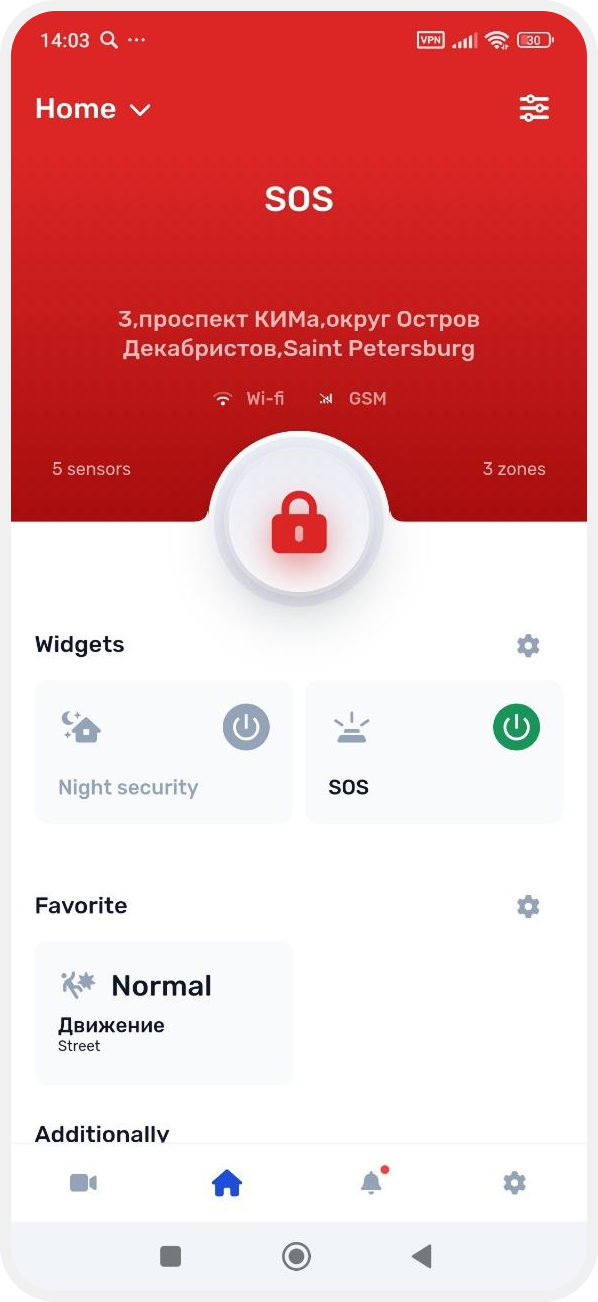
The color of the main screen helps you quickly understand the current site status:
• Green — the site is armed
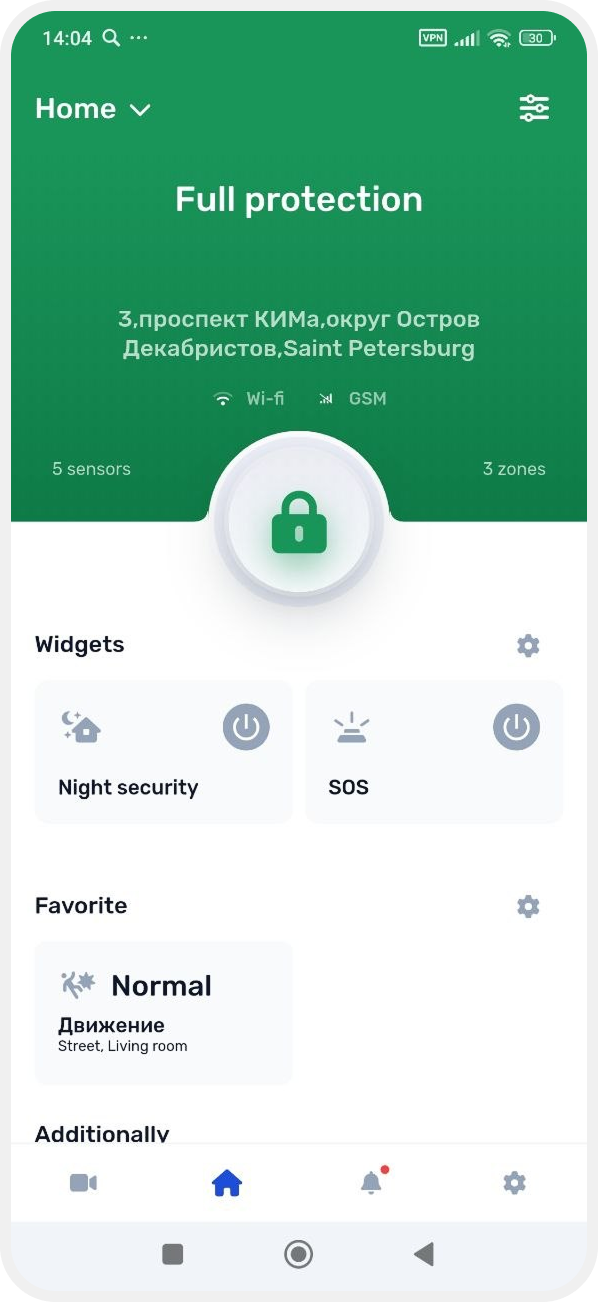
• Blue — Partial Arm or Night Mode is active
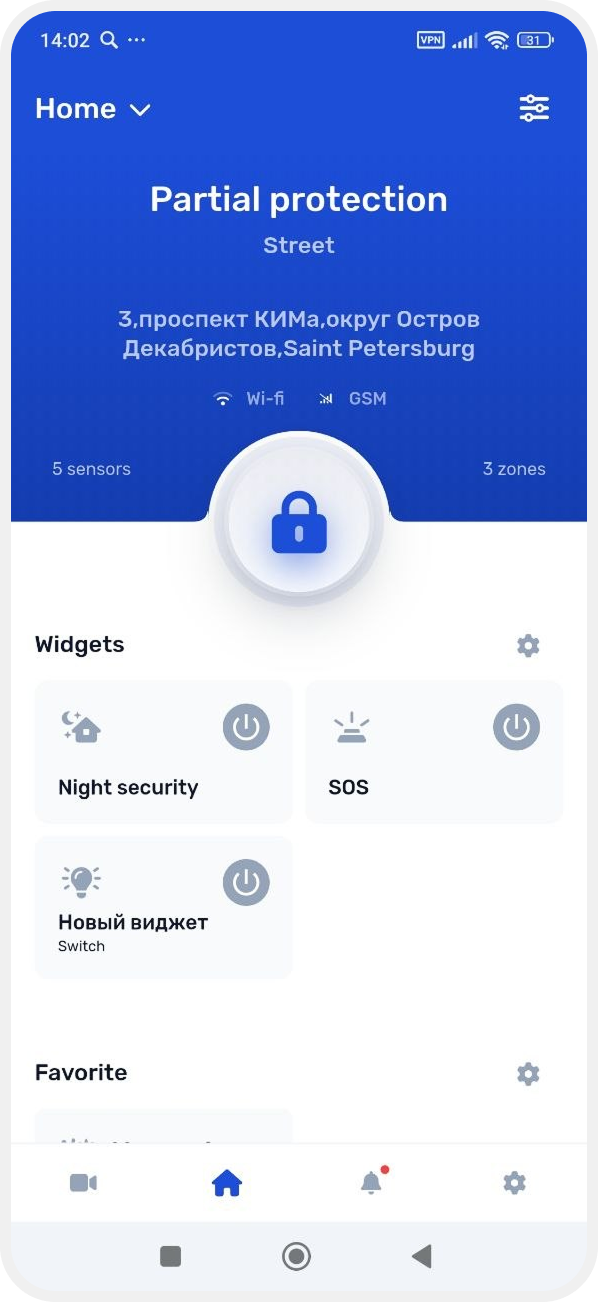

• Gray — the site is disarmed
• Red — alarm state or no connection
Additional tabs
Additional tabs are available in the “More” section on the main screen:
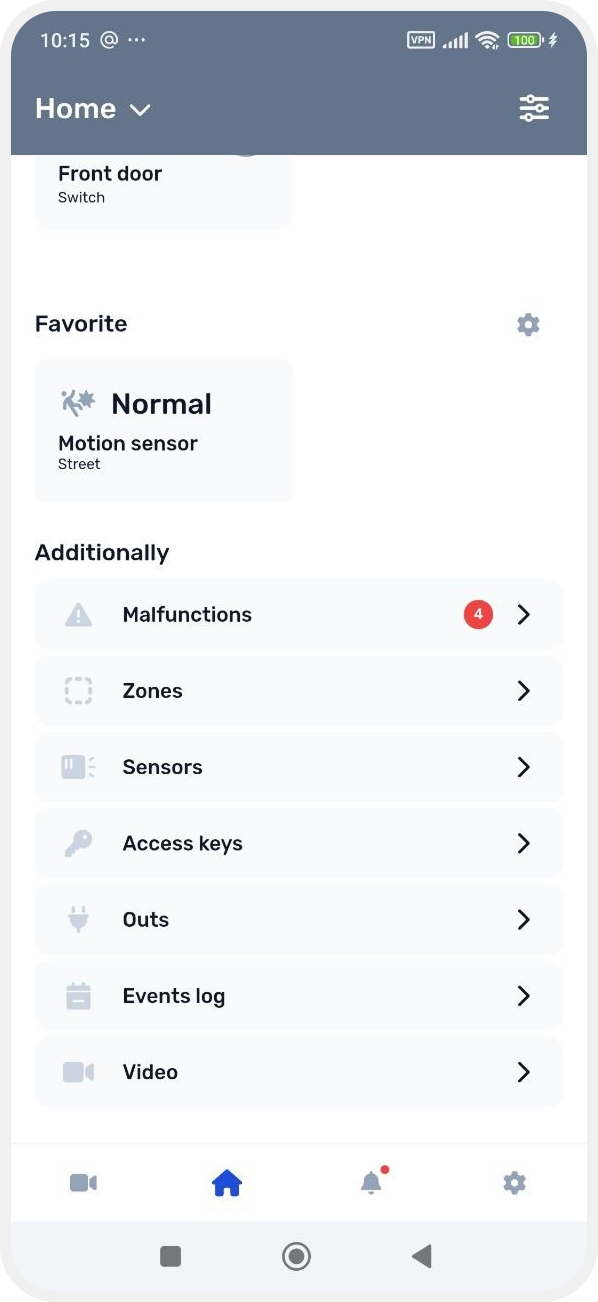
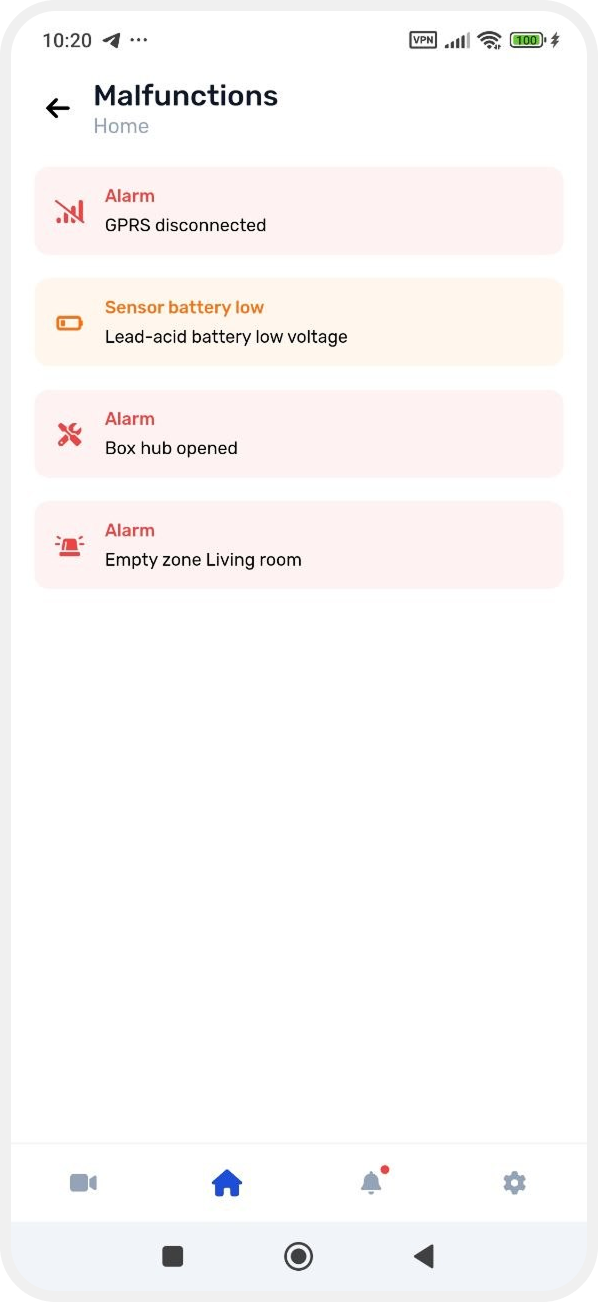
• Malfunctions — displays system problems and technical events, such as sensor connection loss or low battery
• Zones — manage site zones. Here you can view the zone list, change settings, add new zones, and control their security modes separately

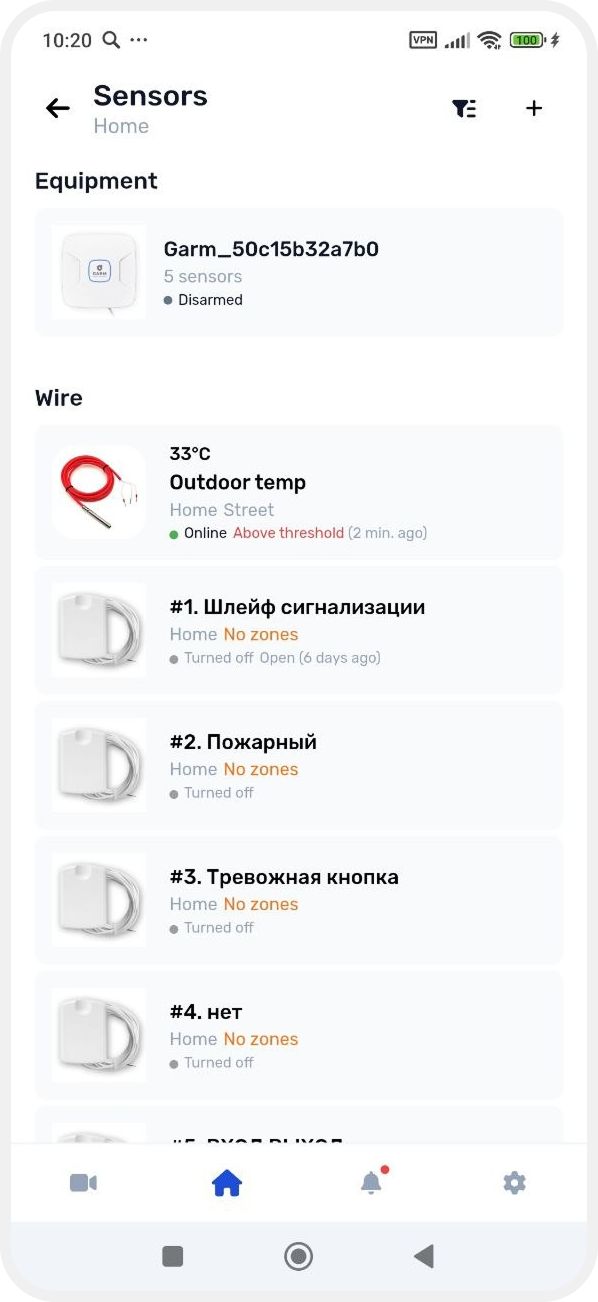
• Sensors — a list of all connected sensors and devices on the site. Here you can add new devices, check their status, rename them, and open their settings
• Access keys — manage Touch Memory (TM) electronic keys. Here you can add or remove keys and configure access permissions

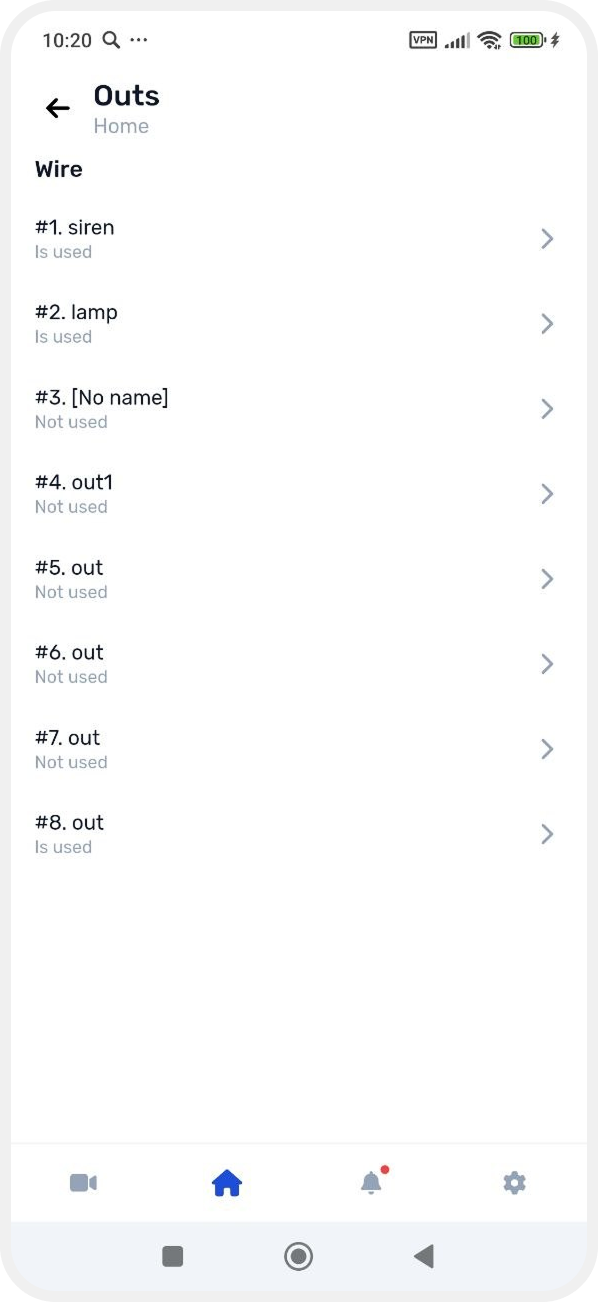
• Outs — a section for system actuators such as sirens, relays, locks, and other automation devices. Their status and control settings are available here
• Event log — a history of all important system events. This section displays alarms, security status changes, faults, user actions, and other site events

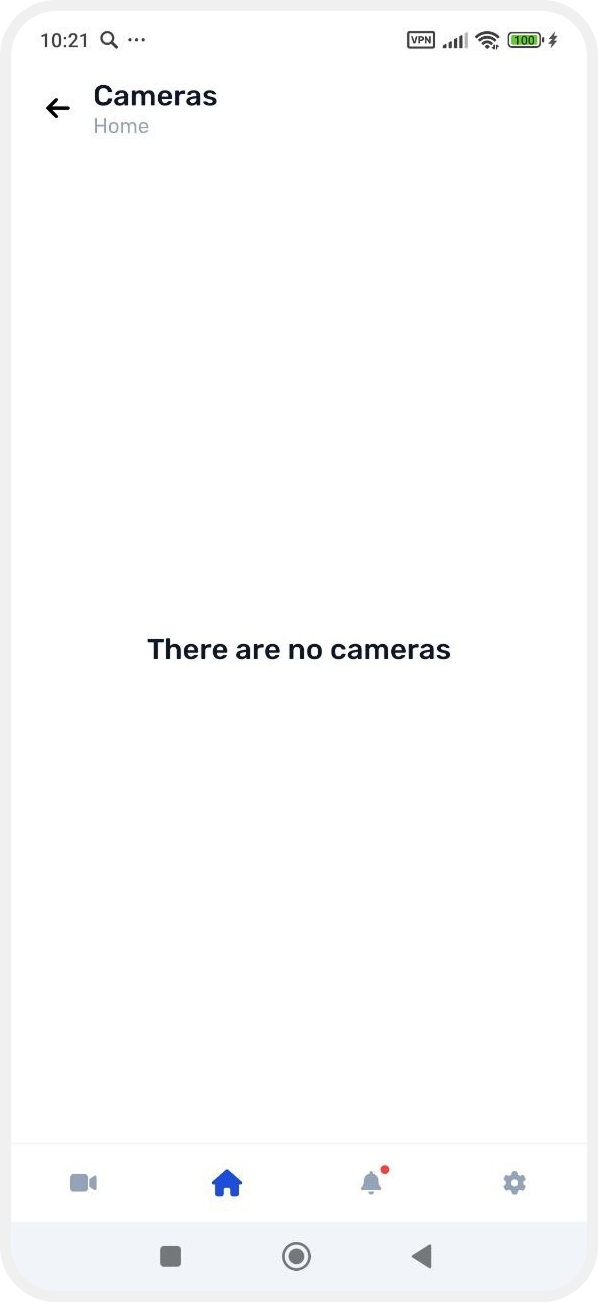
• Cameras — quick access to the video surveillance section. Here you can view cameras and open live streams
Bottom menu
The bottom menu allows quick access to the following sections:
• Home
• Events
• Cameras