
How to add a key to the system
Access keys allow you to quickly control the security system — for example, to arm/disarm a site or open a lock.
Before adding a key, make sure the key reader is connected to the hub.
Adding a key
1. Open the Access keys section on the main screen
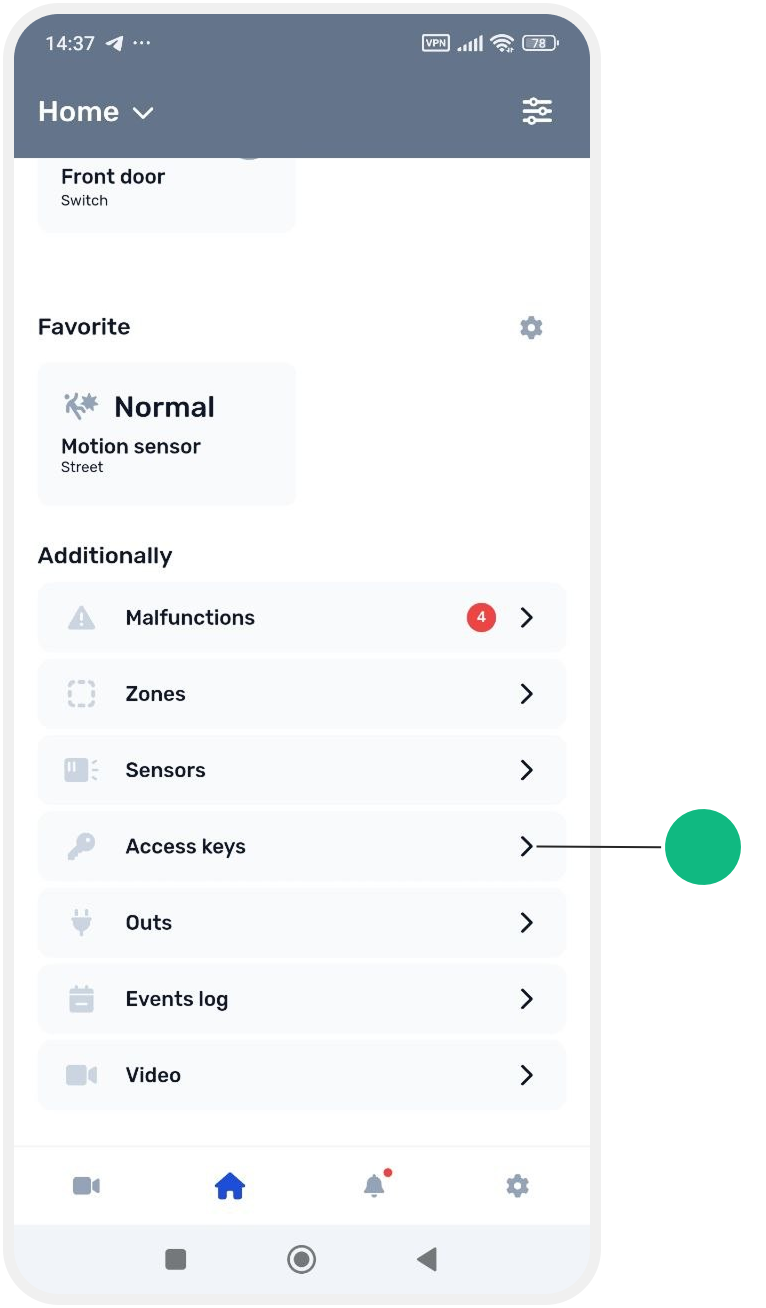
2. Tap:
— Add key if no keys have been added yet

or
— the button  in the top-right corner of the key list
in the top-right corner of the key list
3. Follow the on-screen instructions
When ready:
— tap Start key search

— place the key on the Touch Memory reader

Once the key is read, the system will detect it.
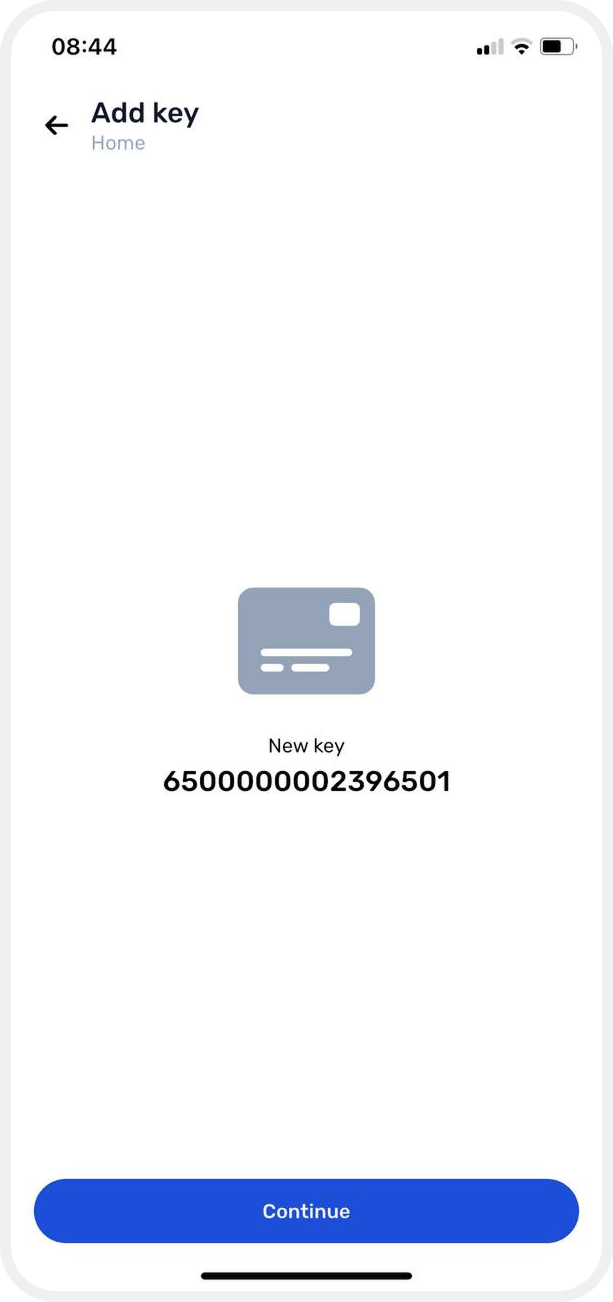
4. Tap Continue
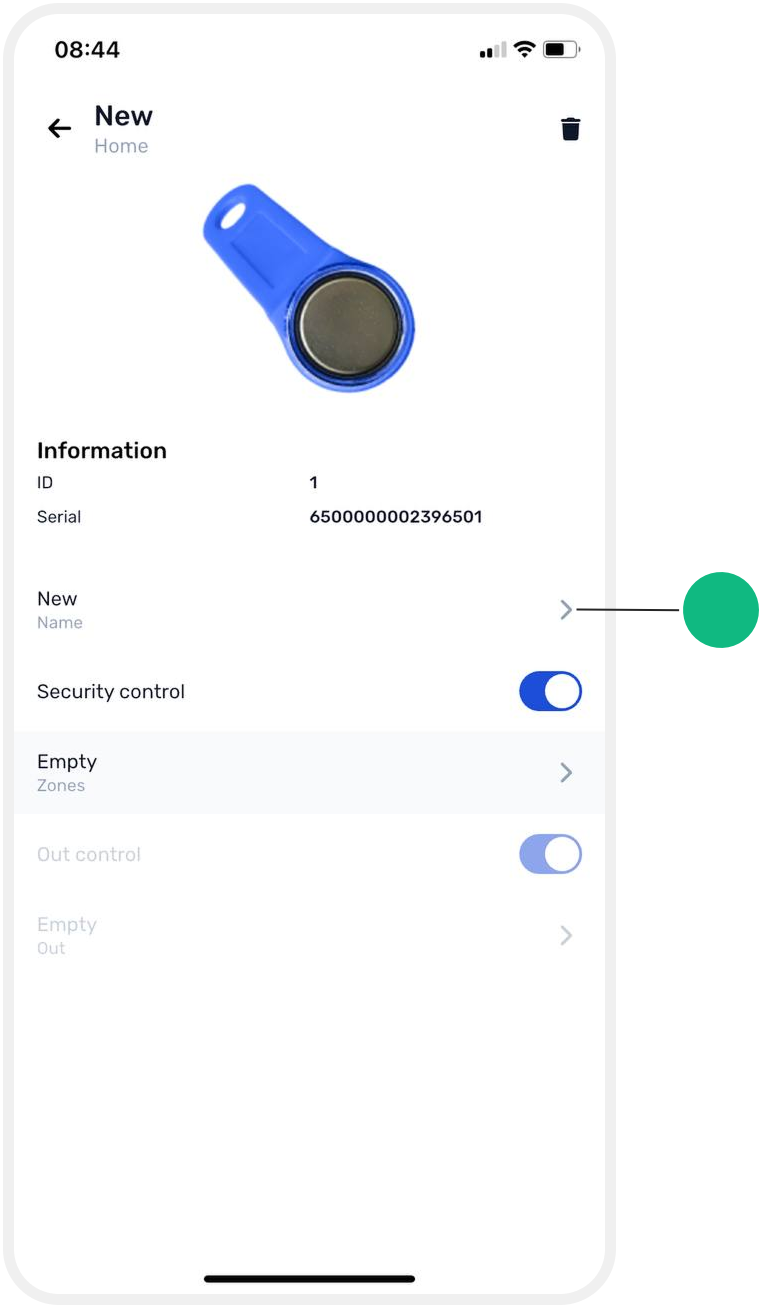
After this, the key card will open, where you can configure it.

Key settings
In the key card, you can:
— rename the key
— configure what the key does when used
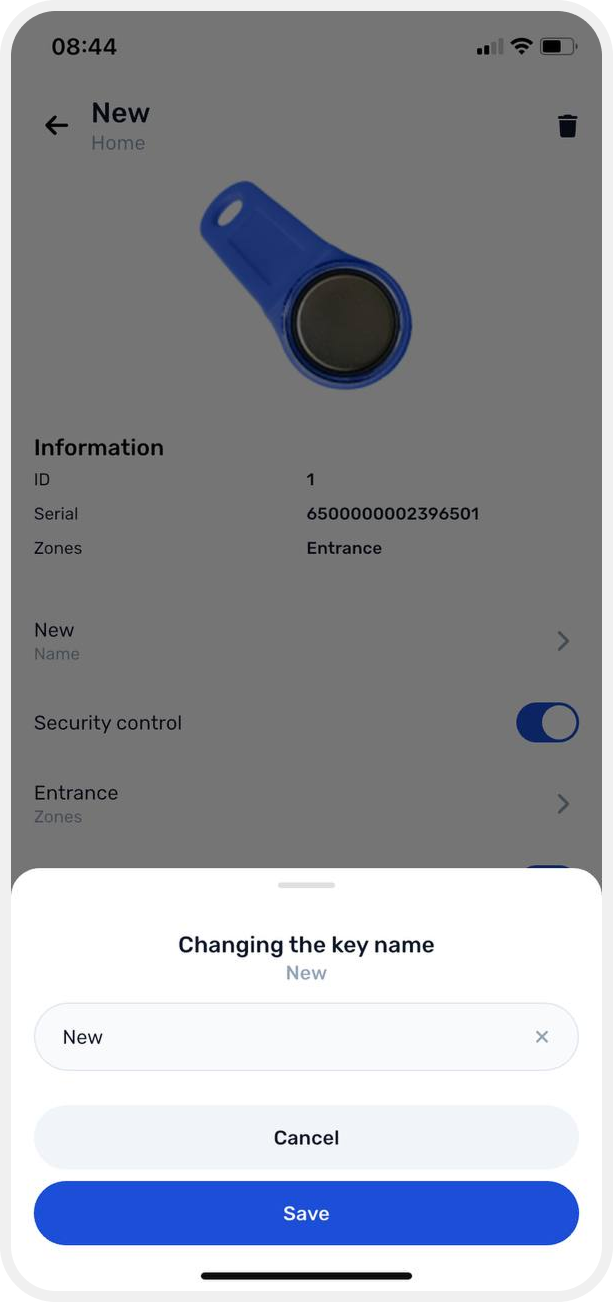
To rename the key:
1. Enter a new name
2. Tap Save
What a key can be used for
A single key can be configured to:
— control security (arm/disarm the site)
— control an output (e.g., lock, gate, lighting)
— or both
Security control
This allows you to arm or disarm zones using a key — for example when entering a home, office, or warehouse.
To configure:
1. Enable Security control

2. Select the zone the key will control
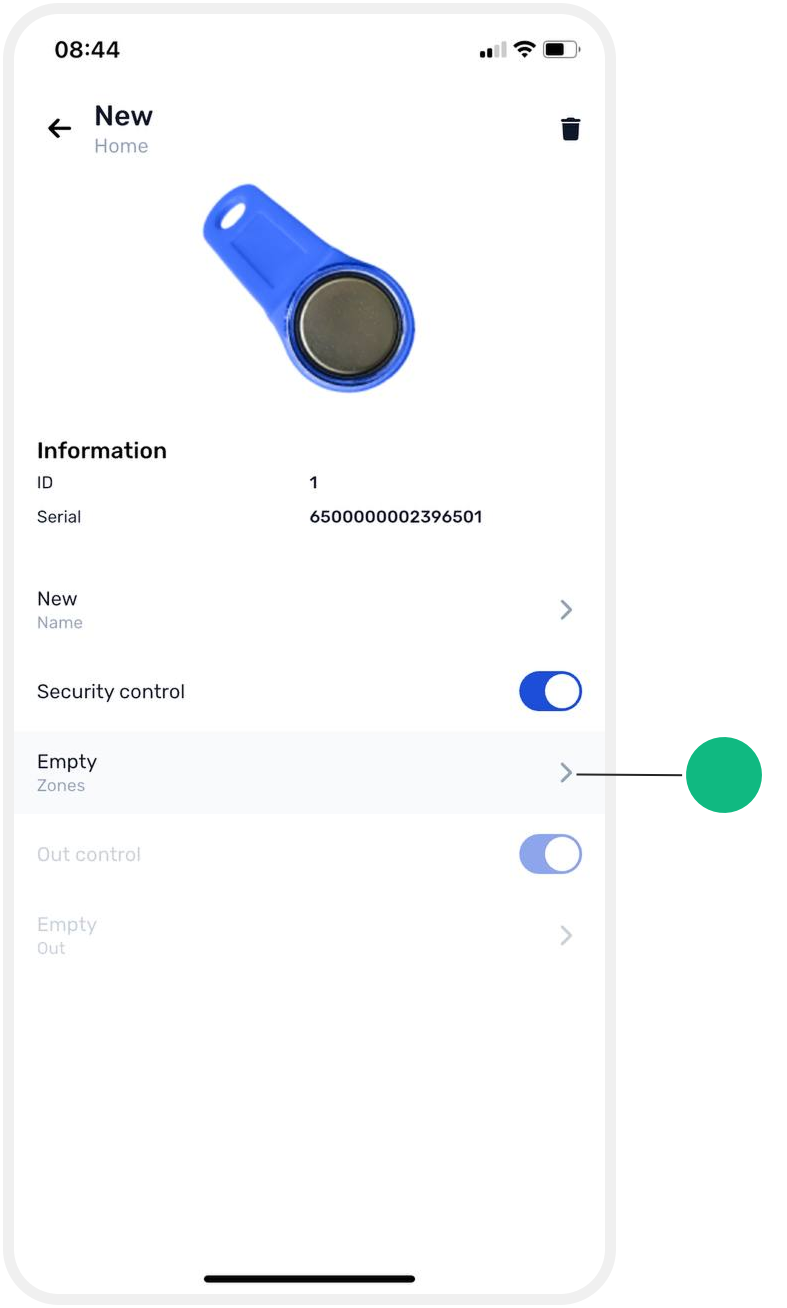
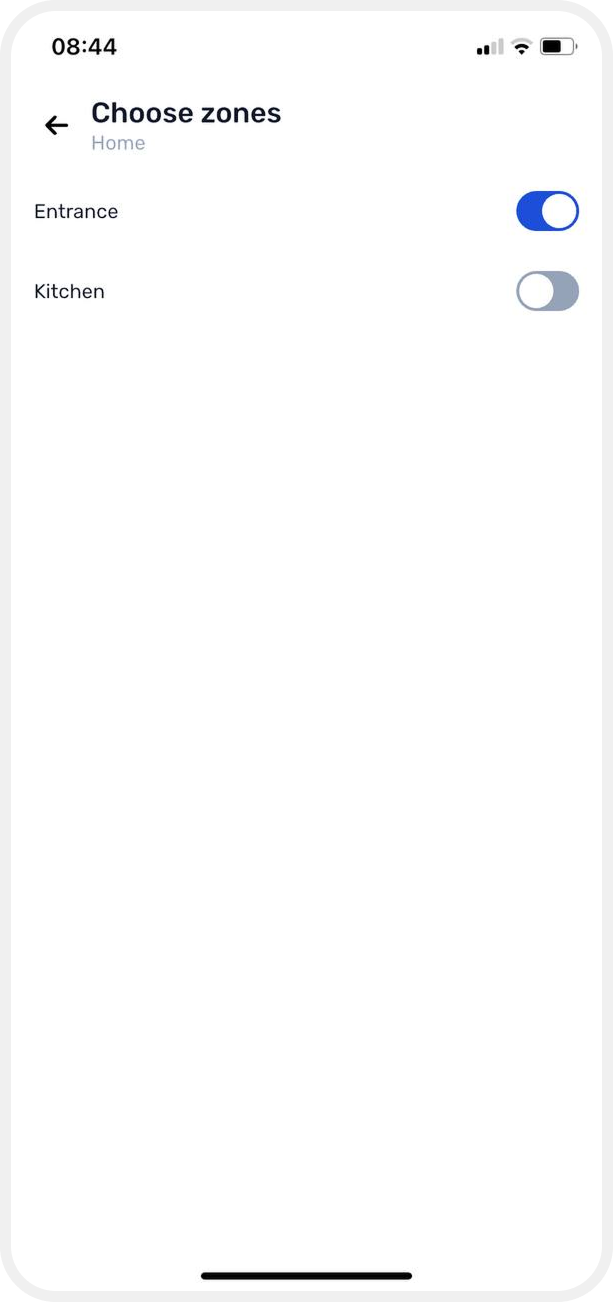
After this, presenting the key will arm or disarm the selected zone.
Output control
This allows the key to control connected devices such as:
— electric locks
— gates
— lighting
To configure:
1. Enable Output control
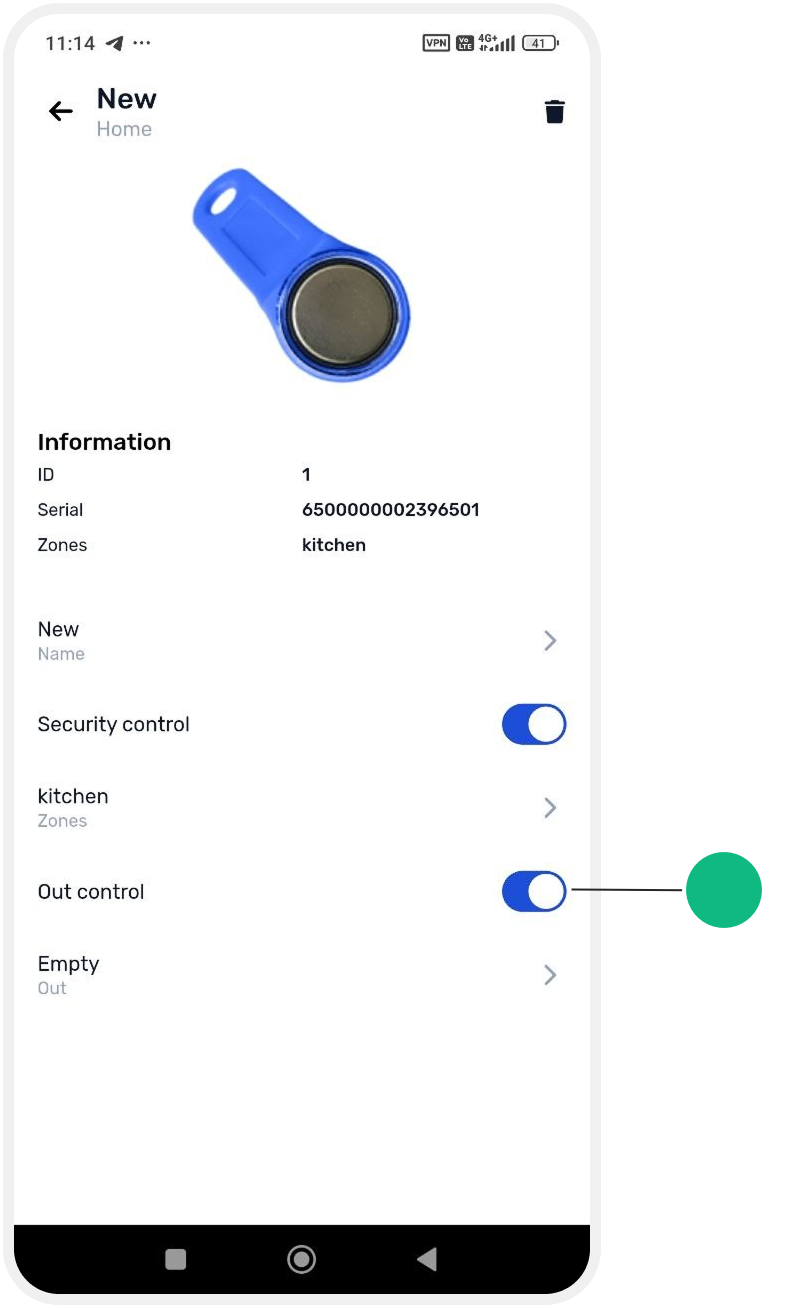
2. Select the required output from the list
The output must first be added to a zone. Only then will it become available for selection and assignment to the key.

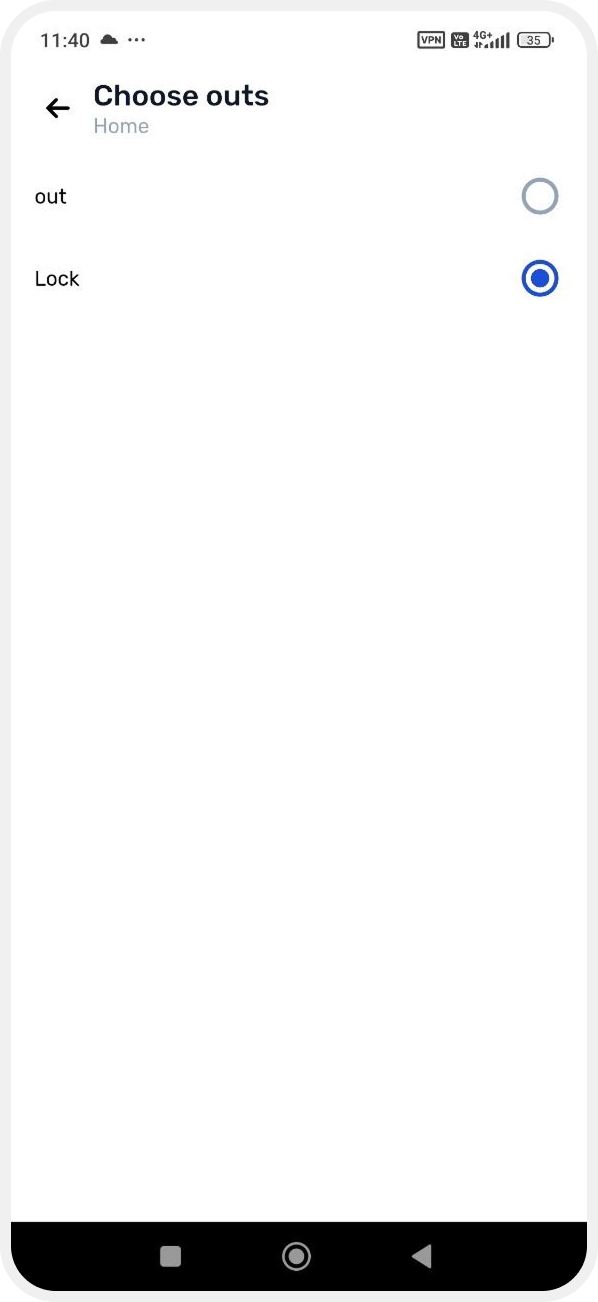
After this, the key can control the selected device.
If a duplicate key is detected
If you accidentally present a key that is already registered, a duplicate key message will appear.
In this case:
1. Tap Search again
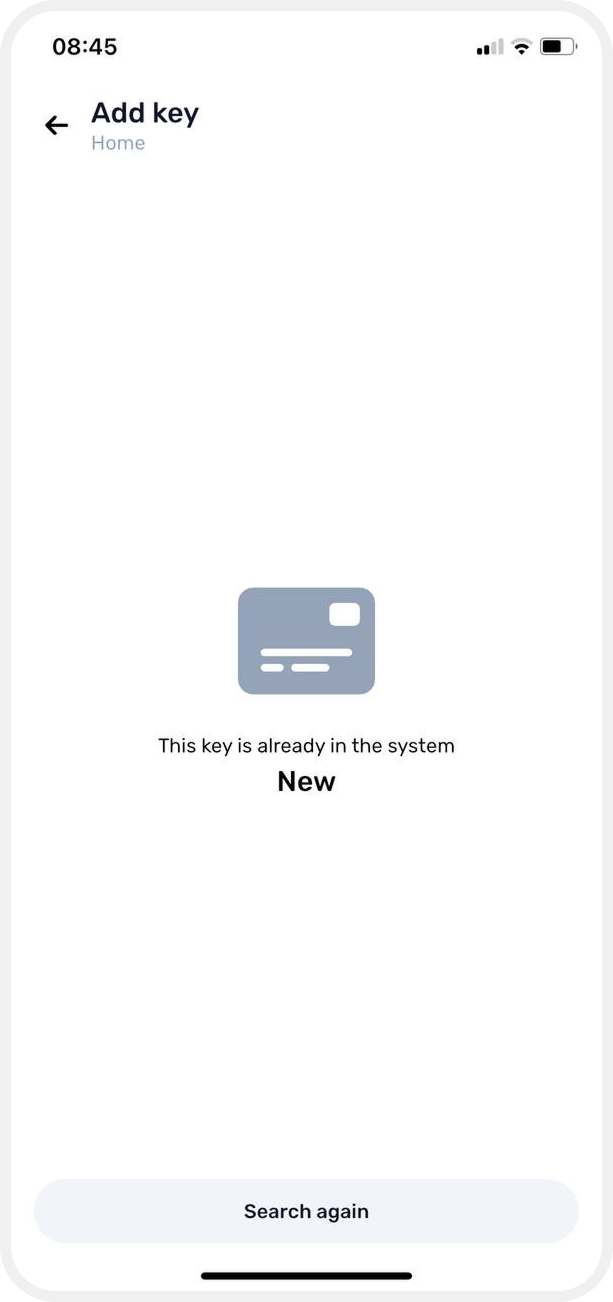
2. Present a different key that is not yet registered in the system.