
How to add a wireless output
Wireless outputs are wireless actuators (relays) that allow you to control connected equipment, such as:
— sirens
— lighting
— locks
— gates
— other electrical devices
In the GARM system, wireless relays are added in the same way as wireless sensors.
If a relay was previously removed from the system, you may need to short the contact on the device board before adding it again. Otherwise, the device may not be detected during a new search.
|
Adding a wireless output
1. Open the Sensors tab from the main site screen
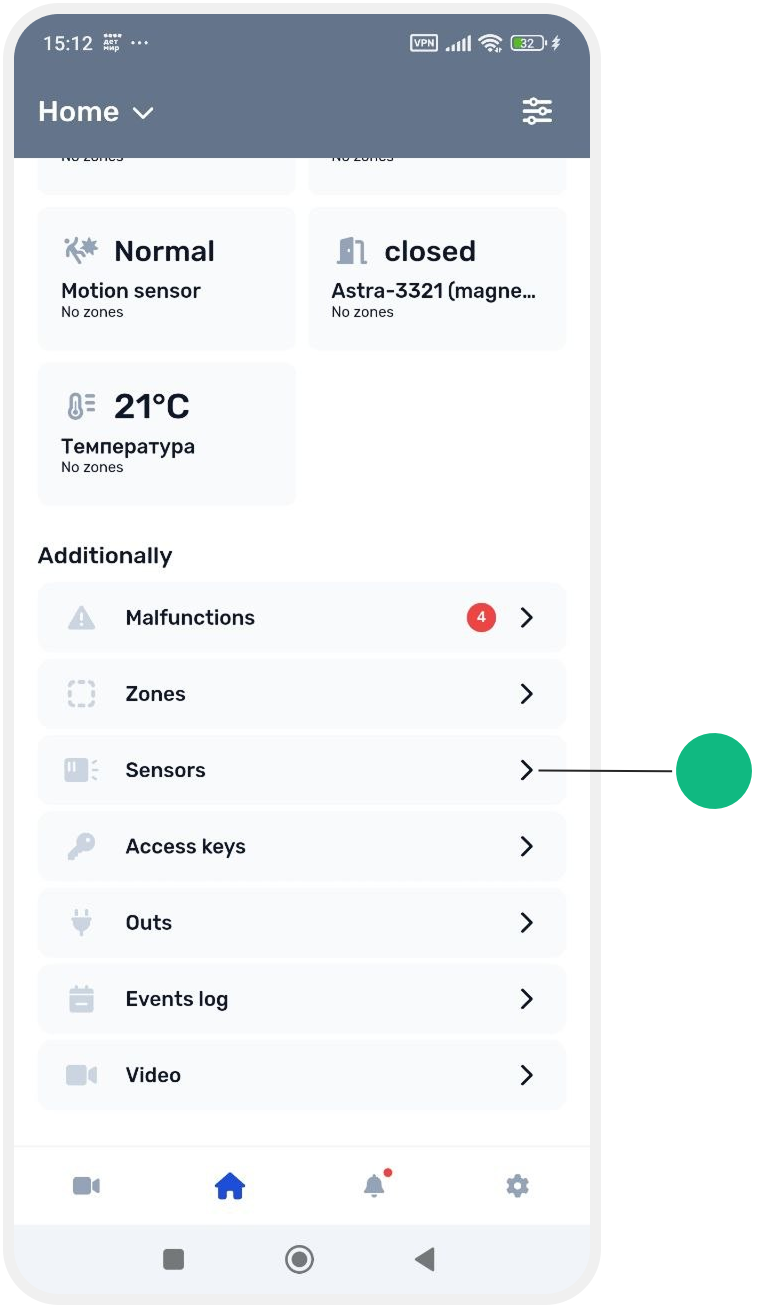
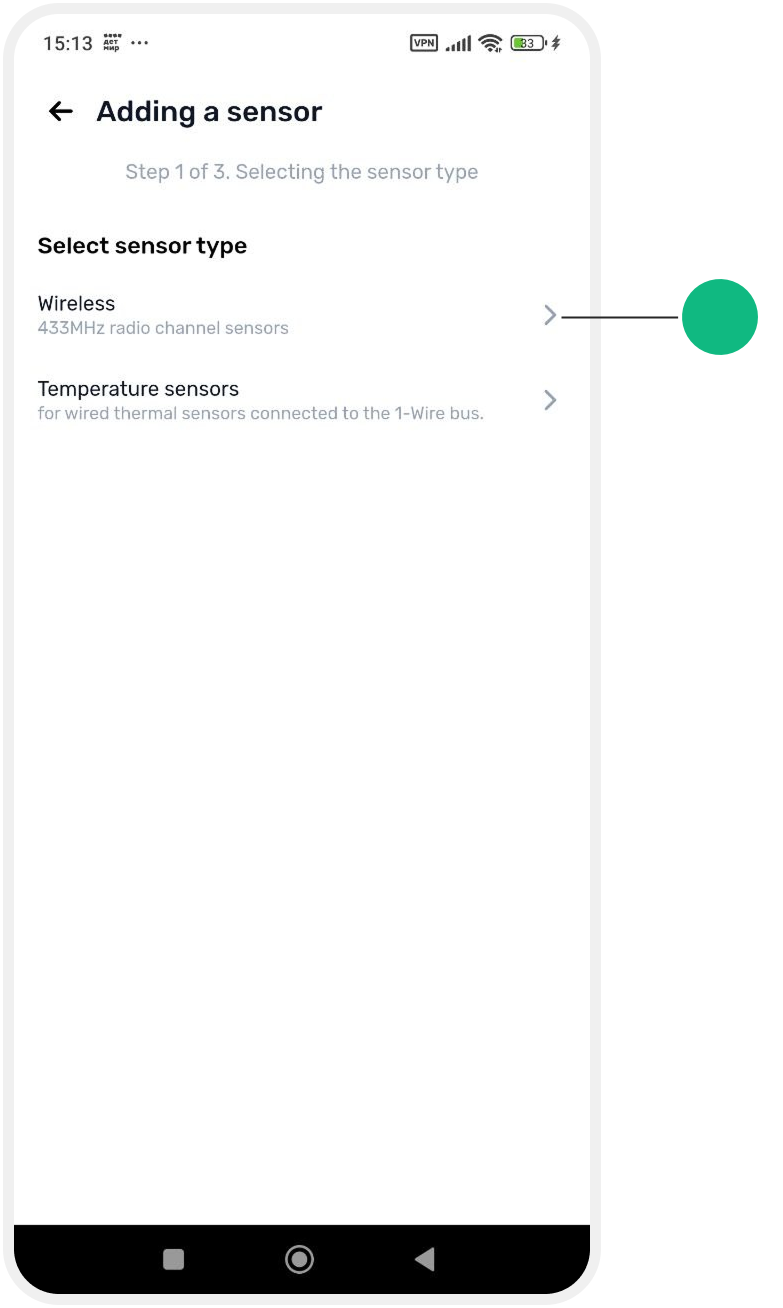
2. Tap Add sensor in the upper-right corner of the screen

3. Select the connection type: Wireless
Finding the device
4. Follow the on-screen instructions. The app will begin searching for available devices
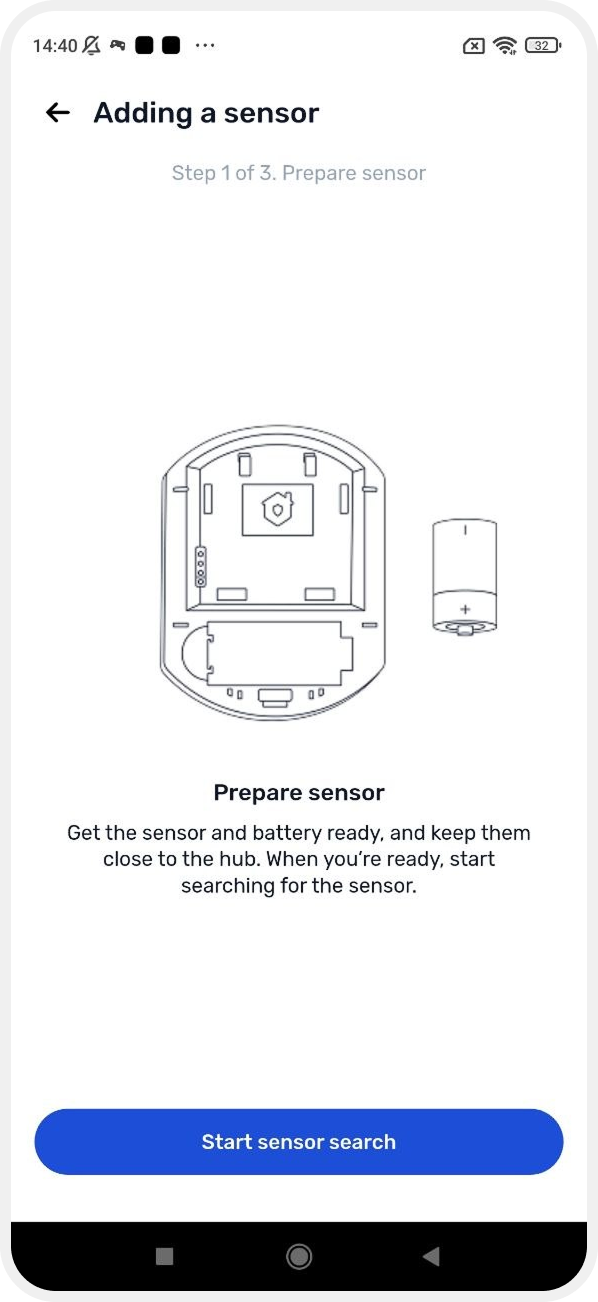
5. Prepare the relay and its battery. During pairing, it is recommended to keep the device close to the hub
6. Tap Start sensor search. The hub will enter pairing mode and wait for a new device
7. Insert the battery into the device and make sure it powers on
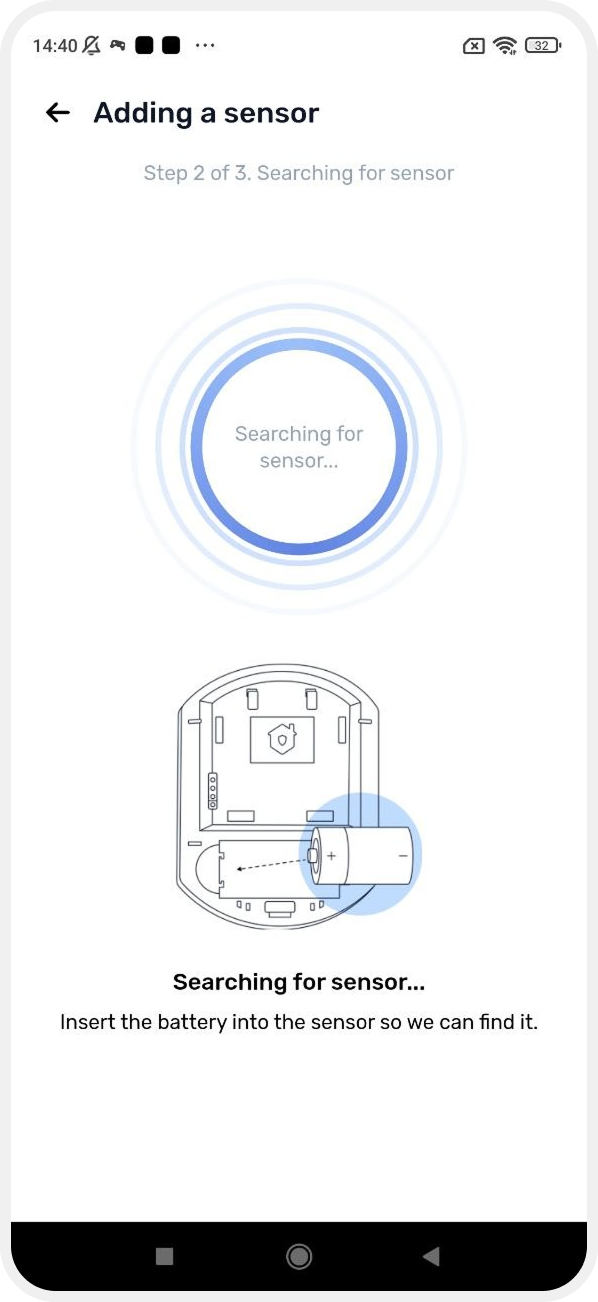
8. Wait for the device to appear in the app.
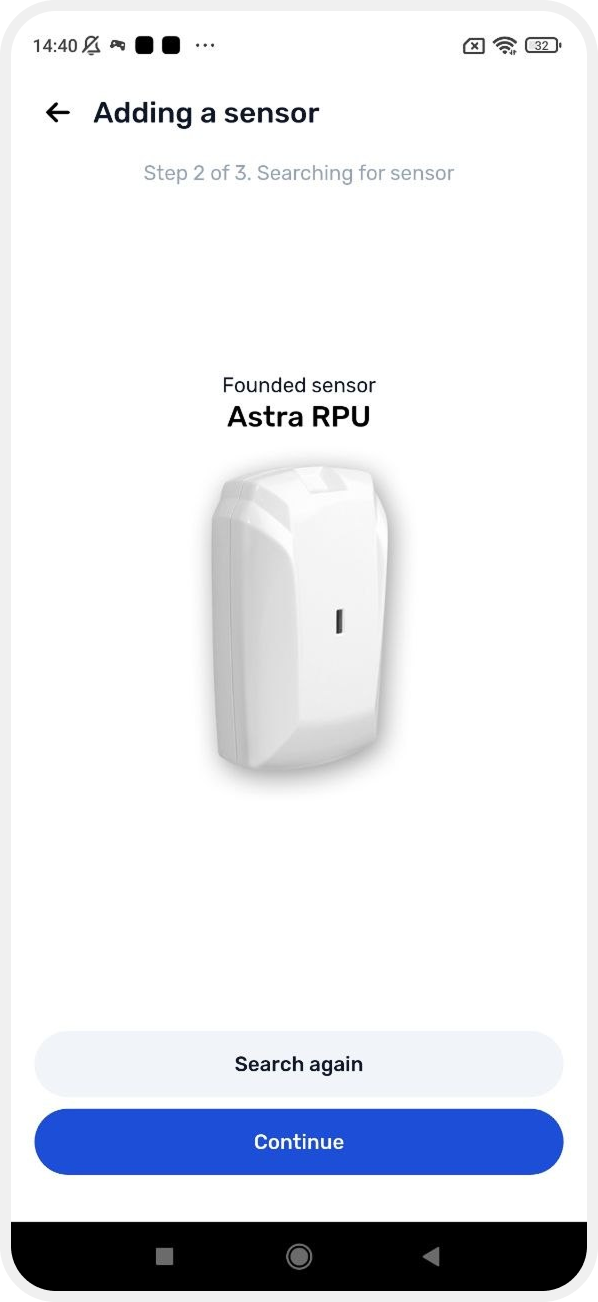
Configuring the output
After the device is added, configure its settings.
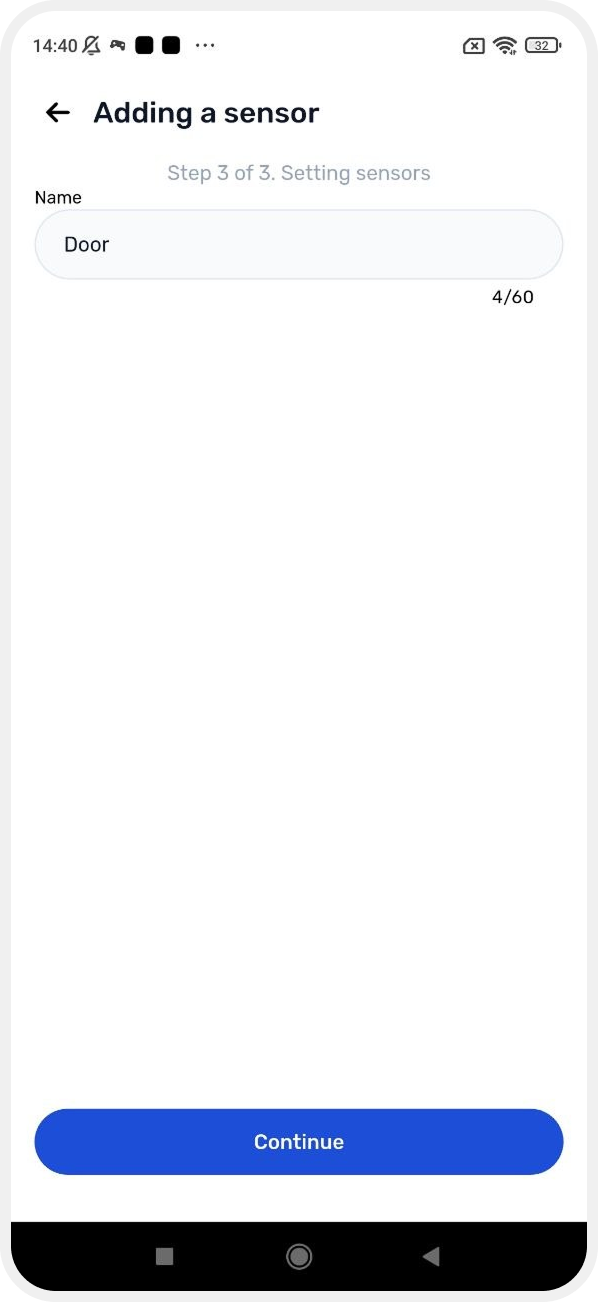
Name
Enter a name for the output.
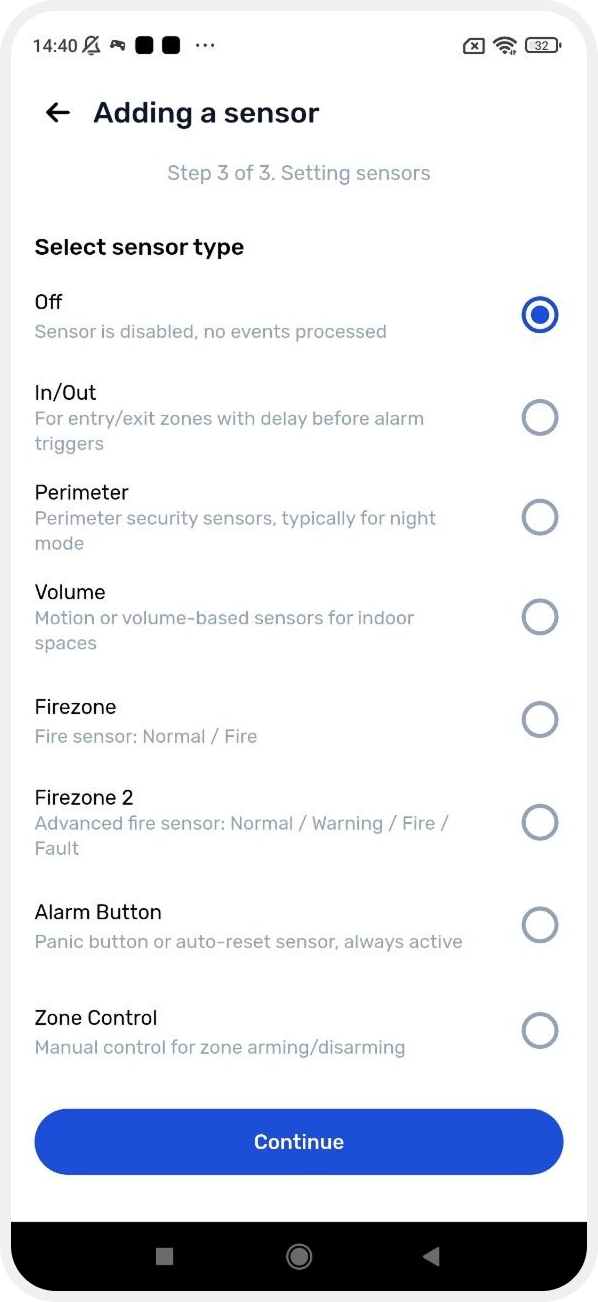
Device type
Select the wireless output type.
Assigning a zone
Select the zone where the device will be used.
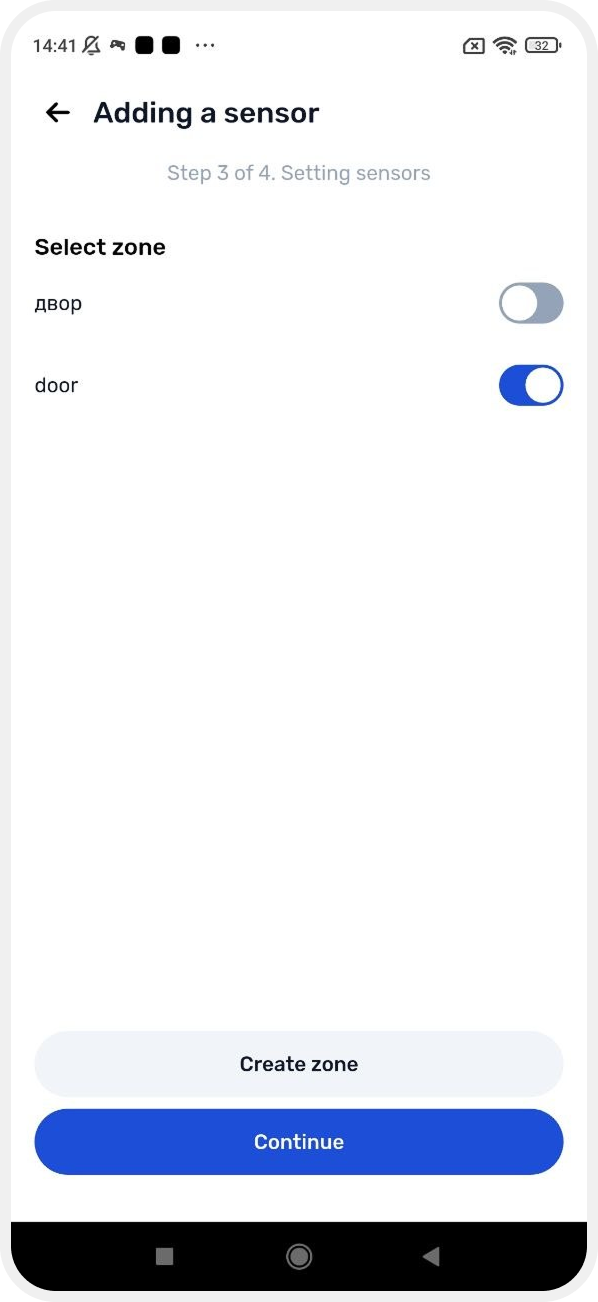
If the required zone does not exist yet:
— tap Create zone
— create a new zone and continue the setup process
Configuring child outputs
Some wireless relays may contain multiple outputs or functions.
For example:
— siren output
— visual indicator output
— control relay output
Each child output can be configured separately:
— Enter a name for the child output
— Enable the Use switch if you want this output to be active
— Select a device type for the output
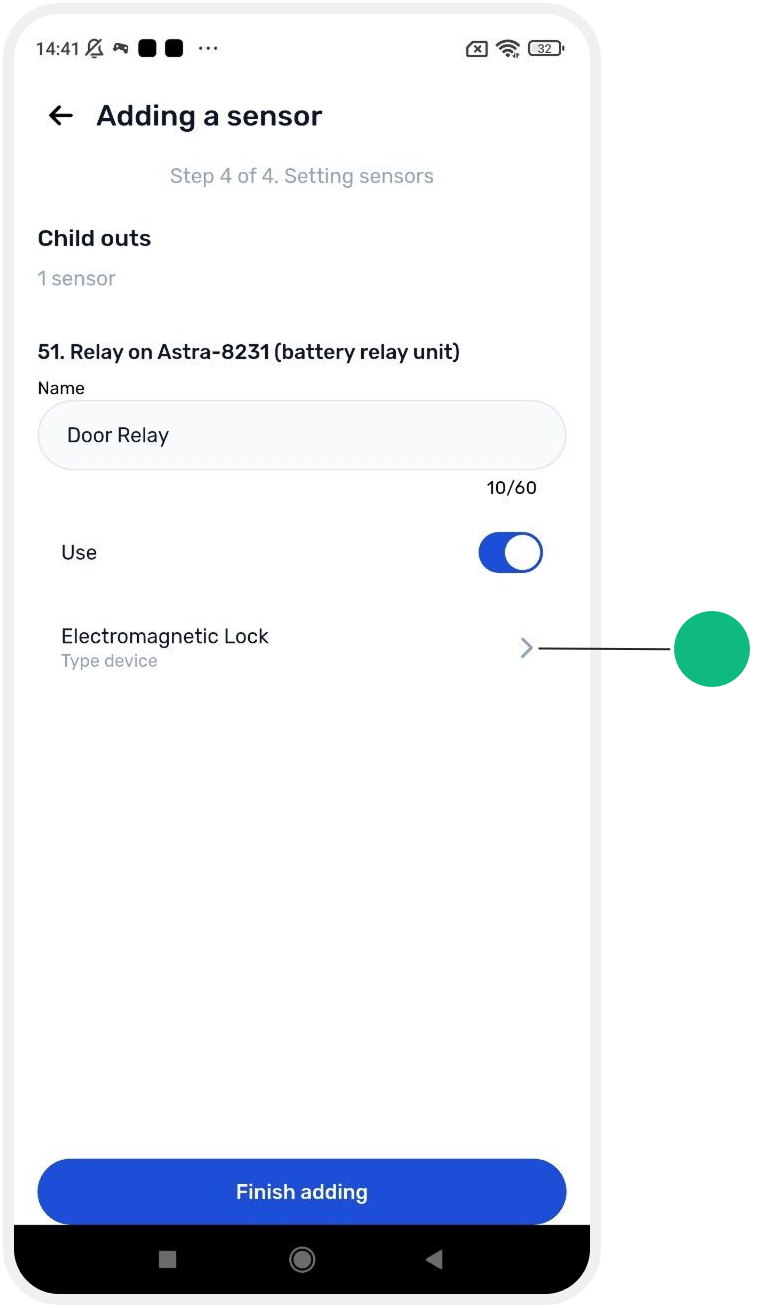
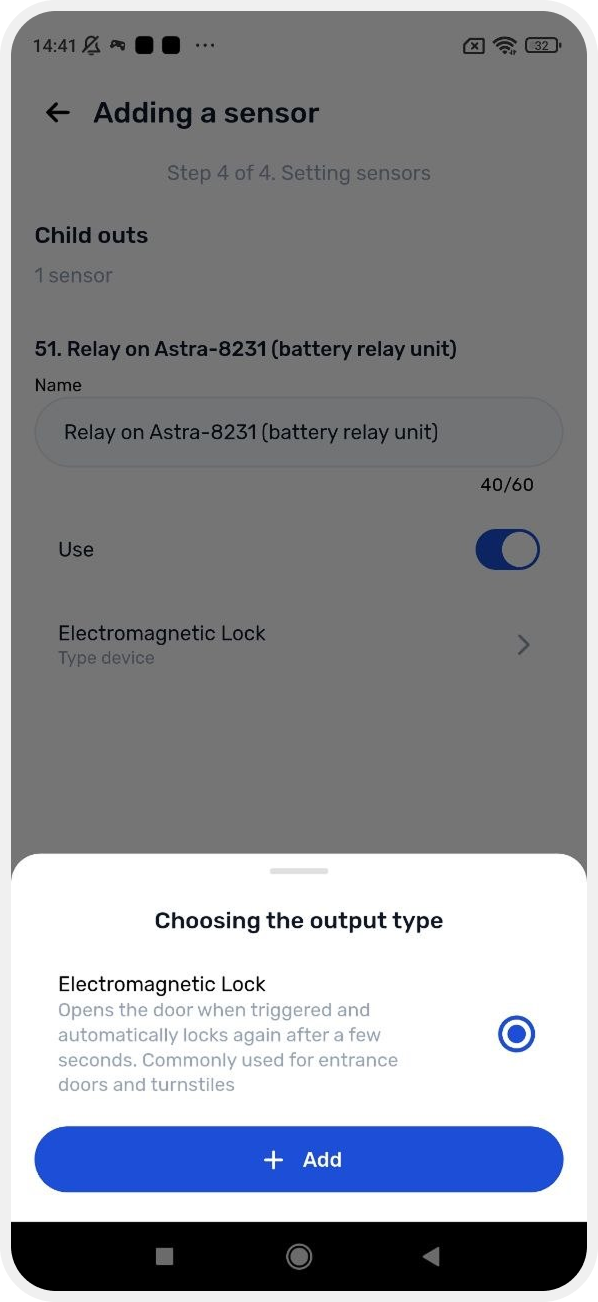
How to select an output type
Initially, only one device type may be available for the output.
To add additional options:
1. Tap Add
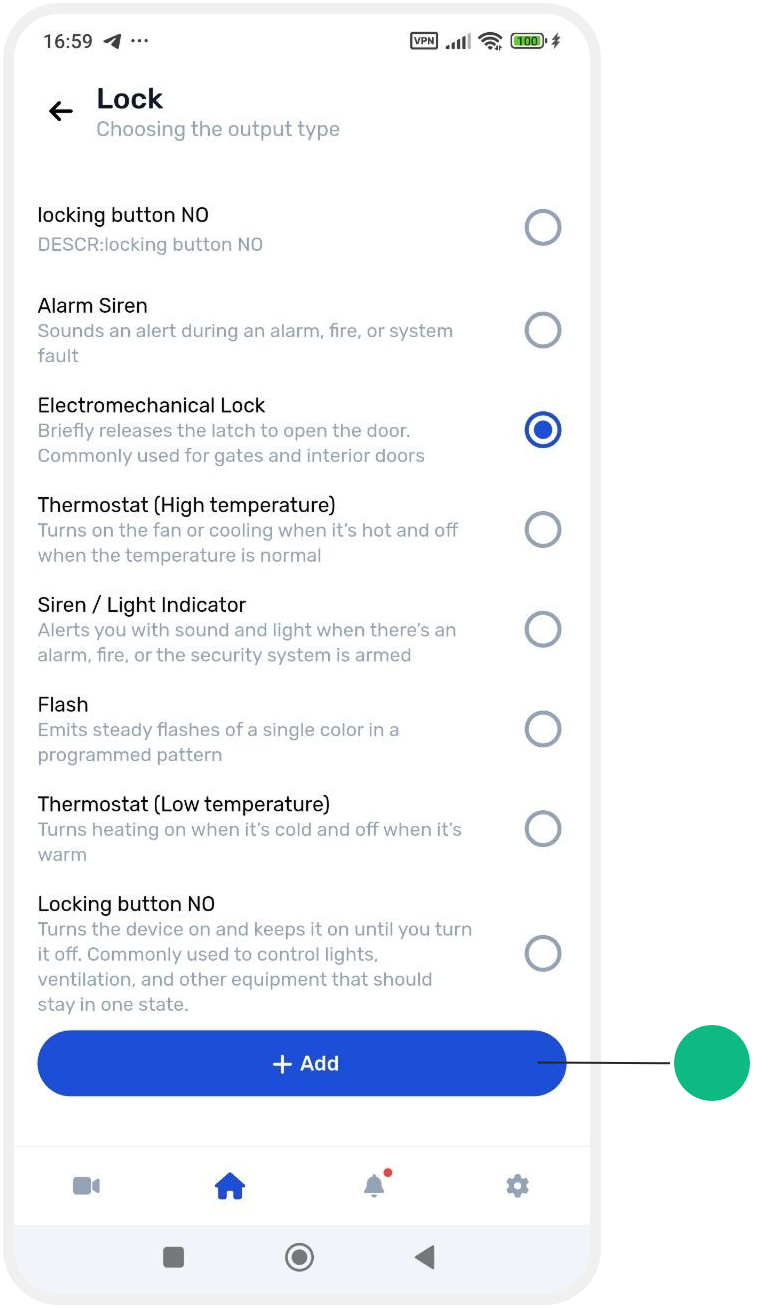
2. A list of output type templates will open
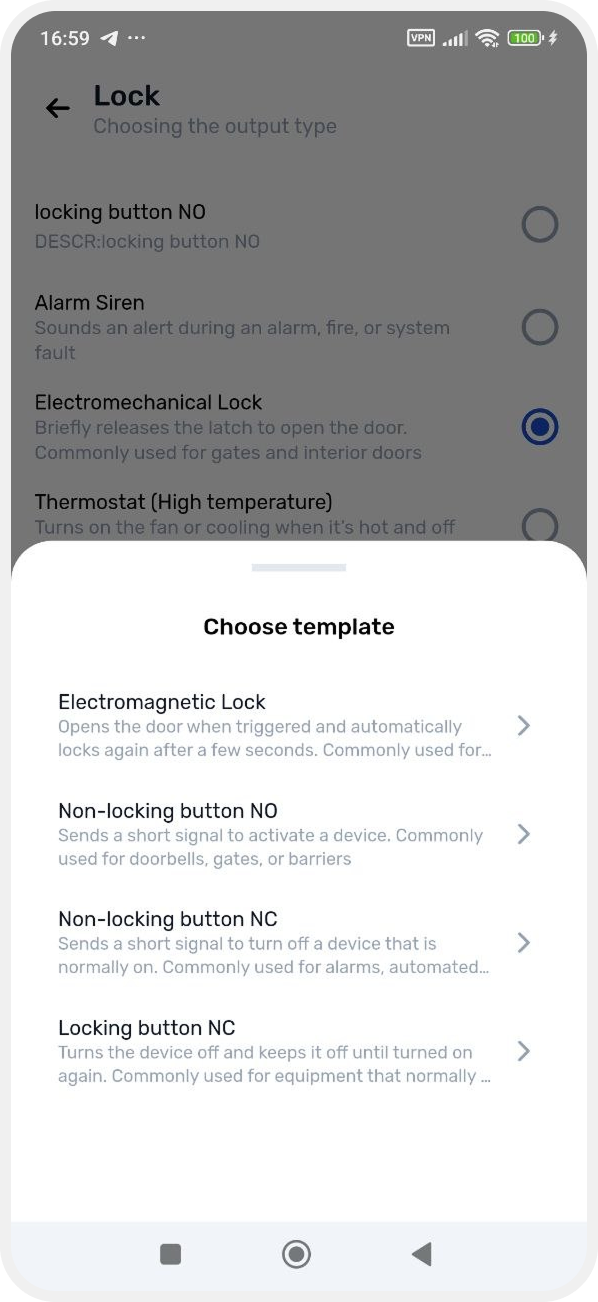
3. Select the required template based on the device that will be controlled by the relay
The new type will then appear in the list and can be assigned to the required output.
Completing the setup
After finishing the configuration, tap Finish.
The wireless output will be added to the system and will appear in the list of wireless devices.