
How to add an ASTRA wireless sensor
ASTRA wireless sensors connect to the system via radio communication and allow you to monitor motion, door openings, temperature, and other events at your site.
Adding a sensor
1. Open the Sensors tab from the main site screen
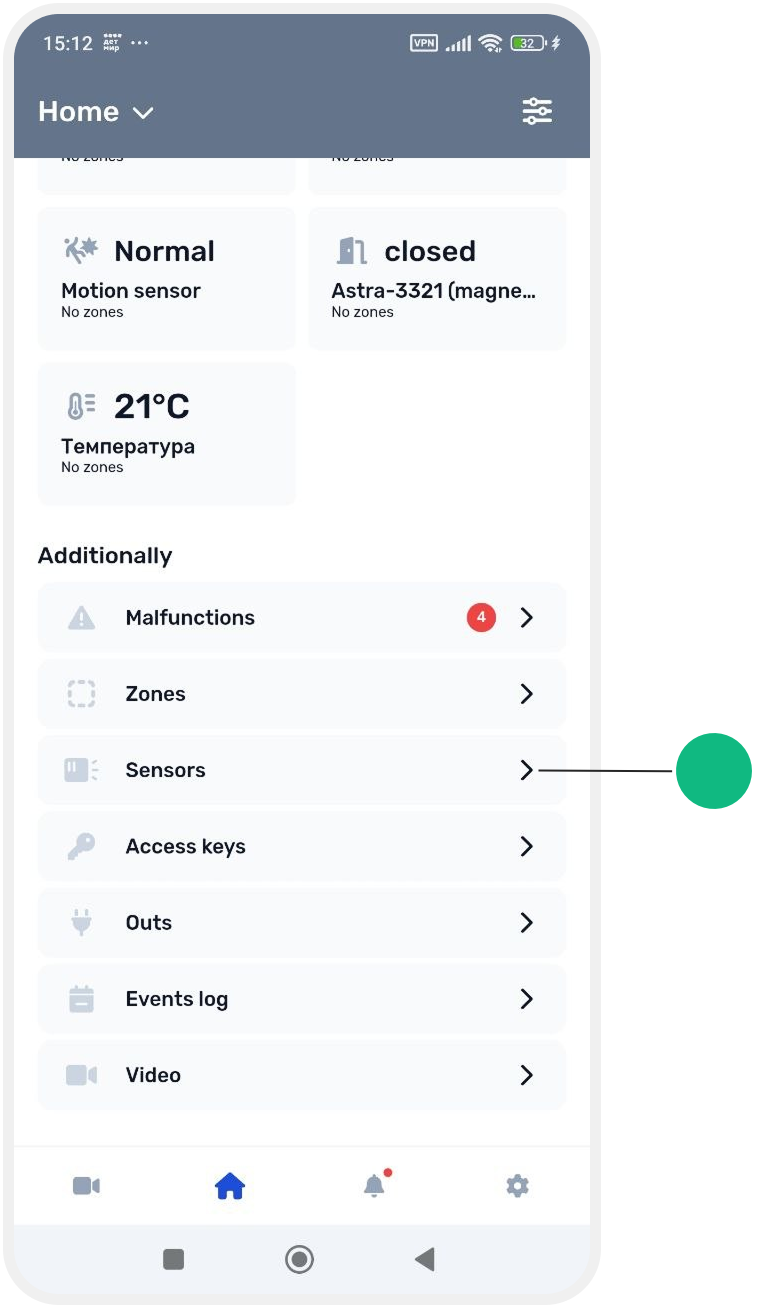
2. Tap Add sensor in the upper-right corner of the screen
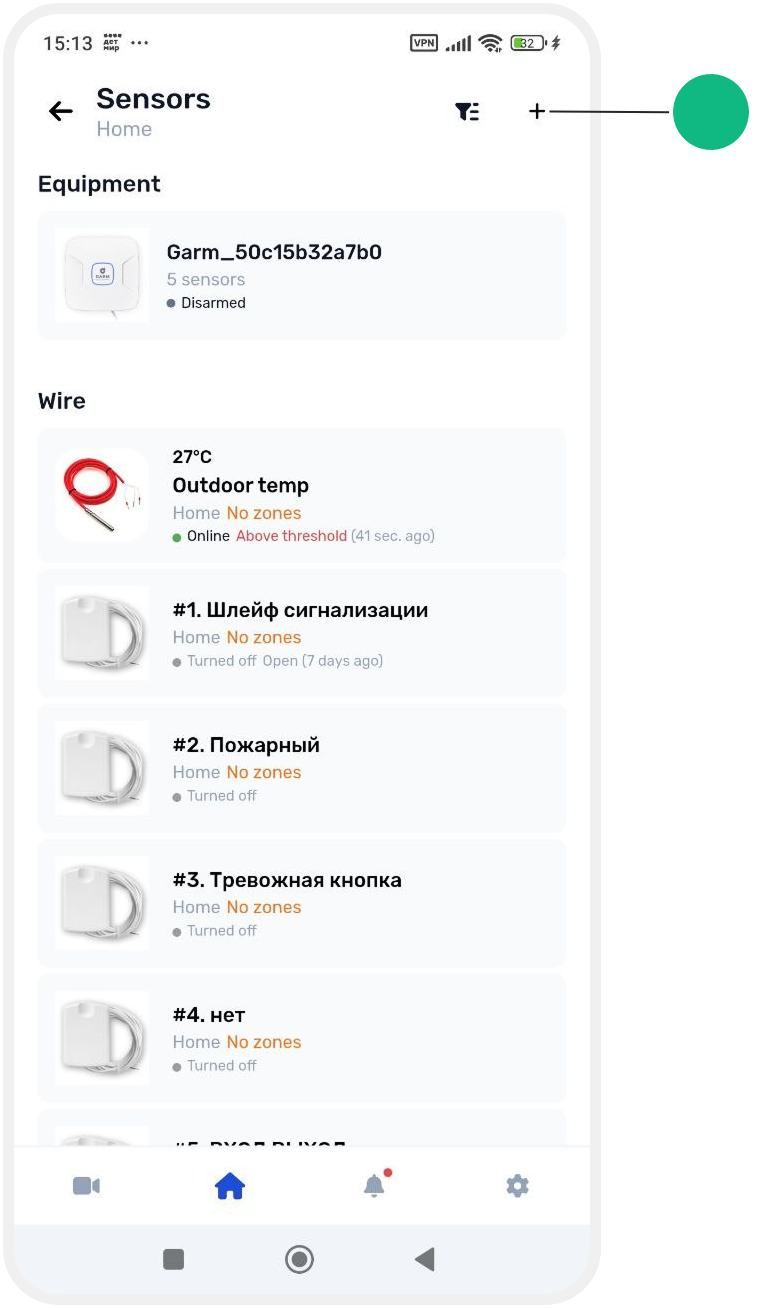
3. Select the connection type: Wireless

Finding a sensor
4. Follow the on-screen instructions. The app will begin searching for available ASTRA wireless devices
5. Prepare the sensor and its battery. It is recommended to keep the sensor close to the hub during the pairing process
6. In the app, tap Start sensor search. The hub will enter pairing mode and wait for a new device
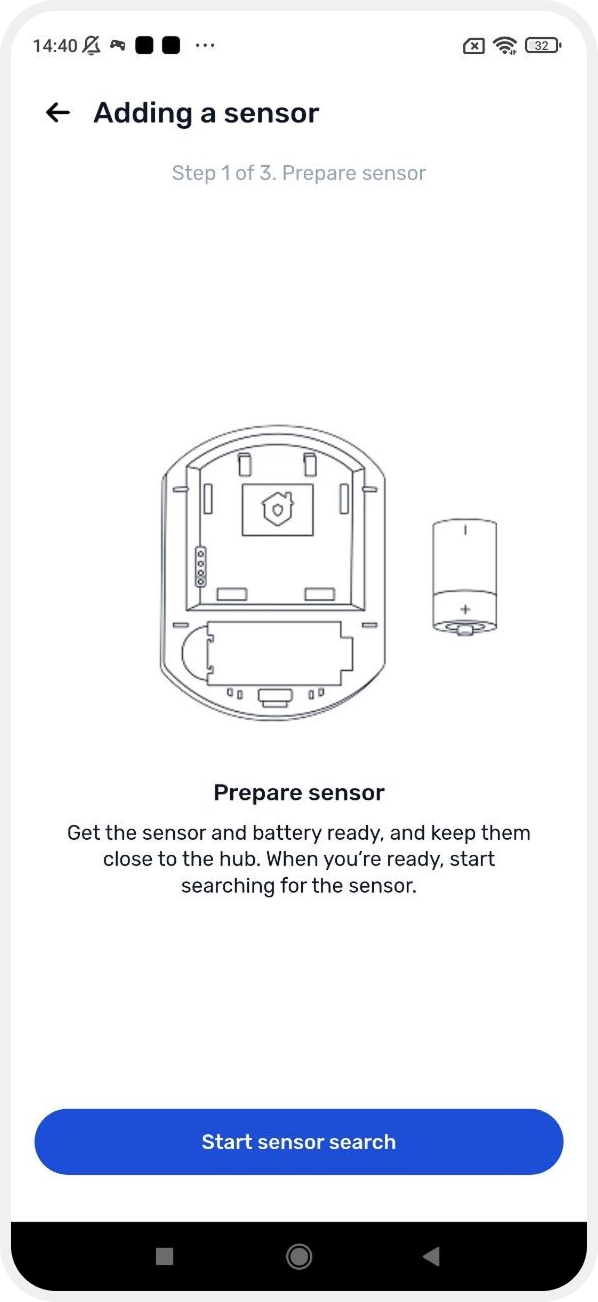
7. Insert the battery into the sensor and make sure the sensor powers on

8. Wait for the sensor to appear in the app
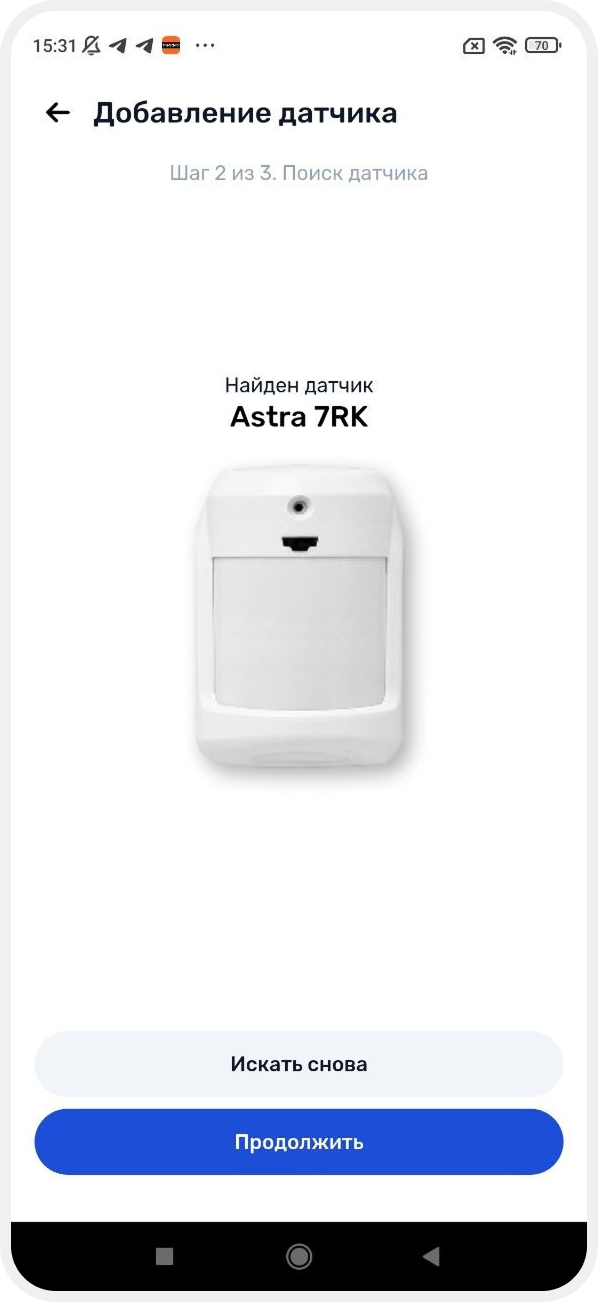
Configuring the sensor
After the sensor is detected, configure its settings.
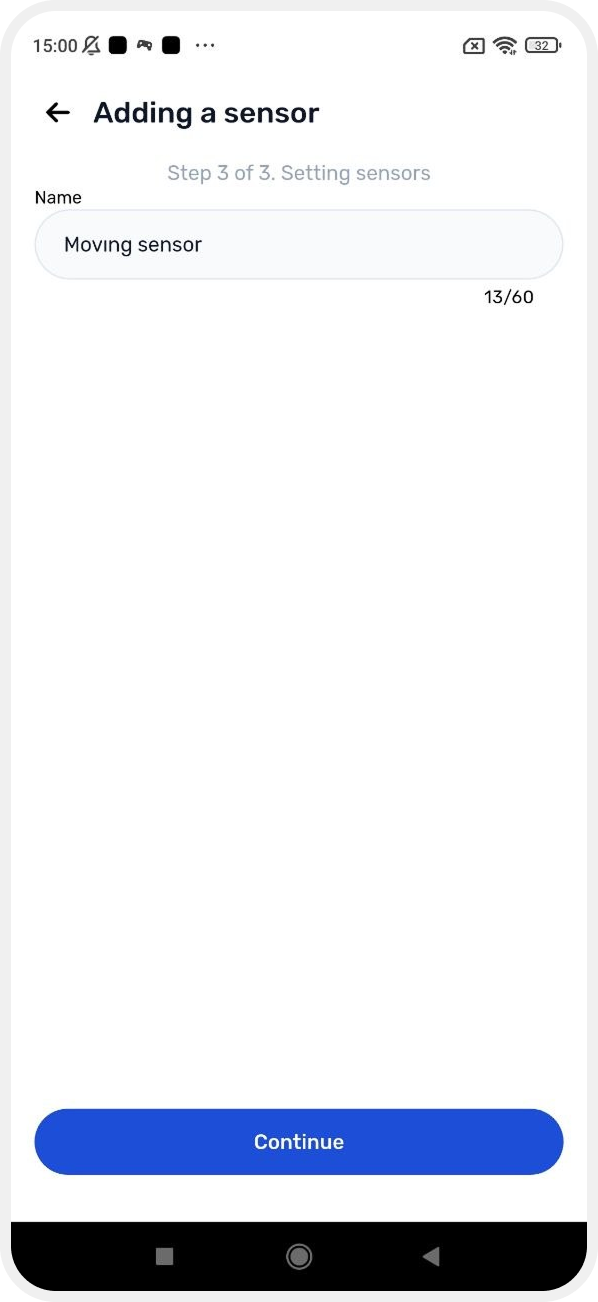
Sensor name
Enter a name to make the device easy to identify in the system.
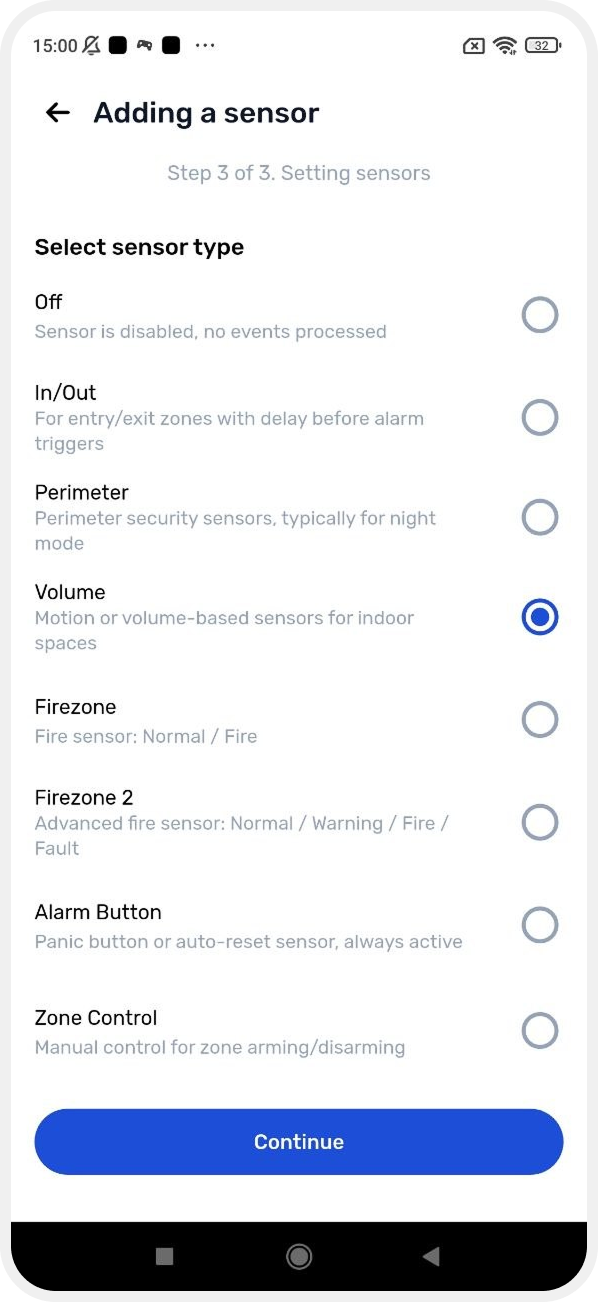
Sensor type
Select the sensor type from the list.
In most cases, the system automatically detects the device type, but you can change it manually if needed.
Assigning a zone
Select the zone to which the sensor will belong.

If the required zone does not exist yet:
— tap Create zone
— create a new zone and continue the setup process
A sensor that is not assigned to a zone will still appear in the system, but it will not participate in site arming.
|
After selecting a zone, tap Continue.
Completing the setup
Tap Finish adding.
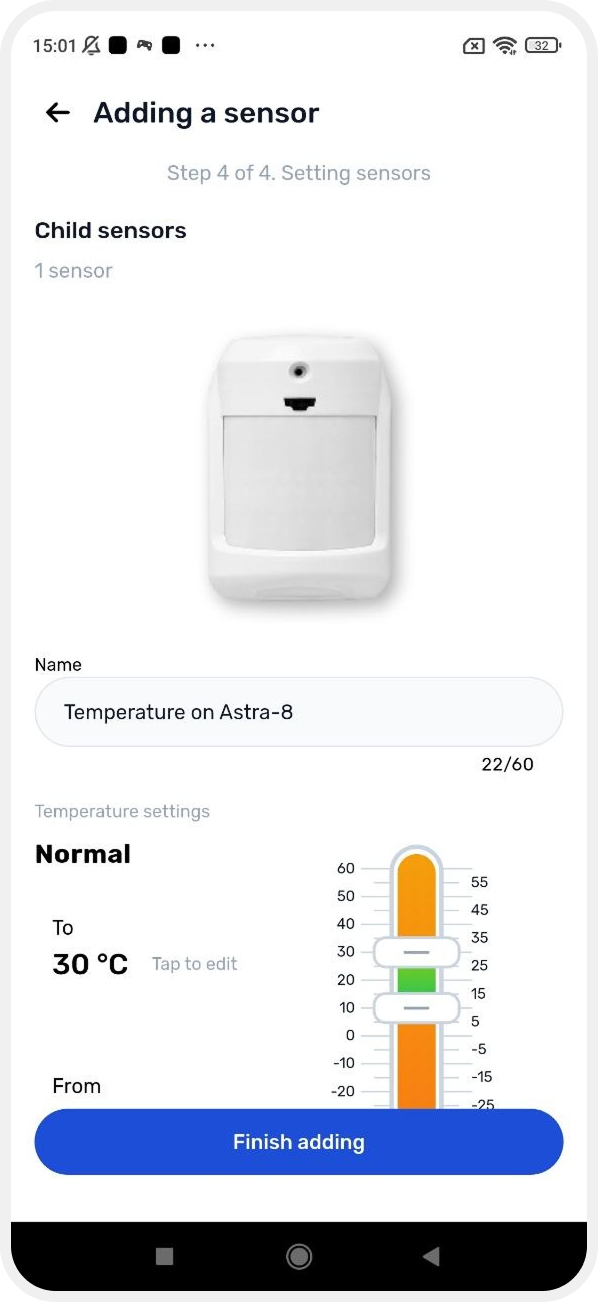
Some sensors may include additional features.
For example, a motion sensor may also have a built-in temperature sensor.
In this case, the system will prompt you to configure temperature thresholds using a slider.
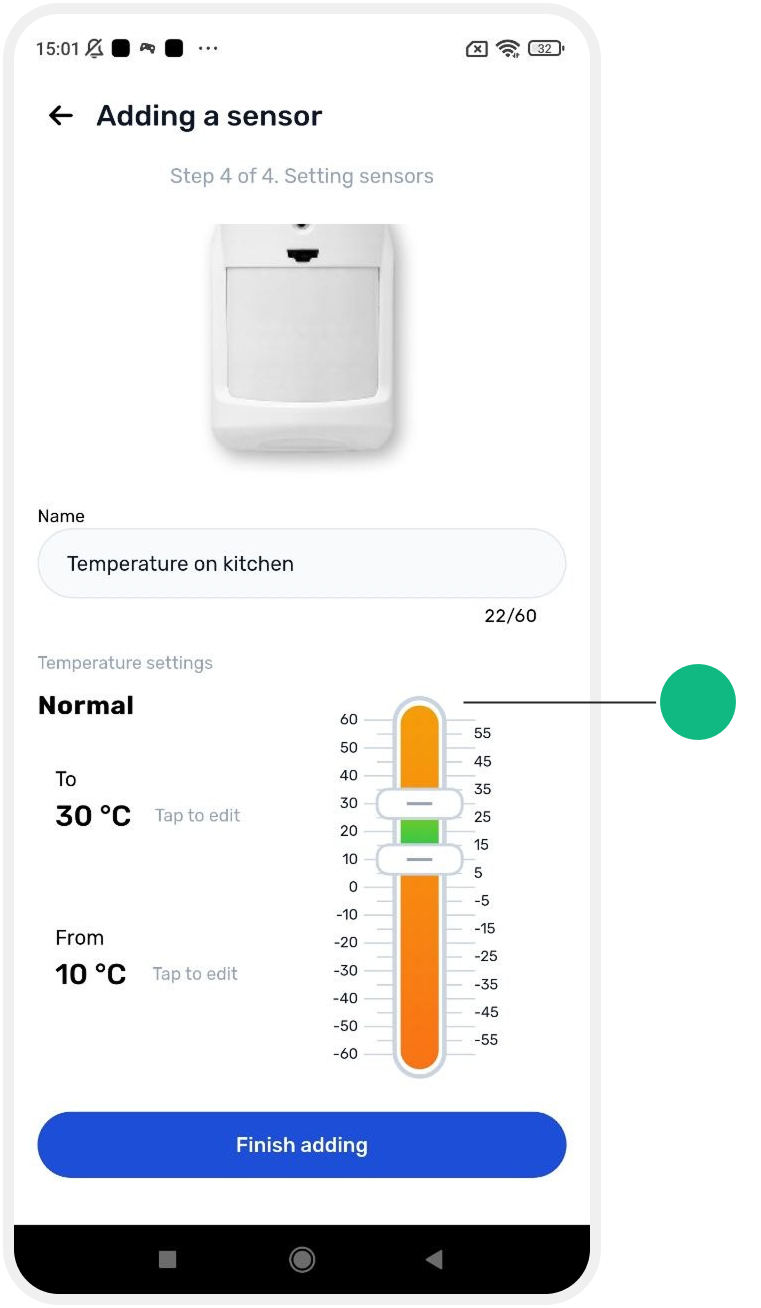
After the setup is complete, the sensor will be added to the system and will appear in the device list.