
How to install and launch the app
GARM is a modern mobile app designed to help you manage the security of your property. It runs on Android and iOS smartphones and gives you full control over your GARM system devices from anywhere.
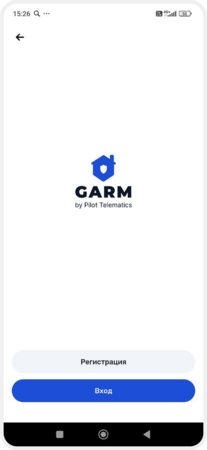
This guide walks you through the app interface and provides step-by-step instructions for installation, registration, device setup, and using key system features.
What you can do with the GARM app
With the GARM app, you stay in control of your security system:
-
Manage your security systemArm or disarm your site with a single tap. Night and partial arming modes are available, and you can trigger an emergency SOS alert if needed.
-
Add and configure devicesConnect various security sensors, actuators (like sirens and locks), access keys, temperature sensors, and video cameras directly through the app.
-
Receive real-time alertsInstantly get push notifications when a sensor is triggered or system status changes.
-
Monitor device statusCheck the real-time status of all connected devices: whether they are active, if there are any alerts or errors, and more. You always know what’s happening at your property.
-
Customize system behaviorCreate zones (sections), configure alarm responses, manage outputs, and build custom widgets for quick access to your most-used features.
How to install the GARM app
To start using the GARM security system, first install the mobile app on your smartphone — choose the method that’s most convenient for you.
Via your smartphone’s app store
1. Open the app store on your smartphone:
• Google Play — for Android devices
• App Store — for iPhone
2. In the search bar, type: GARM
3. Find the app with the brand icon and tap Install / Get
Or
1. Open the app store link on your smartphone:
2. Install the GARM app
Using a QR code
1. Open your smartphone’s camera
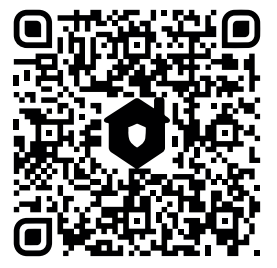
2. Point it at the appropriate QR code:
• For Android (Google Play)
• For iPhone (App Store)
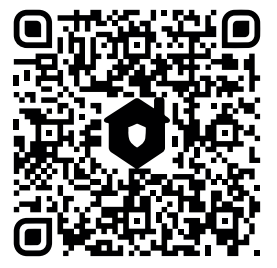
3. Tap the link that appears and then Install / Get
After installation is complete, the GARM icon will appear on your smartphone’s home screen. Tap it to open the app and start setting up your system.
Tips for safe app usage
To ensure your data, devices, and property remain secure, follow these best practices:
-
Only download the app from official sources (as listed above)
-
Never leave your phone unattended while logged in
-
Do not share your login credentials
-
Avoid giving access to unauthorized users
-
If the app requests suspicious permissions unrelated to its core features, avoid granting them