Site settings
The site settings contain the main system parameters: the site name and address, the hub’s internet connection, users, access keys, and other management settings.
All system users can view the site settings.
Only the site owner and users with the administrator role can change the settings.
|
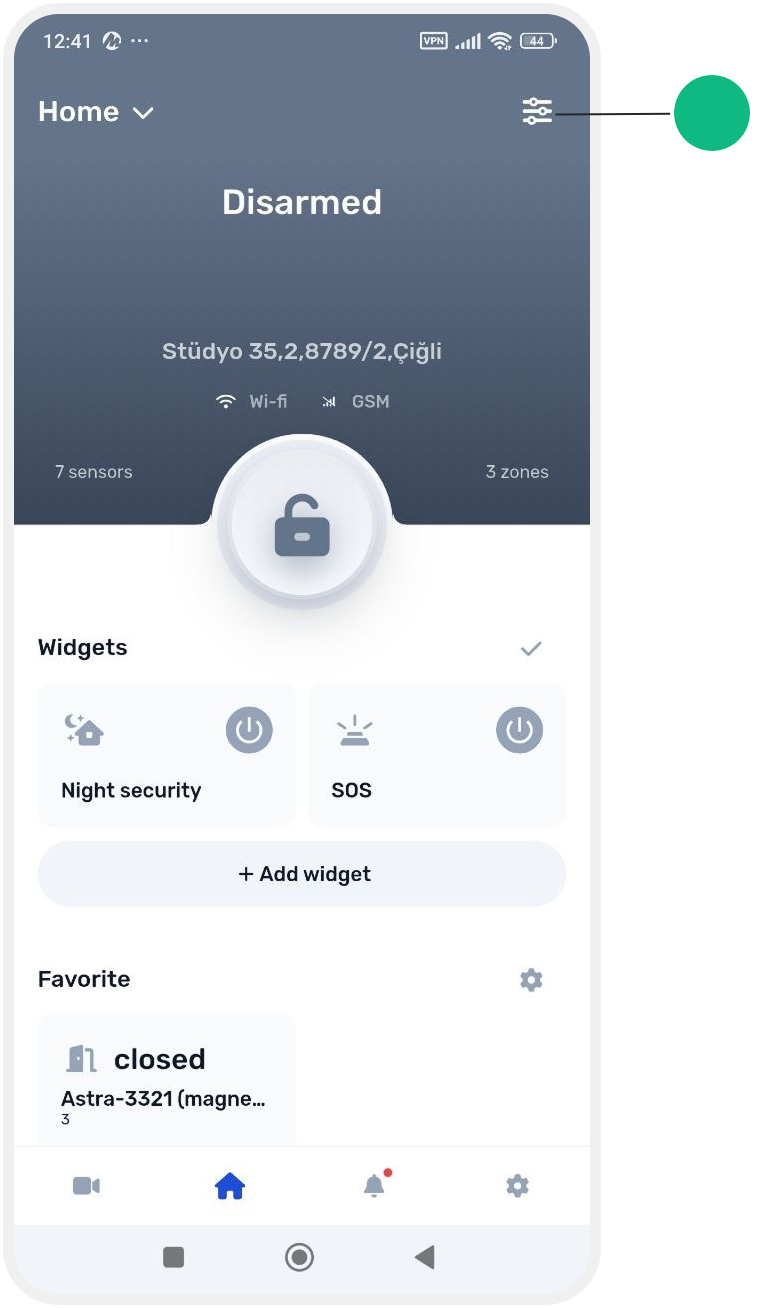
To open the settings:
1. Open the main screen of the site
2. Tap the Settings button in the upper-right corner of the screen
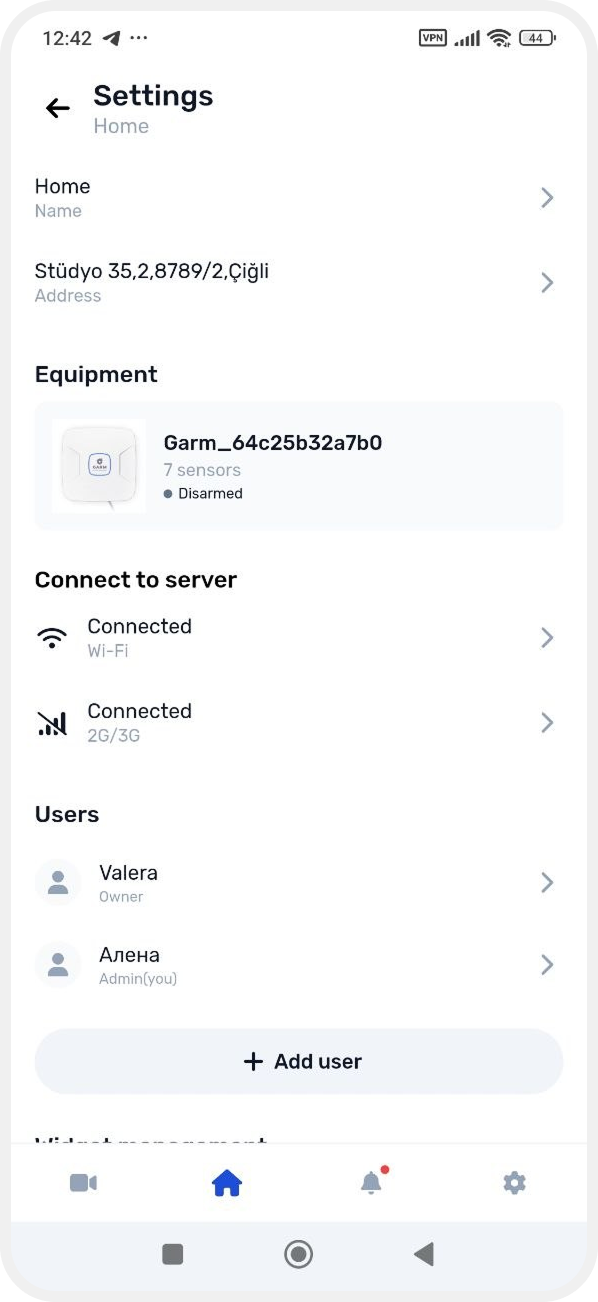
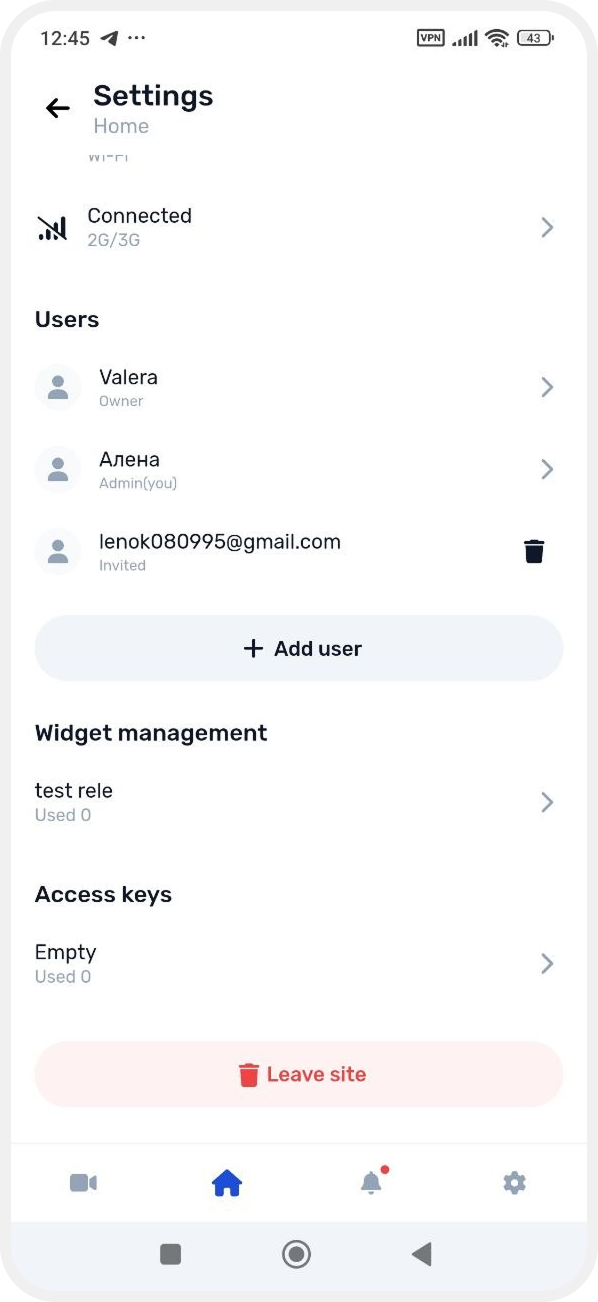
On the settings screen, you can:
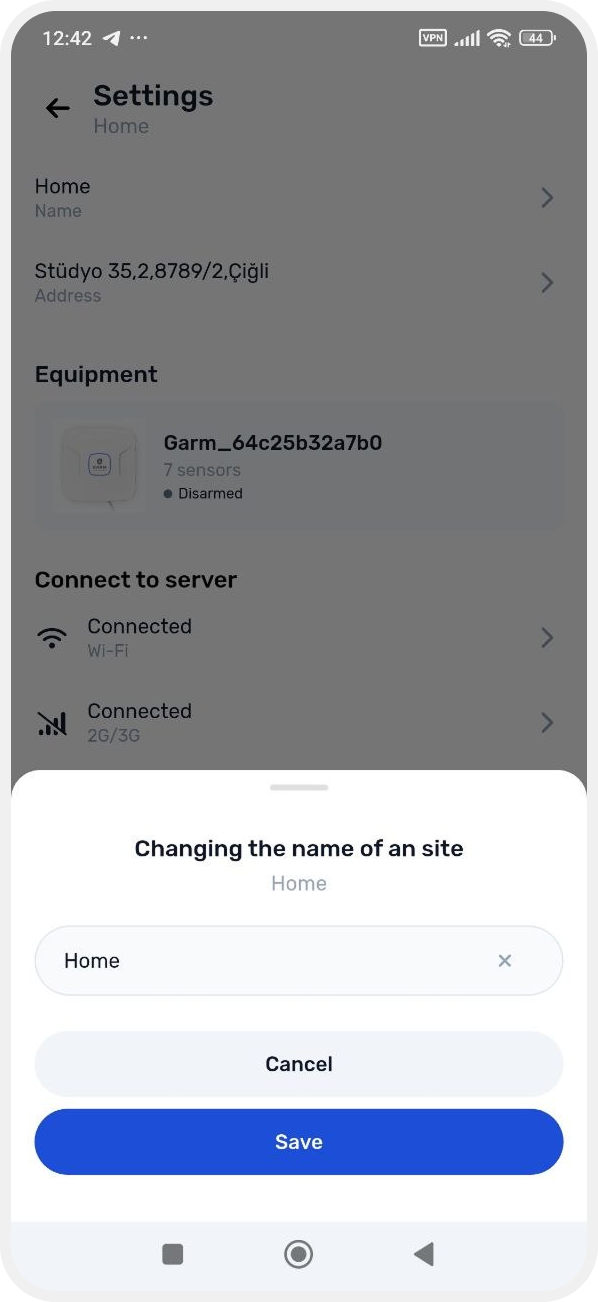
Change the site name
If you want to rename the site:
1. Tap the arrow next to Name
2. Enter a new name
3. Save the changes

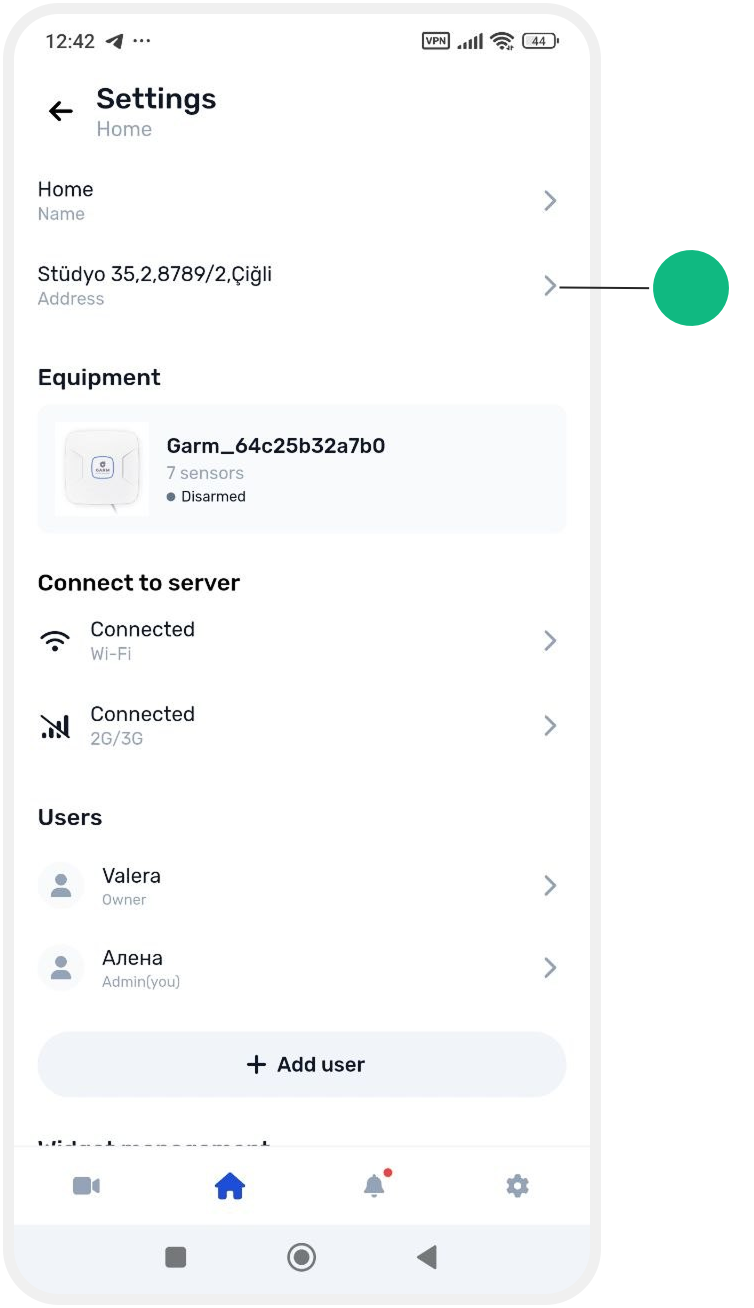
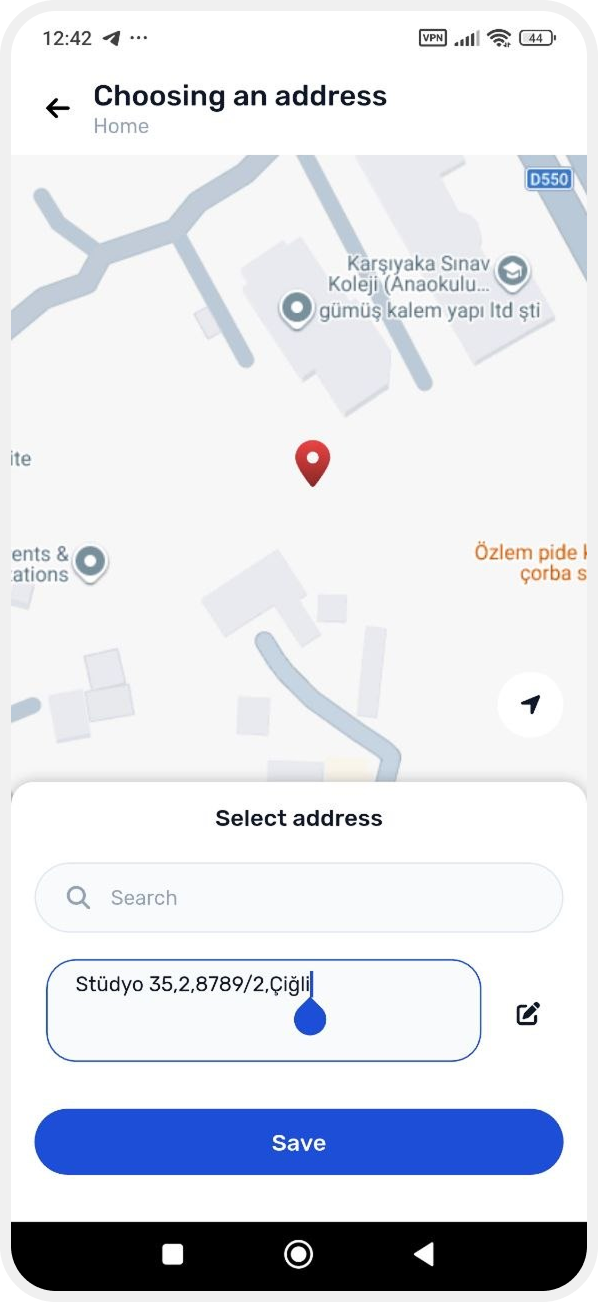
Change the site address
To change the address:
1. Tap  next to the site address
next to the site address2. Tap the edit button next to the address
3. Enter the new address
4. Tap Save
View equipment information
Here you can open the hub card and view device information, including:

Here you can open the hub card and view device information, including:
• ID
• Status
• Internet connection type
• Firmware version and other parameters
For more details, see the “Hub information” article.
Configure the hub internet connection
This section shows how the hub is connected to the internet and its connection status with the server.
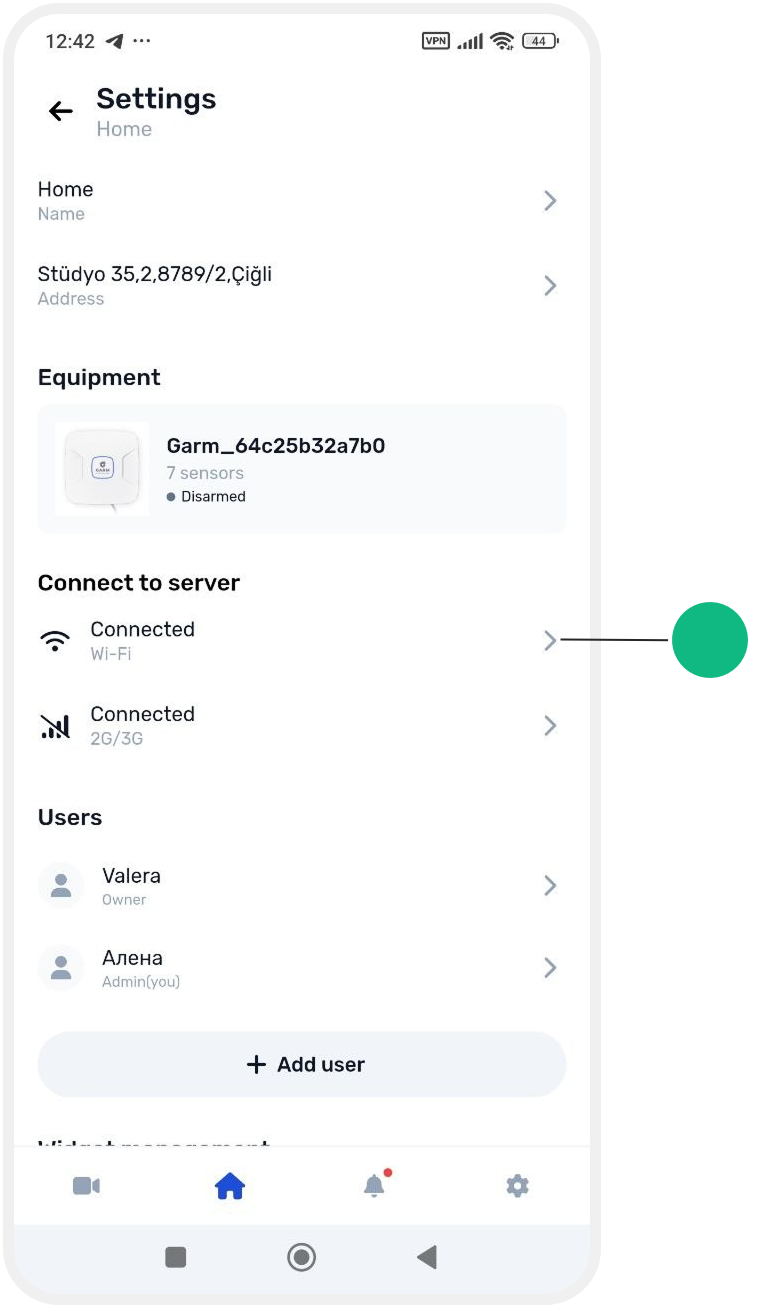
The hub can use:
• Wi-Fi
• GPRS (mobile internet via SIM card)
The settings entered during the initial hub setup are displayed here. You can change them if needed.

Wi-Fi connection
Use this option if the site has a Wi-Fi router.
To change the settings:
1. Enable Wi-Fi connection
2. Enter the Wi-Fi network name
3. Enter the password
4. Tap Save
GPRS connection
If Wi-Fi is unavailable, the hub can connect to the internet using a SIM card.
Before setup, make sure there is 2G coverage at the hub installation location. The hub uses the 2G network for data transmission.
To configure the connection:
1. Insert a SIM card into the hub
2. Enable GPRS connection
3. Fill in the following parameters:
• APN — mobile operator access point
• Username — if required by the operator
• Password — if required by the operator
4. Tap Save
You can enable both Wi-Fi and GPRS at the same time. In this case, Wi-Fi will be used as the main communication channel, while mobile internet will work as a backup.
Manage site users
This section displays the list of users who have access to the site.
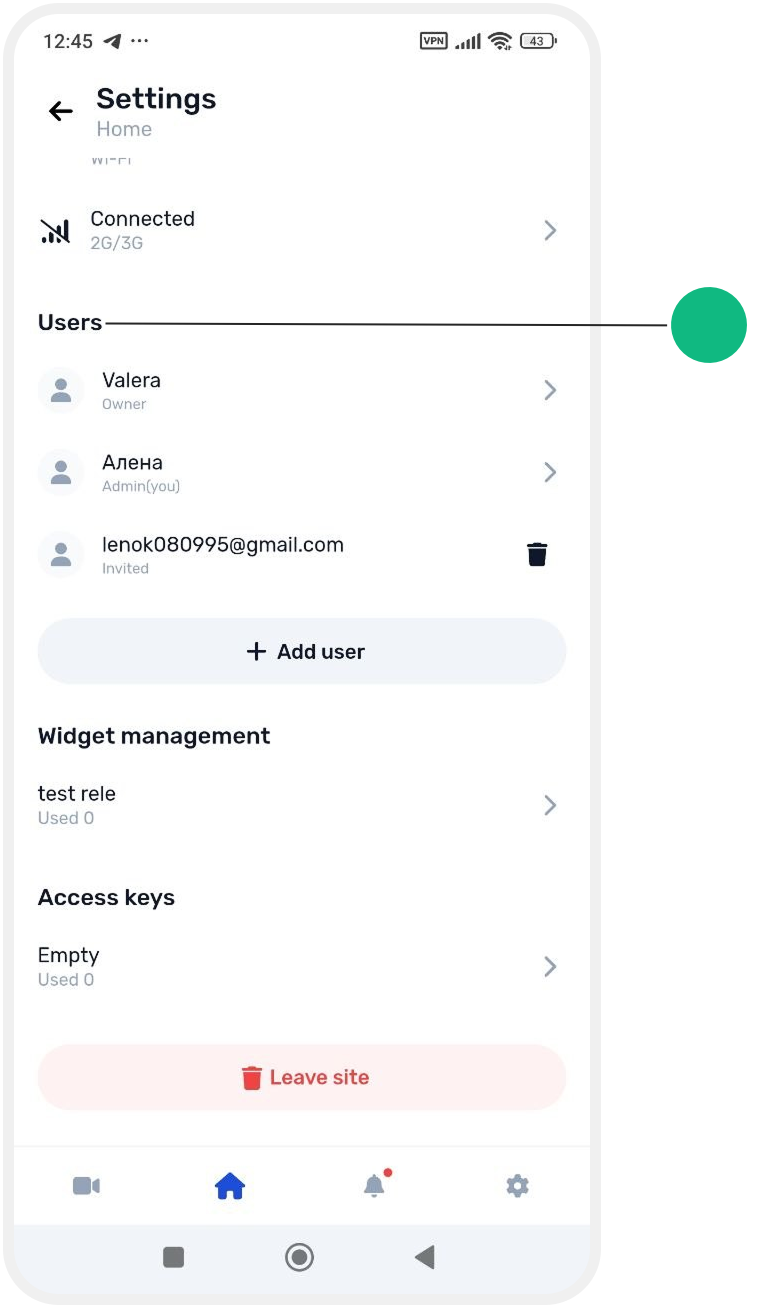
Here you can:
— add new users
— remove users
— manage access permissions
For more details, see the “Users“ section.
Configure widgets
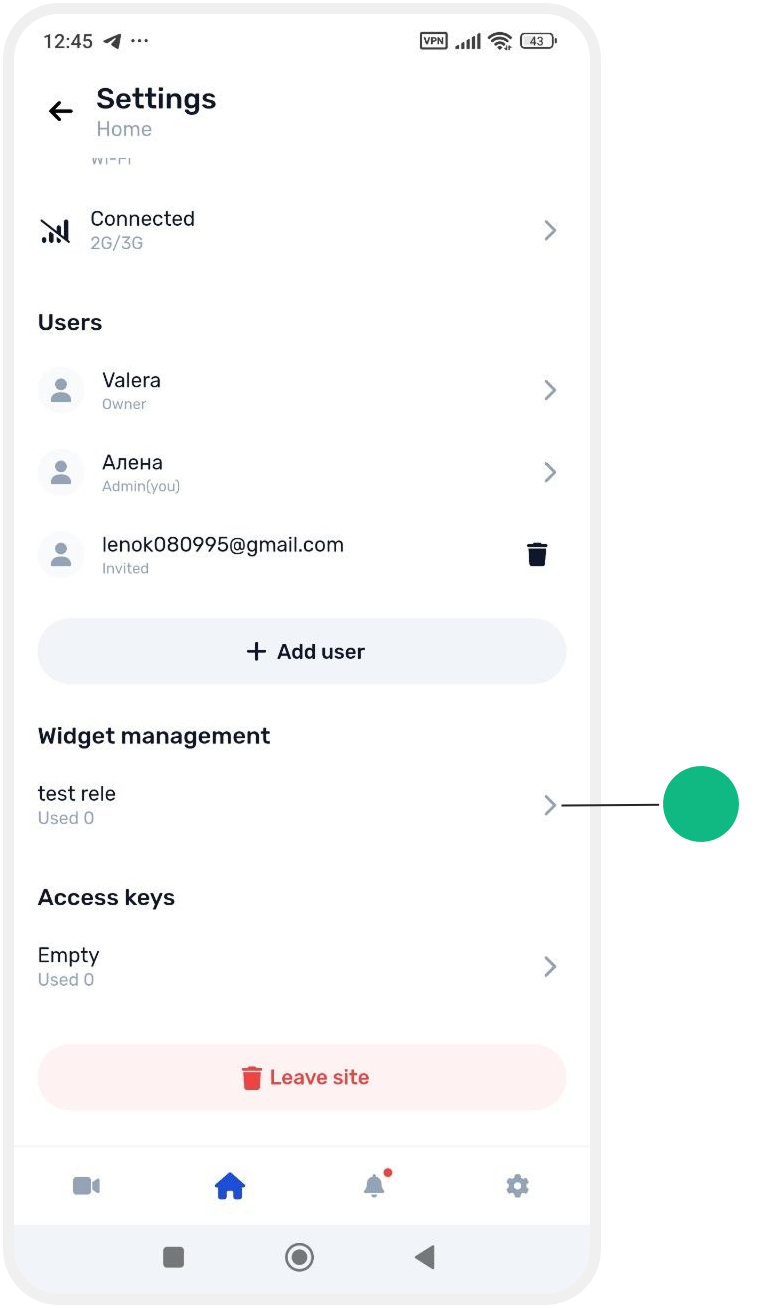
In the Widgets management section, you can:
— view the list of created widgets
— change widget settings
— delete unnecessary widgets
— create new quick control elements
For more details, see the “Widgets” section.
Manage Touch Memory access keys
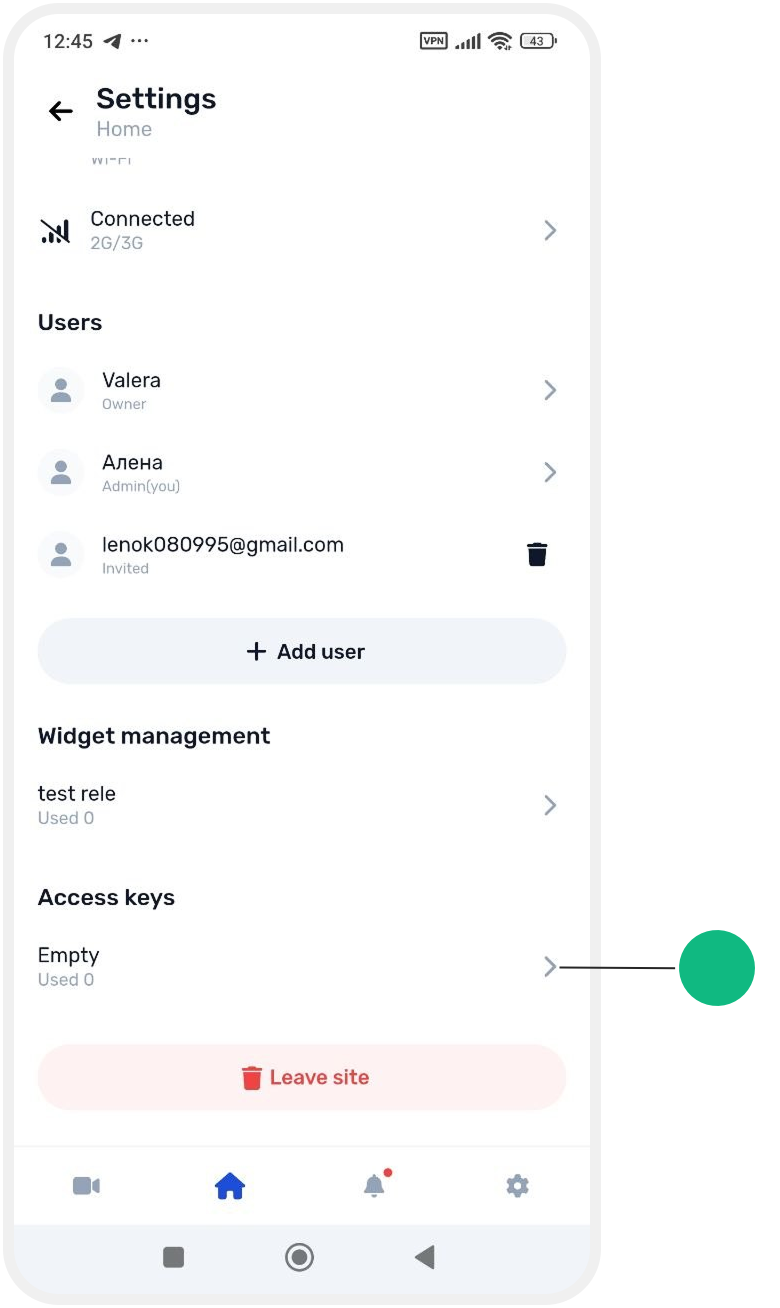
Here you can:
— view the list of electronic keys
— add or remove a key
— select which zones or devices the key can control
For more details, see the “Access keys” section.
Leave site management
A user with the Guest or Administrator role can leave the site on their own. After leaving, the site will disappear from their list of sites in the app.
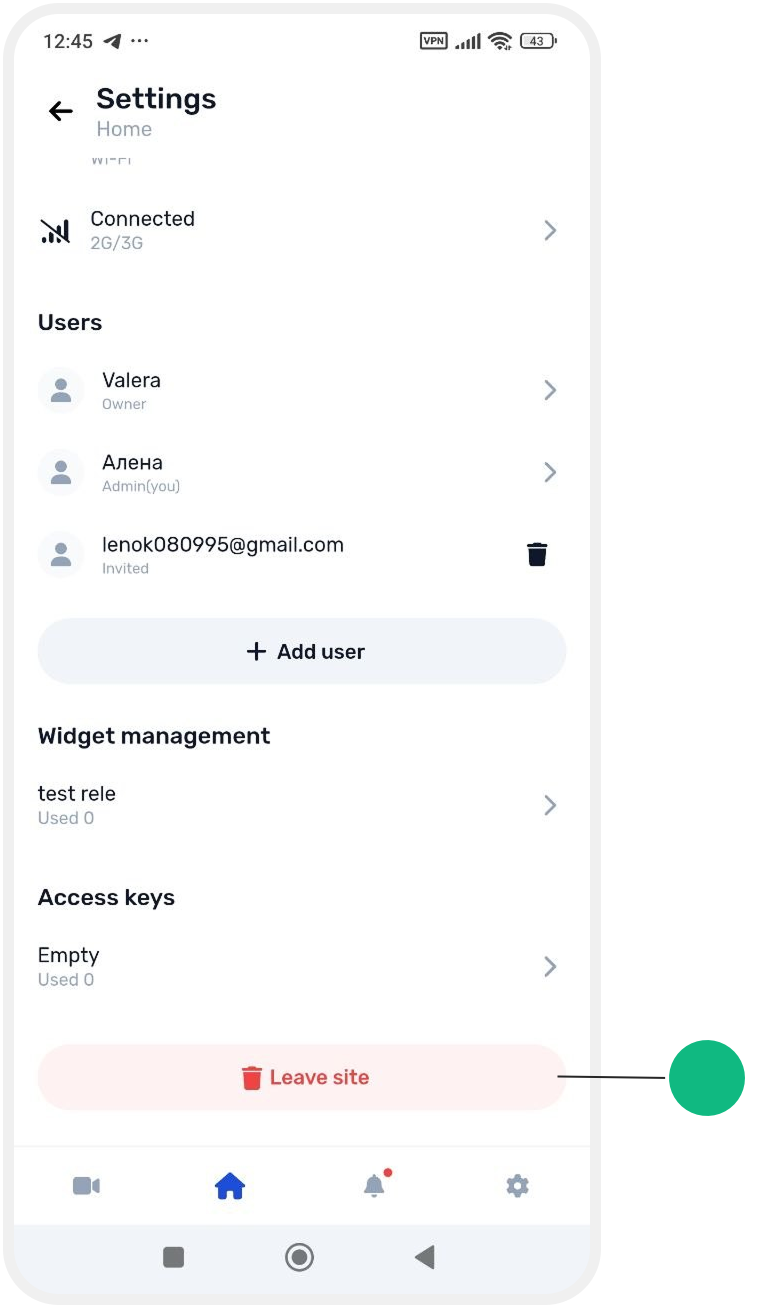
For more details, see the “How to leave site management” article.
Delete a site
From the settings screen, the site owner can proceed to deleting the site from the system.
For more details, see the “How to delete a site” article.