
How to add an object
After registering in the GARM app, you can start creating objects and connecting equipment. An object is your home, office, cottage, or any other place you want to protect.
How to add your first object
Right after registration, you’ll be taken to the main screen where you can add your first object:
1. On the main screen, tap the Add button
2. Enter the name of the object, for example: “Apartment,” “Country House,” or “Office”
3. Specify the object’s address — either select a location on the map or enter it manually
4. Tap Save — the object will be added
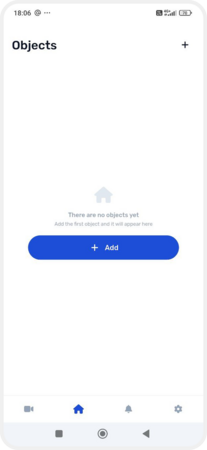
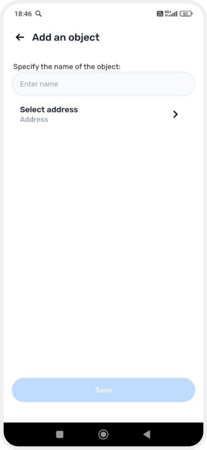

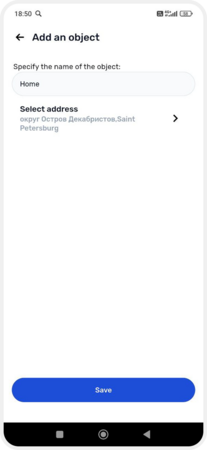
Adding your first object
After creating the object, connect it to the hub. For instructions on adding a hub, see here.
How to add another object
If you already use GARM and want to add another object (for example, a second home or office), follow these steps:
1. On the main screen, tap the objects list button in the top left corner
2. Tap Create object
3. Enter the name and address of the new object
4. Tap Save
The new object will appear in the list, and you can quickly switch between objects in the app.


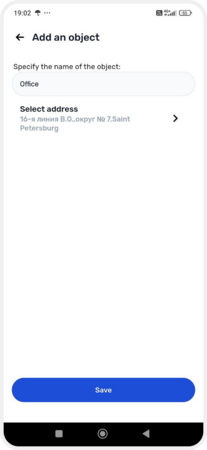
Adding another object
Each object works with its own hub. One hub can be connected to only one object.
|