
How to work with the app interface
This article covers the main elements of the GARM app interface. You will learn where to find key functions and how to manage your security system.
We will go through:
• Events
The main screen opens automatically when you tap the “Home” icon in the bottom menu. This is the primary screen, from which you can:
— check the status of your object
— quickly arm and disarm the system
— control devices
— access necessary sections
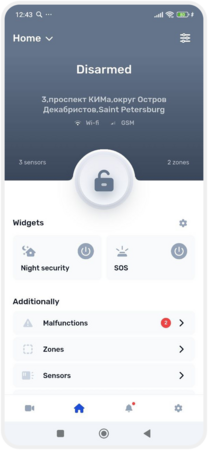
Main screen
Main screen elements:
Tap this button to view all objects you are managing.
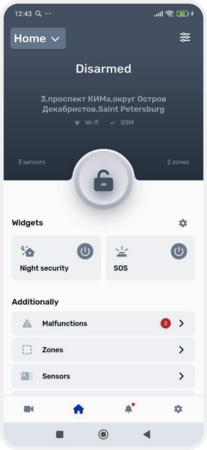
Objects list button
2. Object name and address
Displayed at the top of the screen, so you always know which Object you are currently working with.
3. Lock button
Use this button to quickly arm or disarm the object with a single tap.
Lock button
Opens the settings menu for the selected object.
These interactive elements allow you to manage the system directly from the main screen. Through widgets, you can:
-
Arm and disarm the system
-
Control locks, sirens, lights, and other devices
-
Quickly check the status of the object without navigating to other sections6. Color status indicatorsThe screen color changes based on the object's status:
-
Full protection — green
-
Night and partial protection — blue
-
Disarmed — grey
-
Alarm triggered or no connection — red


Color status indicators
7. Additional information
In the Additionally section on the main screen, you’ll find tabs for detailed system management and control.
Additional tabs on the main screen:
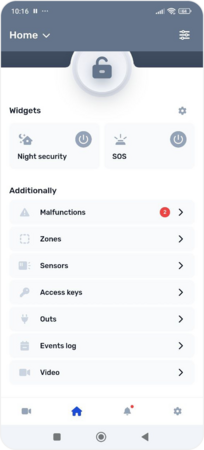
Additional tabs on the main screen
-
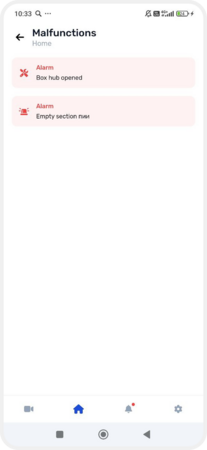
Malfunctions
The Malfunctions tab displays all current issues in the system. Here you can see if any device is not working properly — for example, if a sensor has lost connection or a battery is running low.
-
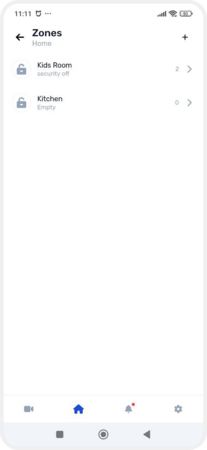
Zones
The Zones tab displays information about the object’s zones. Here you can open the settings of an existing zone or add a new one.
-
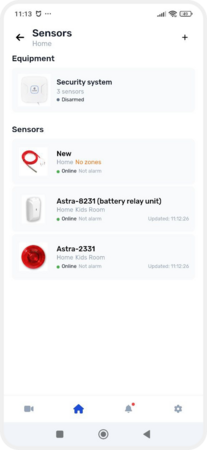
SensorsDisplays connected sensors. You can add new ones, check their status, rename, and configure them.
-
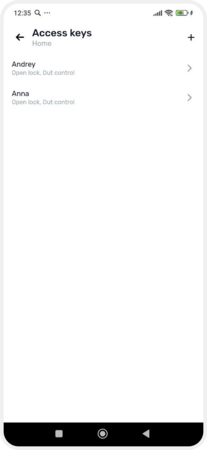
Access keysList of electronic Touch Memory (TM) keys used for access.
-
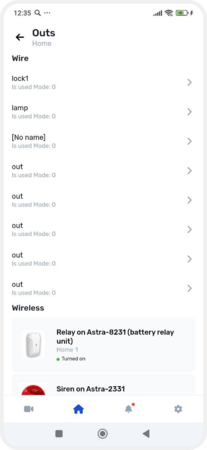
View and configure actuators that respond to alarms or commands (sirens, light signals, electromagnetic locks, relays).
-
Event logShows all significant actions and changes occurring at the object and within the GARM system.
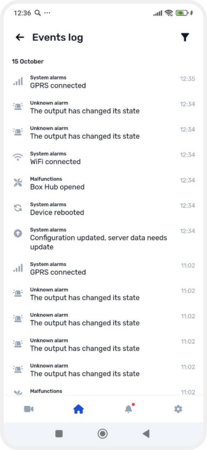
You can track:
— changes in object and section statuses
— emergence of malfunctions or technical issues
— system events — updates, connections, disconnections
— sensor events — temperature and wireless devices
— use of electronic access keys
— sent and received SMS messages
Filters can be set to display only the desired events by toggling switches next to each event type.
-
VideoQuick access to the video surveillance section and cameras.
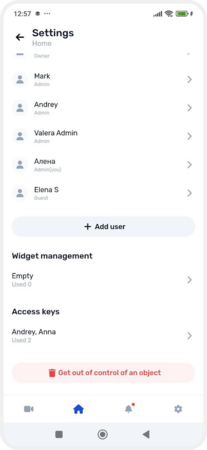
To modify object parameters, tap the settings button in the top right corner of the main screen. Here you can:
-
Change the object's name or address
-
View connected equipment
-
Check server connection — Wi-Fi or GPRS
-
View and add users
-
Widget management — see how many and which widgets are created, and modify their settings
-
Manage access keys


Object settings
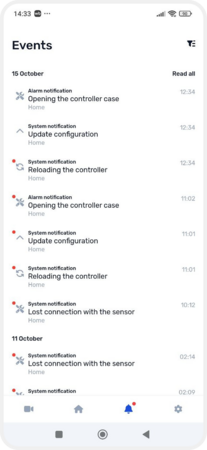
On the bottom panel, you'll find the bell icon — this is where all events related to your object are stored:
-
Alarms and triggers
-
Changes in sensor statuses
-
System messages
-
User invitations and more
Events
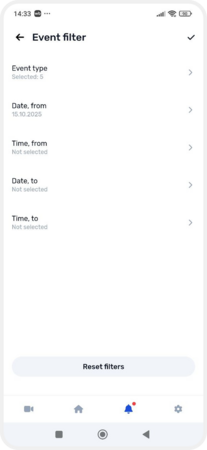
You can customize how events are displayed — in the Event filter, select the event types you want to see and set a time period in the calendar to view only events from a specific timeframe.
If you want to show all events again, click Reset filters.

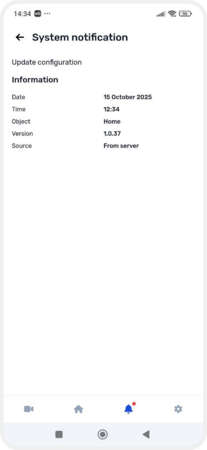
By tapping any event, you'll see detailed information: when and where the event occurred, which devices were involved, and other details.
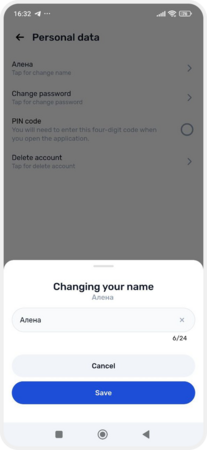
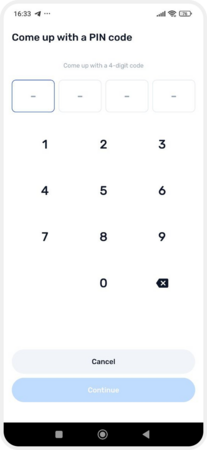
In the Account settings section, you can manage your profile and app preferences:
— change your name, password, or set a PIN code — you can also delete your account if needed




— select the app interface language

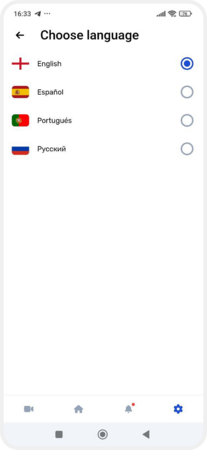
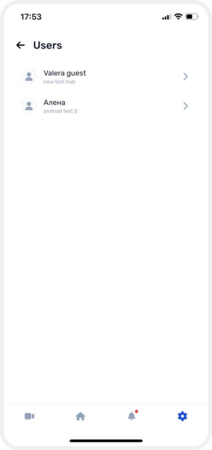
— view the list of users who have access to your devices


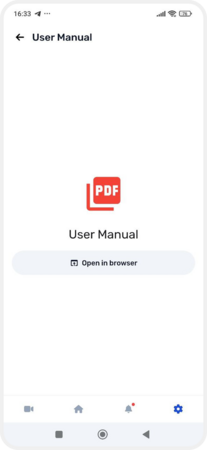
— open the user guide

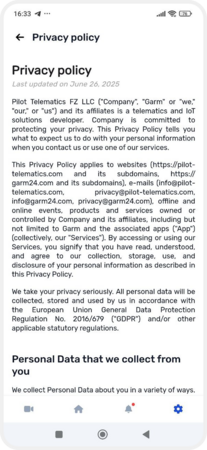
— review the terms of use and privacy policy

— contact support

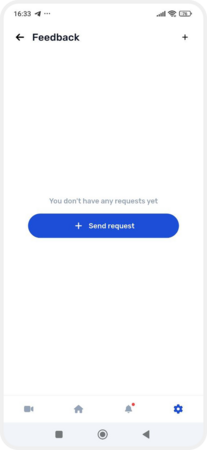

If you have a question or something isn’t working, feel free to reach out. Tap Send Request to open the feedback form:
1. Enter the subject of your request
2. Describe the issue or suggestion — let us know at which step the problem occurred
3. Add your phone number for contact via Telegram or WhatsApp
4. Tap Send request
Our support team will get back to you and help resolve the issue.
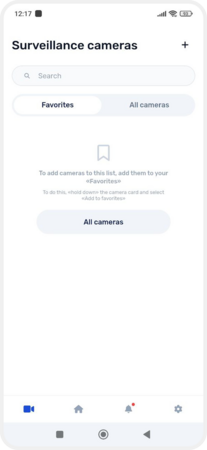
This section displays all cameras added to your object.
— quickly switch between cameras
— view favorite cameras marked as important
— configure video surveillance settings
— watch live streams in real-time through the selected video player
Surveillance cameras