
How to manage security modes
In this guide, you'll learn how to arm or disarm your object fully or partially, how to use night mode, and how to quickly request help using the SOS panic button.
Security modes in the system
The system offers several modes to adapt to different situations:
-
Full protection – all sections are armed
-
Night protection – selected sections or full arming, depending on configuration
-
Partial protection – only selected sections are armed
-
SOS – an emergency panic alarm
How to arm or disarm an object
To arm or disarm your object:
1. On the object’s main screen, tap the lock icon
2. Your phone will show the Changing status message — this means the command is being sent
3. Once the server processes the command, the hub status will update to Armed or Disarmed
Arming or disarming may take a few seconds (typically 2–10 seconds), since commands are processed through the server.
|


Arming or disarming an object
How to enable night mode
Night mode arms only those sensors that have Night mode enabled in their individual settings.
You'll see this setting in the sensor’s configuration screen under the toggle for Night mode.
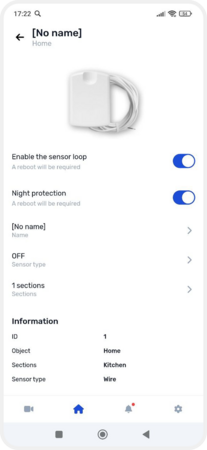
The Night mode function is enabled on the sensor page
To activate or deactivate night mode:
1. Go to the main screen
2. Find the Night security widget
3. Tap the widget:
-
To enable — the button turns blue and the object status changes to Night protection
-
To disable — tap again, the button turns white and the status reverts
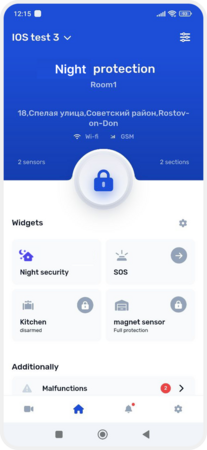
Setting up night mode
How to enable partial arming for selected sections
To arm or disarm individual sections:
1. On the object’s main screen, tap the widget that contains the relevant section(s)
2. Once tapped, the object status will change to Partial arming, and the widget will turn blue
To learn how to create a widget for a specific section, see here.
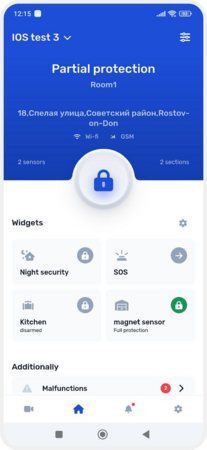
Setting the section to security
How to activate the SOS panic button
Use the SOS button in the mobile app for quick emergency assistance.
To trigger an SOS alarm:
1. On the object’s main screen, find the SOS widget
2. Tap the widget
3. After the command is sent, the hub immediately enters alarm mode, and the system reacts instantly
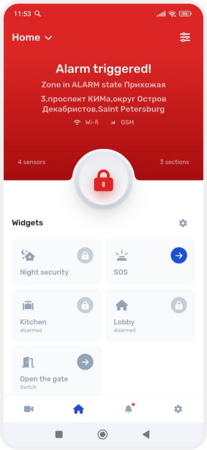
Enabling the SOS button