
How to set up control widgets
Widgets are interactive controls that allow you to manage your security system directly from the main screen of the app. With widgets, you can:
— arm and disarm the system
— control locks, sirens, lights, and other devices
— quickly check the status of your object without navigating to other sections
This guide will show you how to create and configure widgets, pin them to the screen, and manage them conveniently.
How to add a security control widget
The security control widget enables you to arm or disarm a specific zone with a single tap.
1. On the main screen of the object, tap the gear icon above the pinned widgets
2. Select Add widget
3. From the list, choose the widget type Management security


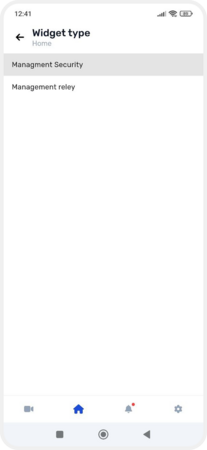
Adding a security control widget
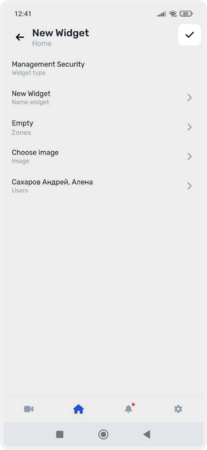
4. On the widget configuration screen:
-
Enter a name for the widget, e.g., "Kitchen"

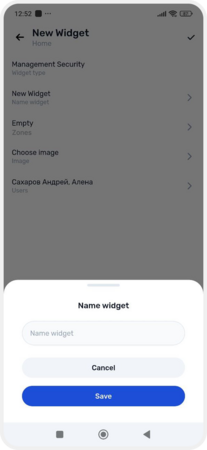
Security control widget settings
-
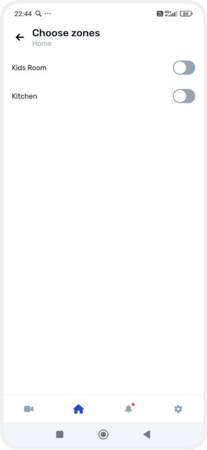
Select the zones you want to control. After selection, tap the checkmark in the top right corner to save
-
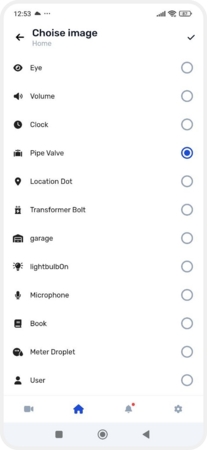
Choose an icon for the widget and confirm by tapping the checkmark
-
Specify which users can view and use this widget
 5. Tap the checkmark in the top right corner to save all settings
6. Pin the widget to the main screen by tapping icon  next to the widgets.
next to the widgets. 
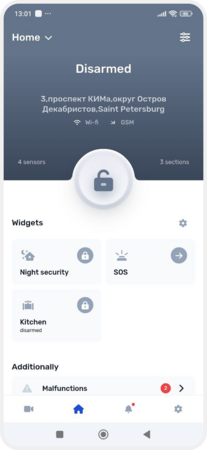
Pinning a widget to the screen
How to add a relay control widget
To control a lock, light, siren, or other connected device, set up a relay control widget:
1. On the main screen of the object, tap the gear icon above the pinned widgets.
2. Select Add widget
3. From the list, choose the widget type Management relay

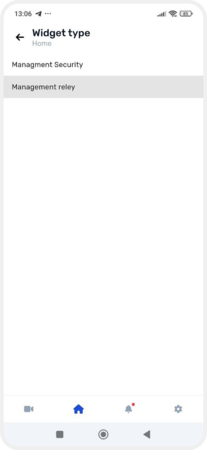
Adding a relay control widget
4. On the widget configuration screen:
-
Enter a name for the widget, e.g., "Open the gate"

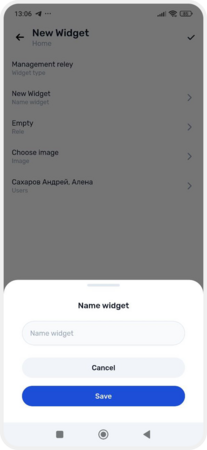
Relay control widget settings
-
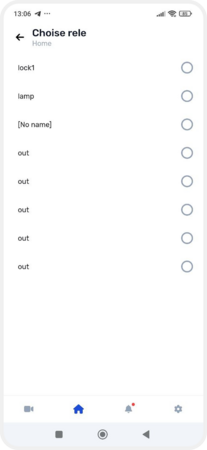
Select the output you want to control. After selection, tap the checkmark in the top right corner to save
-
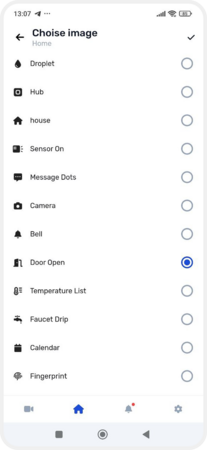
Choose an icon for the widget and confirm by tapping the checkmark
-
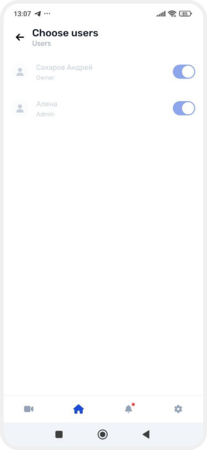
Specify which users can access this widget
 5. Tap the checkmark in the top right corner to save all settings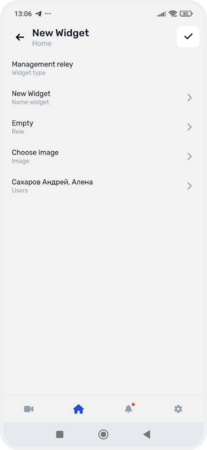
6. Pin the widget to the main screen by tapping icon next to the widgets.
next to the widgets. 
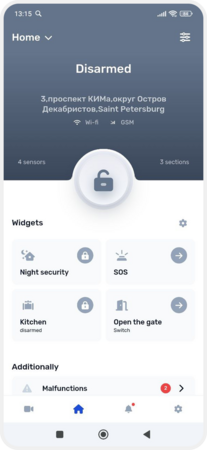
Pinning a widget to the screen
Displaying widgets on the main screen
Once you've added and configured widgets, they will appear on the main screen of the object.
The "Night Security" and "SOS" widgets are added automatically and always appear first. They are pinned by default and do not require additional configuration.
All other widgets you create can be rearranged. Customize the order to your preference by holding a widget and dragging it to the desired position on the screen.

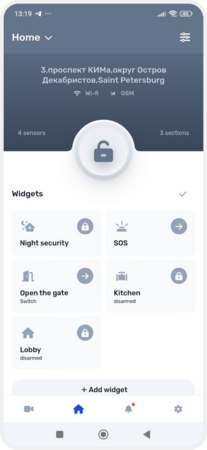
Example of moving widgets
How to edit a widget
To modify an existing widget — such as renaming it, changing its icon, or updating the zone or output:
1. On the main screen of the object, tap the gear icon above the pinned widgets
2. Find the widget you want to edit and tap on it
3. On the widget settings screen, you can:
— change the widget's name
— select a different icon
— modify the selected sections or output
— adjust user access permissions
— disable the widget — this will remove it from the main page but not delete it. To re-enable:
1. Go to Object settings
2. Select Widget management
3. Find the desired widget and enable it using the toggle switch
4. Tap the checkmark in the top right corner to save changes


Editing a widget
How to delete a widget
If you no longer need a widget, you can easily delete it:
1. On the main screen of the object, tap the gear icon above the pinned widgets
2. Find the widget you want to delete
3. On the widget settings page, tap Delete widget at the bottom of the screen
4. Confirm the deletion — the widget will be removed from the main screen
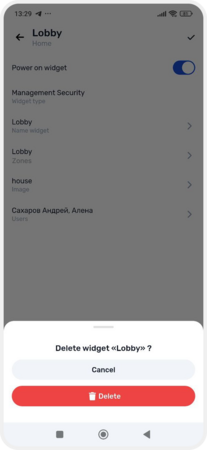
Deleting a widget