
How to invite users and set access rights
To keep your object secure and well-managed, you can invite others — family members, coworkers, or staff — to help manage it. Each user can be assigned a specific role with a defined level of access: some may only arm or disarm security, while others can fully manage settings.
In this article, you’ll learn how to:
There are three roles available in the system, each with its own level of access:
Object owner
The person who created the object and added the hub. The owner has full control, including:
-
Managing security and viewing the event log
-
Editing and deleting the object
-
Changing all settings
-
Updating the hub firmware
-
Adding, removing, and configuring all devices
-
Inviting and removing users, and assigning admin rights
Object admin
Appointed by the owner. Admins have nearly the same permissions as the owner, except:
-
Cannot delete the object
-
Cannot remove the owner
-
Cannot assign admin roles to others
Guest
Invited users with limited permissions. For example, a guest can arm or disarm security, view events, and control specific sections or outputs. Owners or admins can fine-tune which functions are available to each guest.
To give someone access to your object:
1. Go to Object settings → Users
2. Tap Add user
3. Enter the person’s email address
4. Choose a role — Admin or Guest
5. Select which permissions the user should have
6. Tap Send invitation
The invited user will receive an email with instructions. If they already have the app installed, they’ll see an in-app notification.



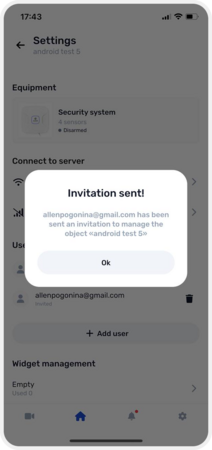
Inviting a user
The invited user will receive an email with instructions. If they already have the app installed, they’ll see an in-app notification.


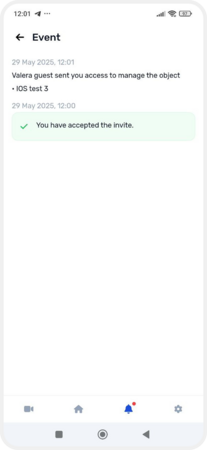
In-app notification about granted access
To track whether a user has accepted the invitation:
1. Go to Object settings → Users
2. You’ll see a status next to each invited user (e.g., “Invited”)
Once the user accepts the invitation, they’ll appear in the list of users for that object.
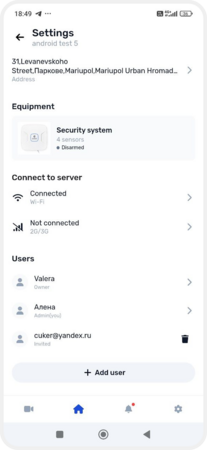
Invited user status
To adjust what a guest user can access:
1. Go to Object settings → Users
2. Tap on the guest’s name to open their user card
3. You’ll see a list of available functions
4. Use the toggles to enable or disable access to each function
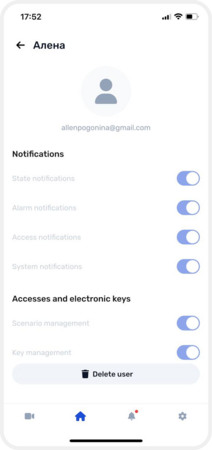
Editing guest permissions
To see everyone who has access to your object:
-
Go to Account settings

-
Open the Users tab
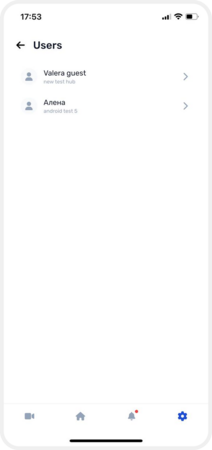
Here, you can review all accepted users and manage their access at any time.

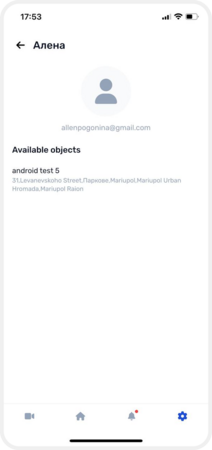
User information
To remove someone’s access to your object:
1. Go to Object settings → Users
2. Select the user you want to remove
3. Tap Delete user
4. Confirm the delete
Once removed, the user will no longer have access to your object.
Deleting user